RESTORA360 PRODUCT · KITCHEN DISPLAY
One queue.
Everything the kitchen needs.
A kitchen does not need more information. It needs one board that is right, in the order things were actually ordered.
- Built for
- Restaurants & cafés · Bakeries · Food trucks
- Works on
- Web · Windows · Android tablet
- Languages
- Swedish · English · Norwegian · Danish
- Markets
- Sweden · Norway · Denmark
In short
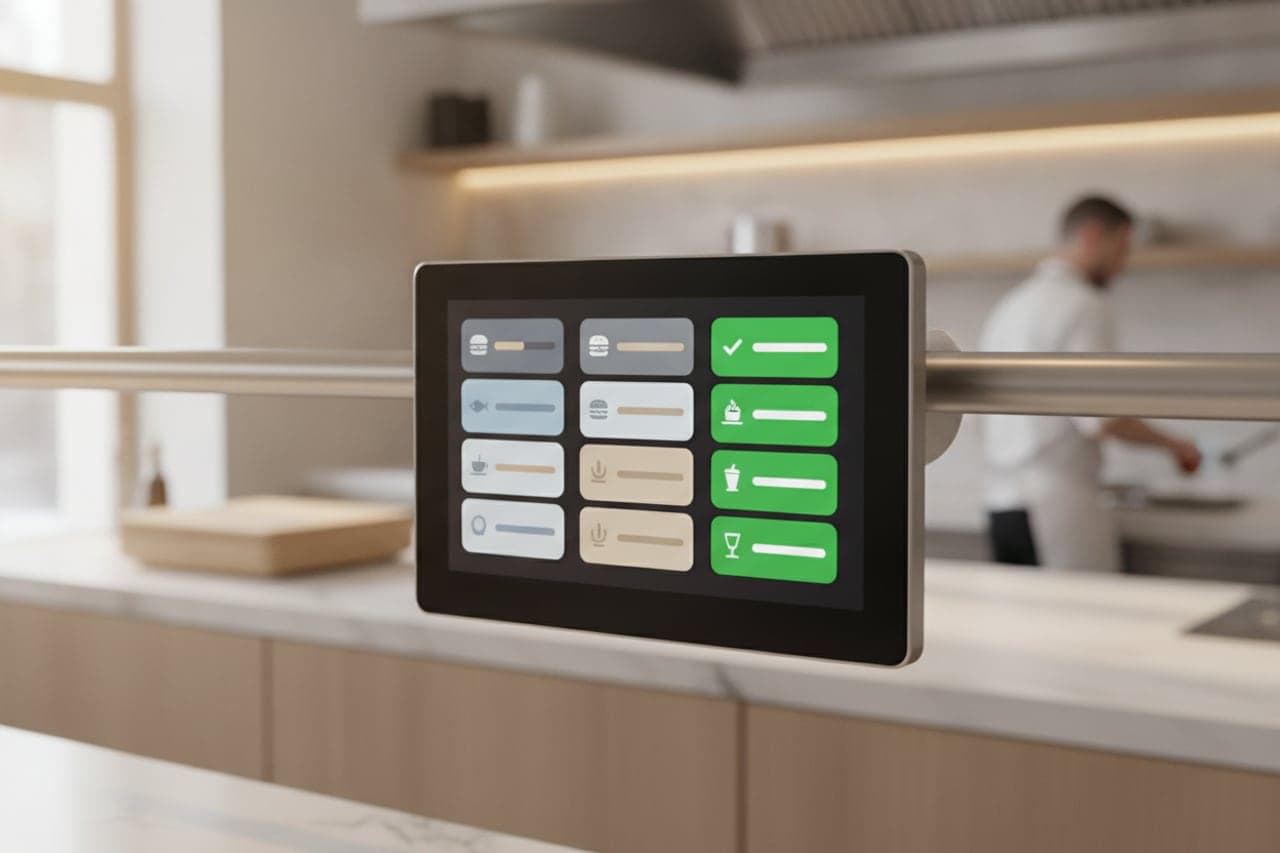
Restora360 KDS is the kitchen’s screen. Orders from the counter, the website and the kiosk arrive in one queue under one order-number series, routed to the station that cooks them. Tickets age against the time the guest was promised rather than a flat timer, and marking a ticket ready tells the counter, the guest and the order-status board at the same moment.
KEY FEATURES
What you get with Kitchen display.
- 01
Every channel in one queue
Counter, online, kiosk and table orders share one order-number series and one board — nothing jumps the line because it came in through a different door.
- 02
Routed to the station that cooks it
Cold, grill, fryer, bar, pass: each station sees its own lines and marks them off, while the pass sees the whole ticket.
- 03
Late measured against the promise
A ticket’s colour ramps towards the time the guest was actually told, not a flat ten minutes — so a pre-order for six o’clock is not red at twenty past five.
- 04
Changes arrive, not surprises
An added course appends to the ticket already on the board. A cancelled ticket refuses to be started and never tells the guest it is ready.
- 05
Allergens where they matter
Modifiers, notes and allergen flags sit on the line they belong to, at a size a cook reads across a pass.
- 06
Runs where you put it
A browser on a spare screen, a Windows machine, or an Android tablet clamped over the pass — the same board, three ways.
HOW IT WORKS
From first login to everyday use.
Put a screen in the kitchen
Browser, Windows or Android. It pairs with a code and remembers its station.
Name your stations
Say which categories each station cooks; lines route themselves from then on.
Cook the queue
Start, bump and recall with one tap, while the ticket ages against the promised time.
Tell everyone at once
Marking ready updates the counter, the guest and the order-status screen in the same moment.
WHO IT IS FOR
The trades that run on it.
Every trade uses the platform differently. See which products go together for yours.
QUESTIONS
Frequently asked questions
Do online and kiosk orders appear on the same board?
Yes. Counter, online, kiosk and table orders all share one queue and one order-number series.
What hardware does the kitchen display need?
Any screen that can run a browser, a Windows machine, or an Android tablet. There is no separate KDS box to buy.
How does it handle an order placed for later?
The ticket ages against the time the guest was promised, so it only becomes urgent as that time approaches rather than the moment it arrives.
What happens if an order is cancelled?
The ticket is marked cancelled and refuses to be started, and the guest is never told that a cancelled order is ready.
NEXT STEP
See it running on your own business.
Tell us how you work today and we will show you this product in your own flow — and say honestly if you do not need it.