Skip to content
User guide

Staff & Shifts, end to end — the complete guide

How the owner plans, publishes and pays. How your staff live with it on their phones. How a Skatteverket inspection actually goes. And the Swedish rules underneath — in plain English, with a real screenshot for every step, on web and mobile.

Updated 19 July 202635 min readSweden edition · EnglishReal product screenshots
About Staff & Shifts Start free trial

Chapter 1

Before you start — the three surfaces

Staff & Shifts is one system worn three ways. The owner or manager runs everything from the web dashboard. Each staff member has a personal portal on their phone (a web link — no install needed — or the native Android Staff app). And the payment terminal at the till is where people physically clock in and out, so the legally required staff register fills itself from real presence, not from the rota.

Everything hangs off one employee record. The same person card carries the dashboard role, the scheduling job role and hourly rate, the HR profile (personnummer, date of birth, bank details — all encrypted), and the 4-digit clock-in code. There is never a second copy of an employee to keep in sync.

Who uses what

The owner and managers work in the dashboard under the Team group: Staff & Permissions, Staff scheduling, Shifts & Servers, Timesheets, Payroll & Tips, Staff Register (personalliggare), Labour Compliance, Training, Performance, and Announcements & Chat.

Staff use the worker portal — a phone-first page you share as a link (yourrestaurant address + /worker/your-restaurant-id) or the Android Staff app. They sign in with the same 4-digit code they use to clock in. From there they see published schedules, request time off, swap shifts, read payslips, take training and chat with the manager.

The payment terminal (the Android till app) hosts the clock-in gate: a staff member taps their code to start a shift, and every sale after that is attributed to them. The terminal also carries a read-only staff register view for Skatteverket inspections — reachable without any code.

  • Owner/manager → web dashboard (any browser, laptop or tablet).
  • Staff → worker portal (phone browser or Android Staff app), signed in with their 4-digit code.
  • Clock in/out → only on the payment terminal at the venue. That is deliberate: the register must reflect real presence in the venue, so there is no clock-in from home.

The 4-digit code — one code, three doors

Each staff member gets a personal 4-digit code, set by the manager on the Shifts & Servers page. The code is stored only as a cryptographic hash — nobody can read it back, it can only be reset.

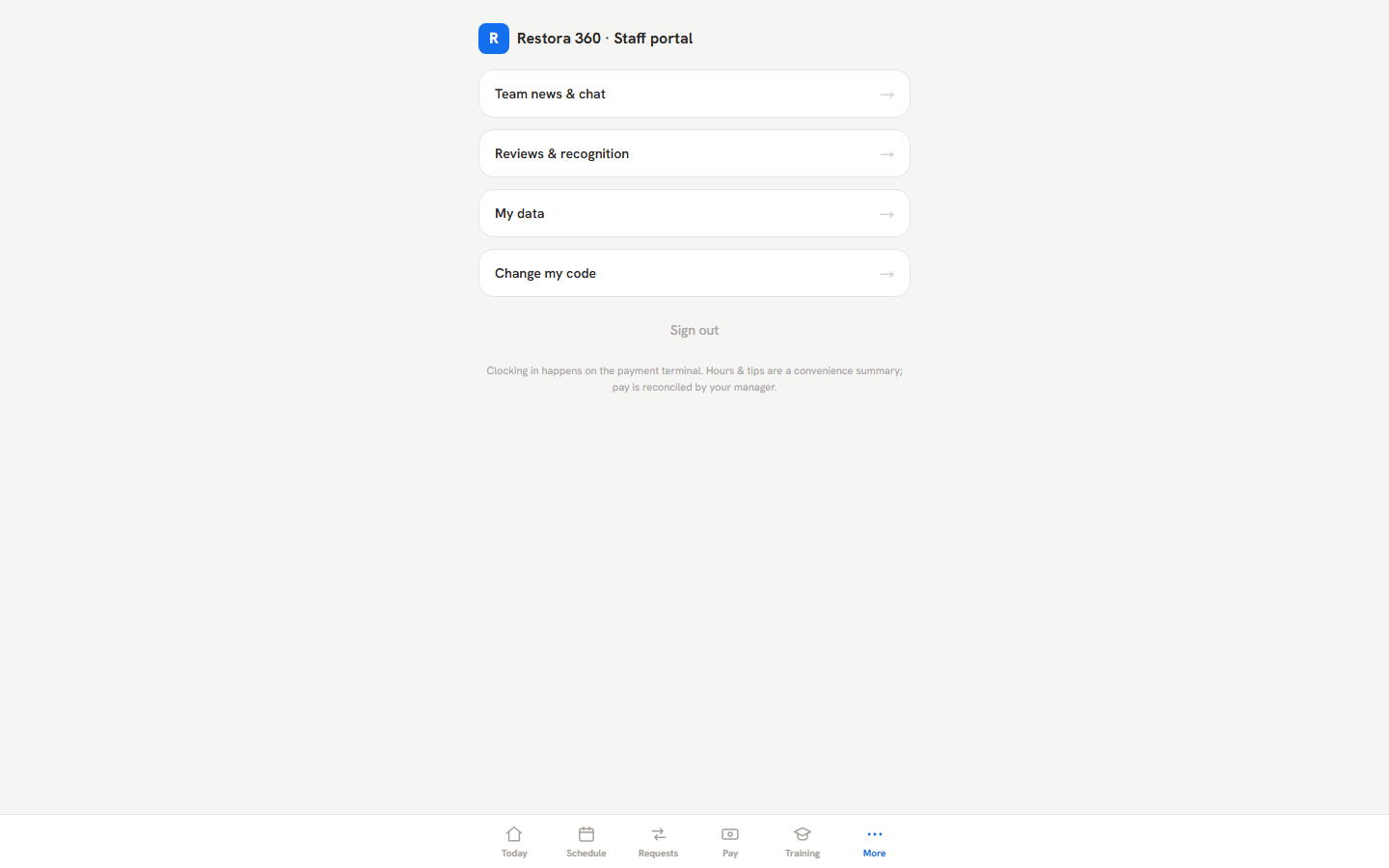
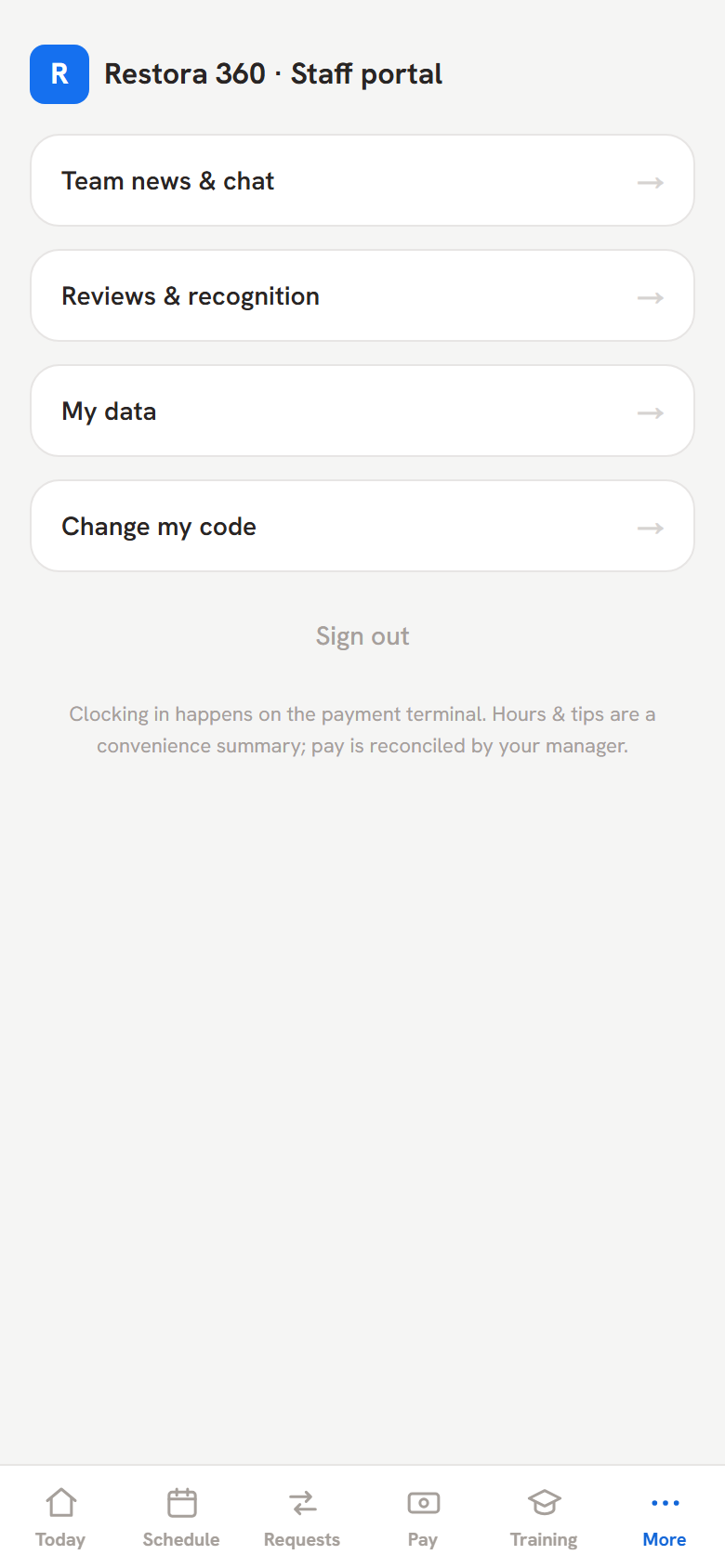
That one code clocks the person in on the terminal, signs them into the worker portal and Staff app, and unlocks the personnummer column of the staff register during an inspection. Staff can change their own code from the portal (More → Change my code) or on the terminal.

About the examples in this guide

Every screenshot in this guide is a real capture from a demo restaurant, "Luigi's Pizzeria", with three fictional employees: Luigi Bianchi (manager), Giuseppe Verdi (chef) and Sara Nilsson (server). All personal data shown — including personnummer — is fictional demo data.

For each step you will see the web view (what a manager sees on a laptop) and the mobile view (the same surface on a phone). The dashboard is fully responsive, so managers can approve requests or check the register from a phone too.

Chapter 2

The owner guide — from first hire to locked payroll

This chapter walks the full management loop in the order you will actually live it: set up your people once, plan each week, run each day, then close each pay period. Follow the steps top to bottom the first time; after that, your week is mostly steps 4–9.

Step 1 — Add your team

Dashboard → Team → Staff & Permissions

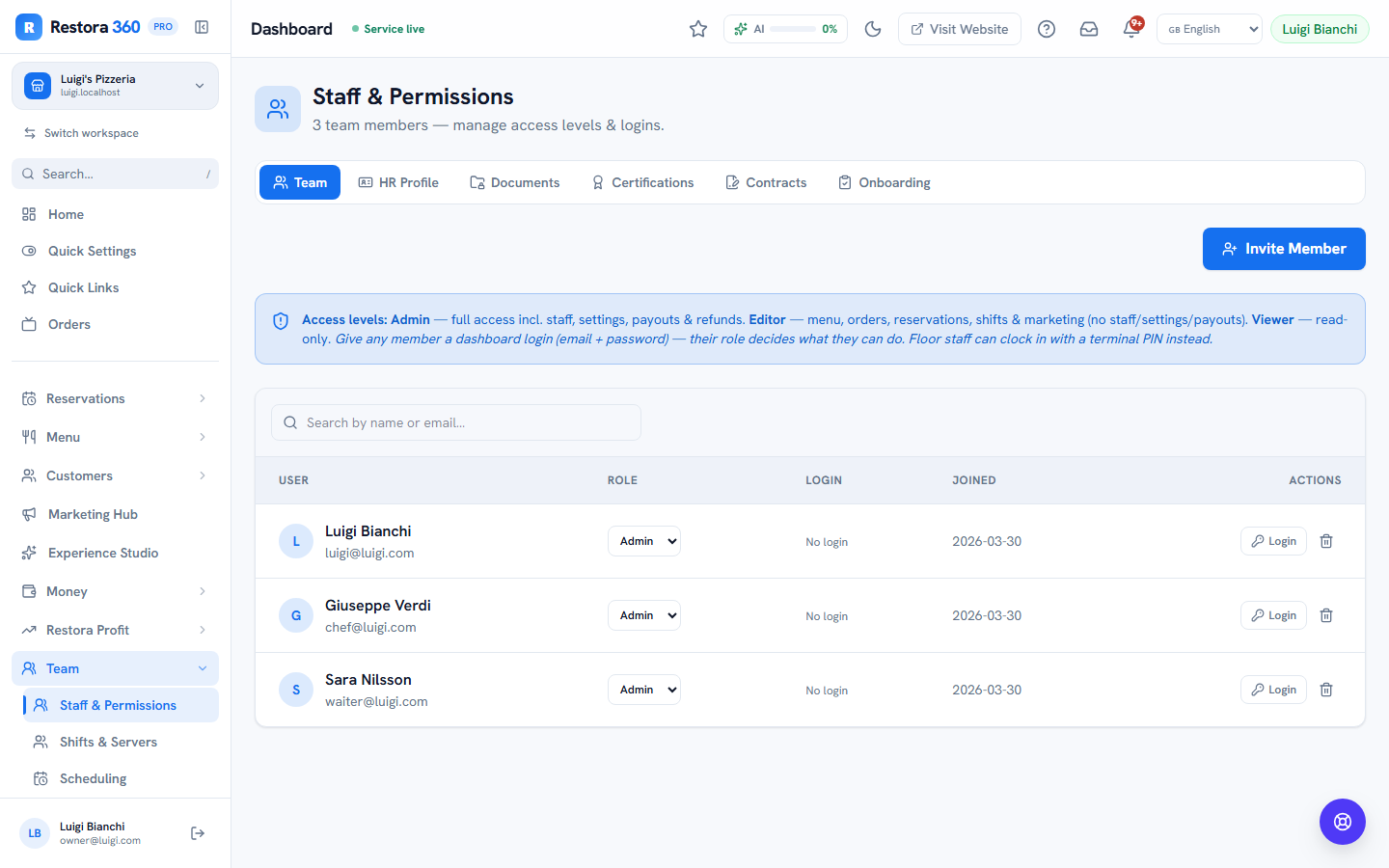
Start on the Team tab. Add each employee with their name, email and phone, and give them a dashboard role only if they should ever open the management dashboard: admin (everything), editor (day-to-day pages) or viewer (read-only). Waiters and kitchen staff usually need no dashboard login at all — the worker portal is theirs, and it only needs the 4-digit code.

You can also create, reset or revoke a dashboard password for a staff member here — useful for a head chef or shift leader who helps with scheduling.

  • Dashboard role (admin/editor/viewer) = what they can do in the back office.
  • Job role (Chef, Server, Bar…) = what they do on the floor; set in step 3 or in Scheduling → Staff settings.
  • Deactivate instead of delete when someone leaves — history, payroll and the statutory register must survive (see the legal chapter).
Staff & Permissions page showing the team list with roles — web view
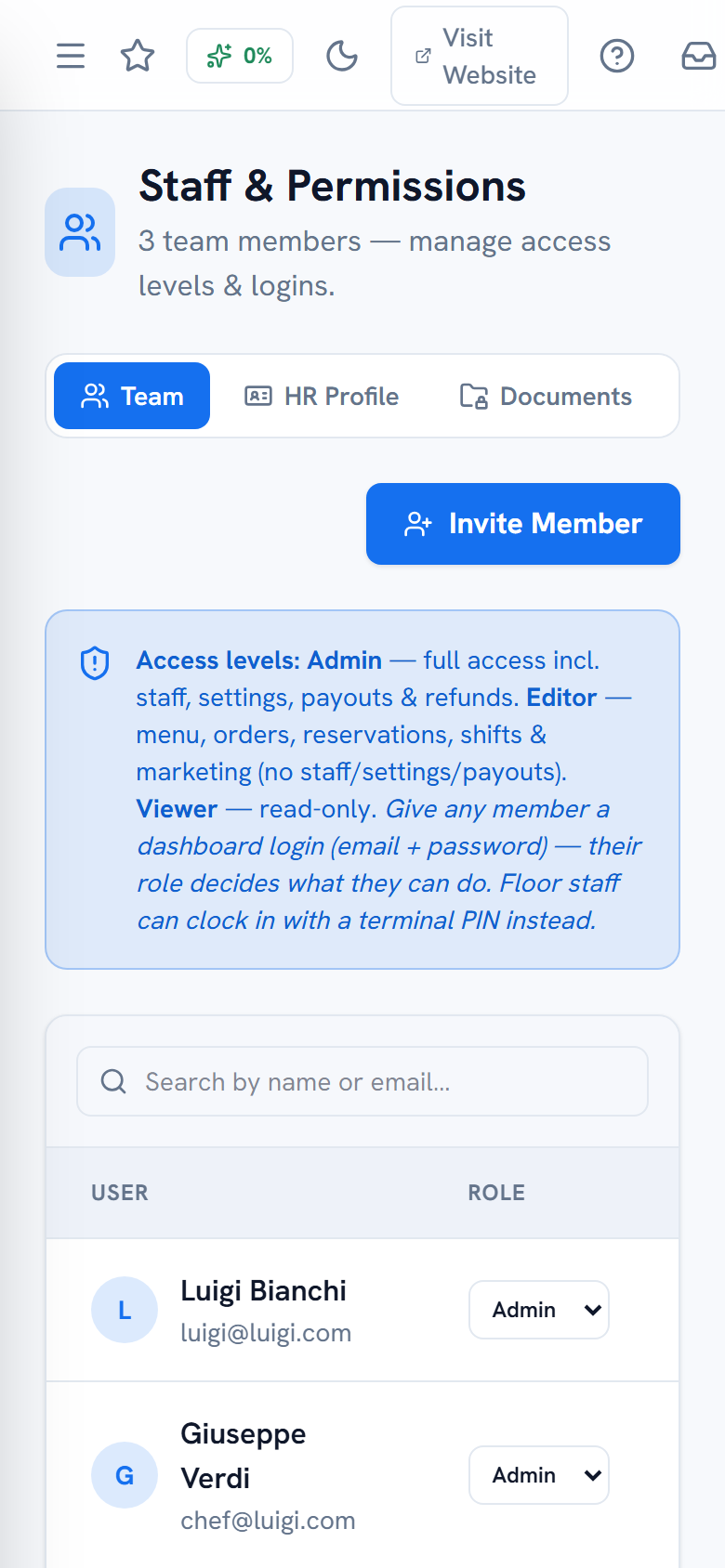
Staff & Permissions page showing the team list with roles — mobile view
Mobile view
The Team tab: three employees, their roles, and per-person login controls.

Step 2 — Complete each HR profile (personnummer!)

Dashboard → Team → Staff & Permissions → open a person → HR Profile

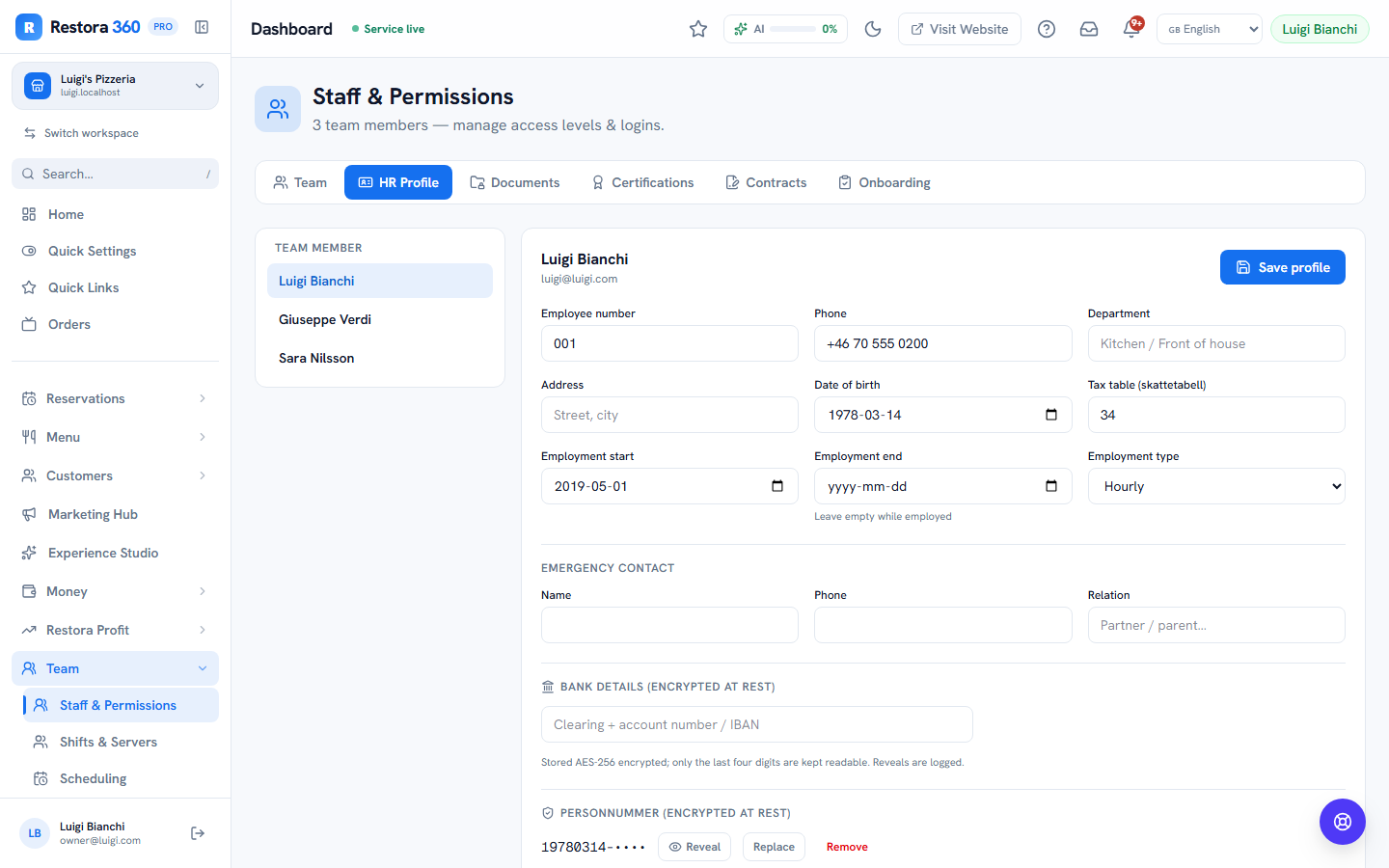
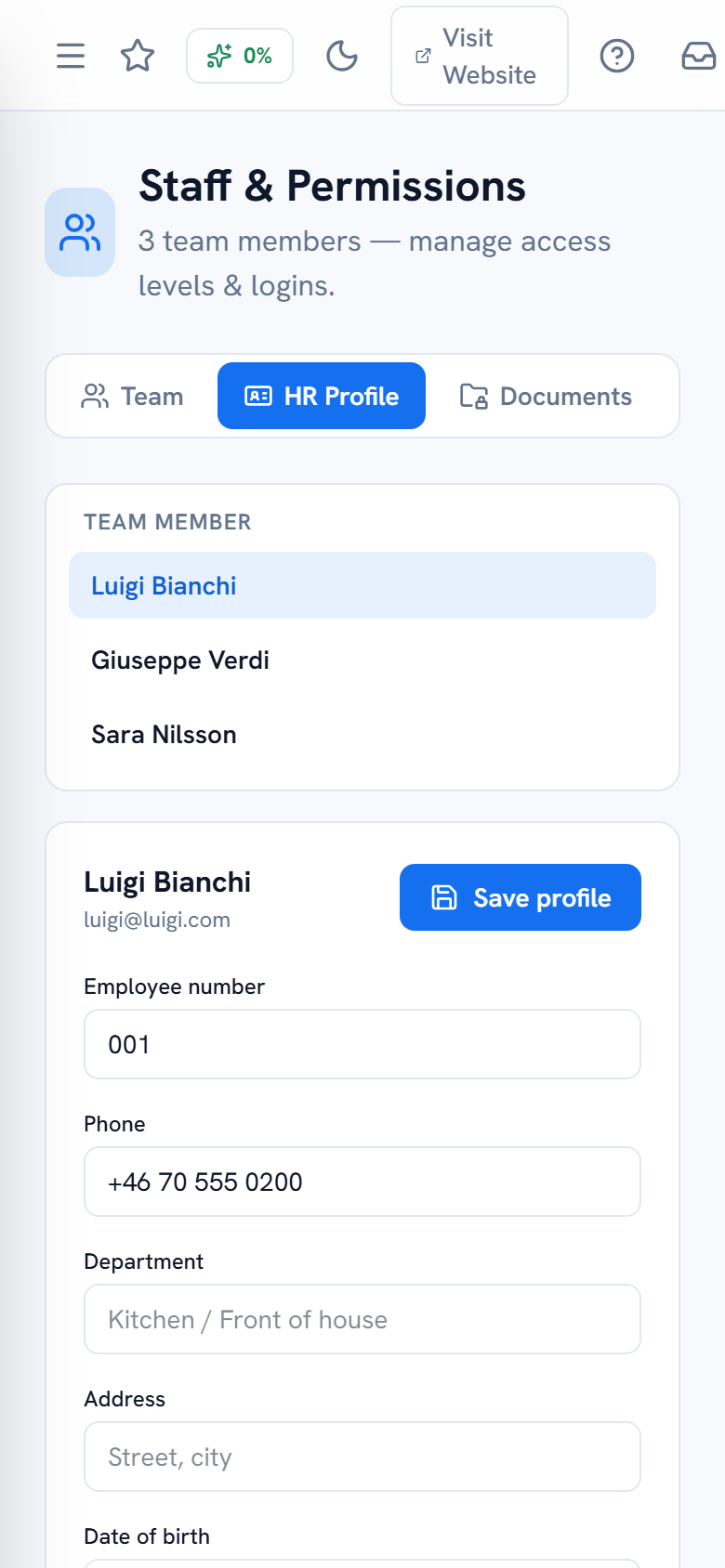
Open a team member and fill the HR Profile tab: employee number, date of birth, employment start date, employment type (hourly or salaried), hourly rate, Swedish tax table, and — important in Sweden — the personnummer.

The personnummer is legally required on the staff register (personalliggare) and on the monthly per-employee tax declaration (AGI). Restora 360 validates the number structurally, then stores it encrypted (AES-256-GCM); everywhere in the product it displays masked (YYYYMMDD-••••). Only holders of the HR permission can reveal the full number, and every reveal is written to the audit log.

The date of birth matters beyond payroll: it drives the minor-worker protections (under-18 rules) in the Labour Compliance scanner.

HR Profile tab with masked personnummer, rate and employment fields — web view
HR Profile tab with masked personnummer, rate and employment fields — mobile view
Mobile view
The HR profile: personnummer stored encrypted and shown masked; hourly rate and tax table feed payroll.

Step 3 — Give everyone a clock-in code and share the portal

Dashboard → Team → Shifts & Servers → Clock-in PINs

On the Shifts & Servers page, set a 4-digit code for each person. From that moment they can clock in on the terminal and sign in to the worker portal.

The same page shows your worker portal link with a copy button. Send it in your staff group chat, or print it as a QR code for the staff room. Staff open it on their phone, tap in their code, and they are in — no app store, no account creation.

Clock-in PIN management and the worker portal share link — web view
Clock-in PIN management and the worker portal share link — mobile view
Mobile view
Set or clear each person’s code; the worker portal link is ready to share.

Step 4 — Build the week

Dashboard → Team → Staff scheduling

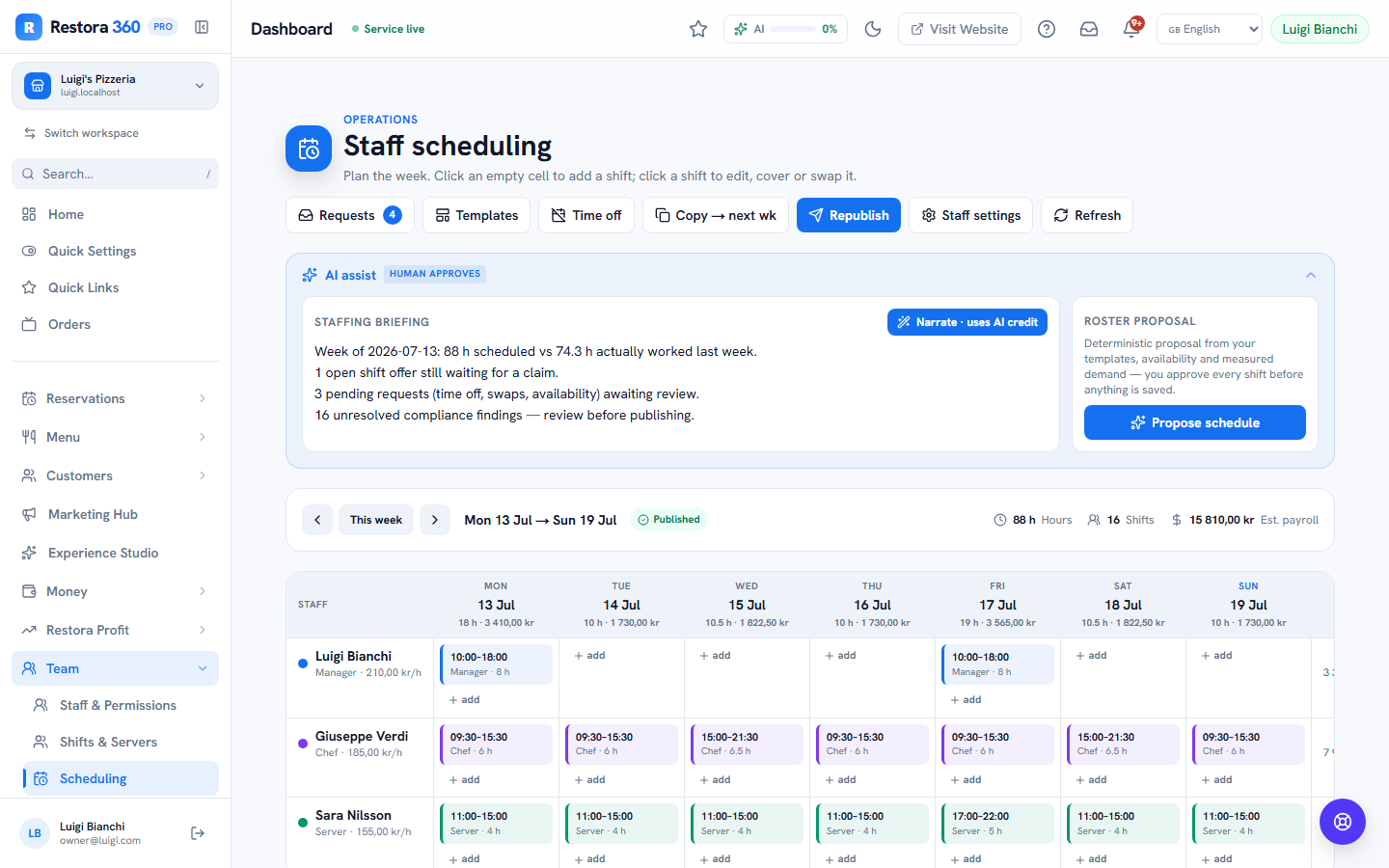
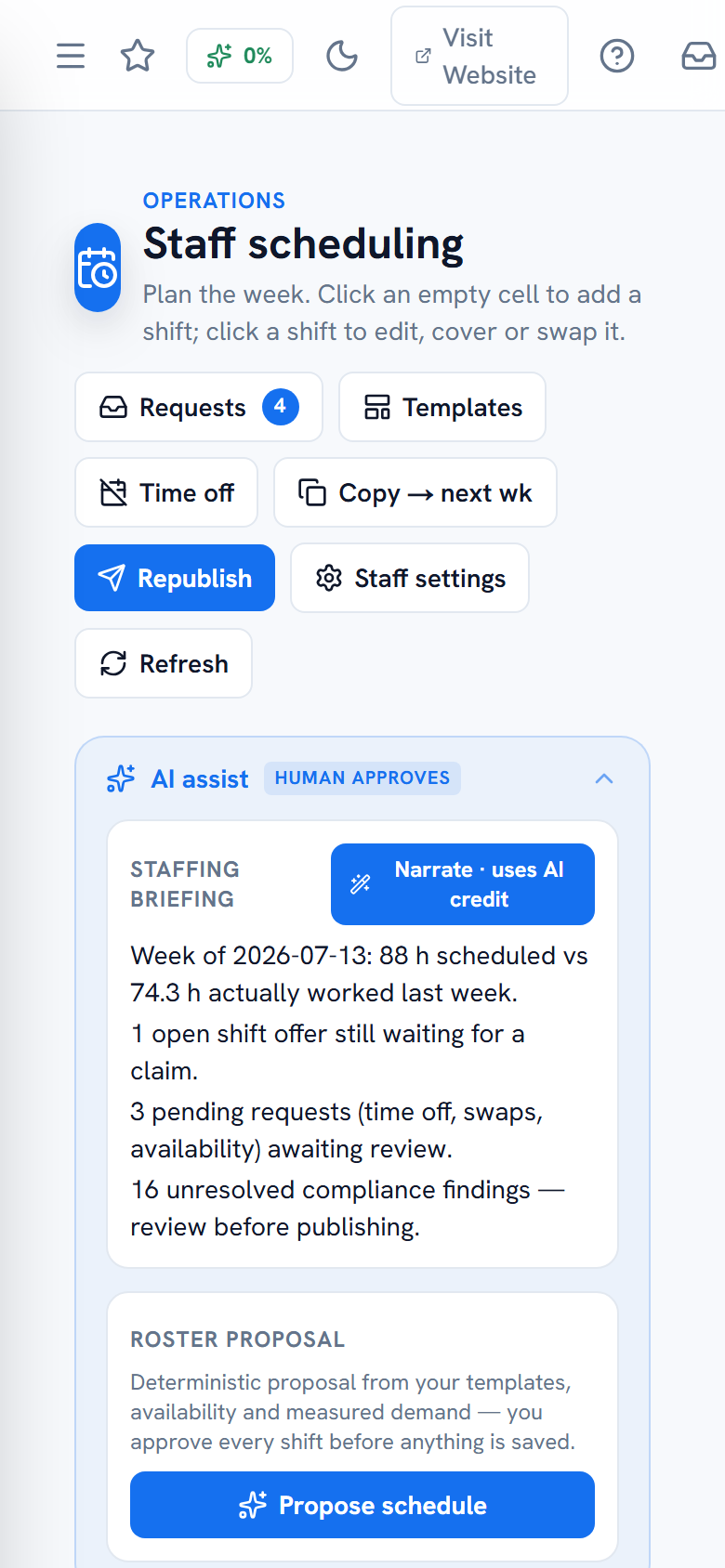
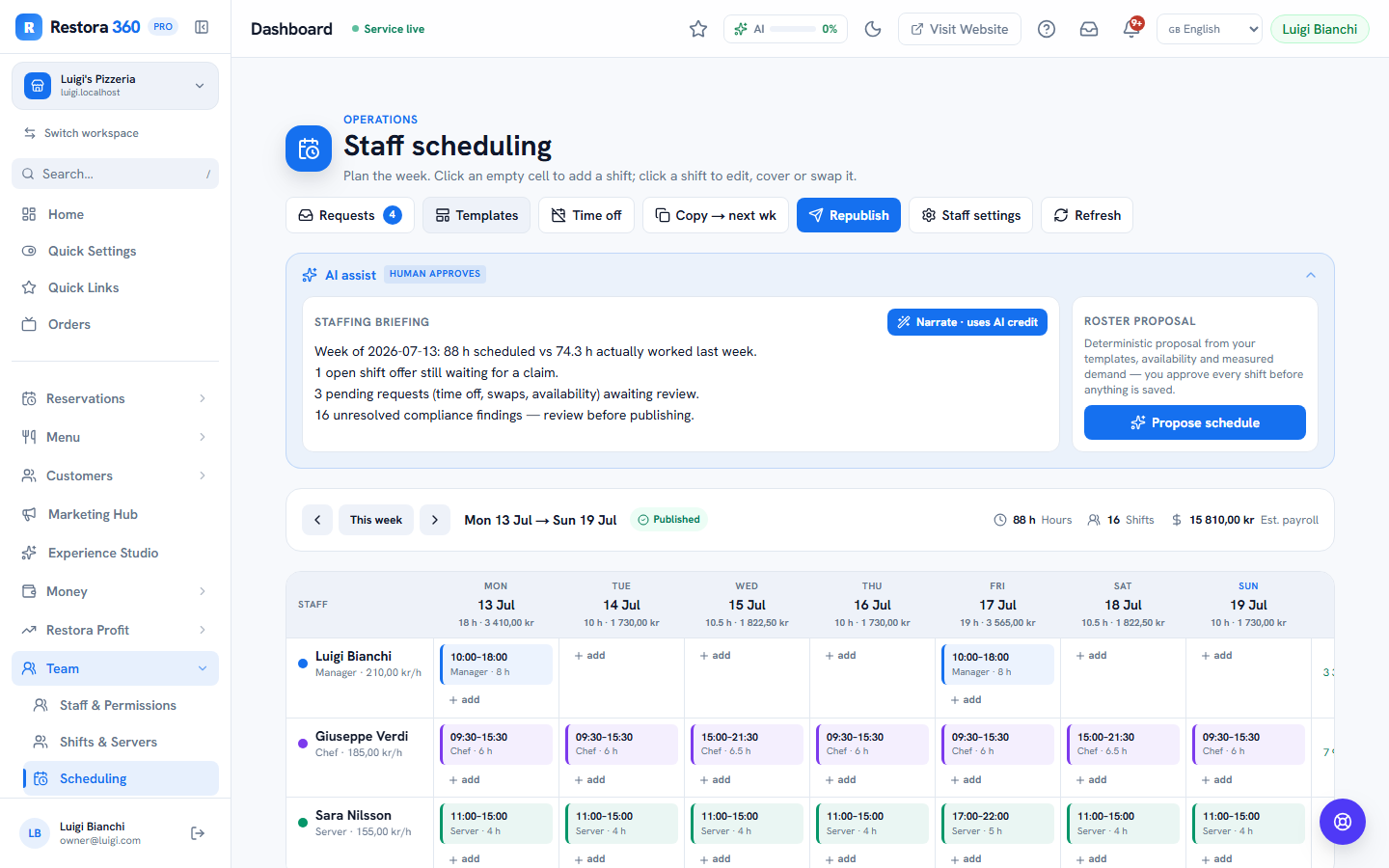
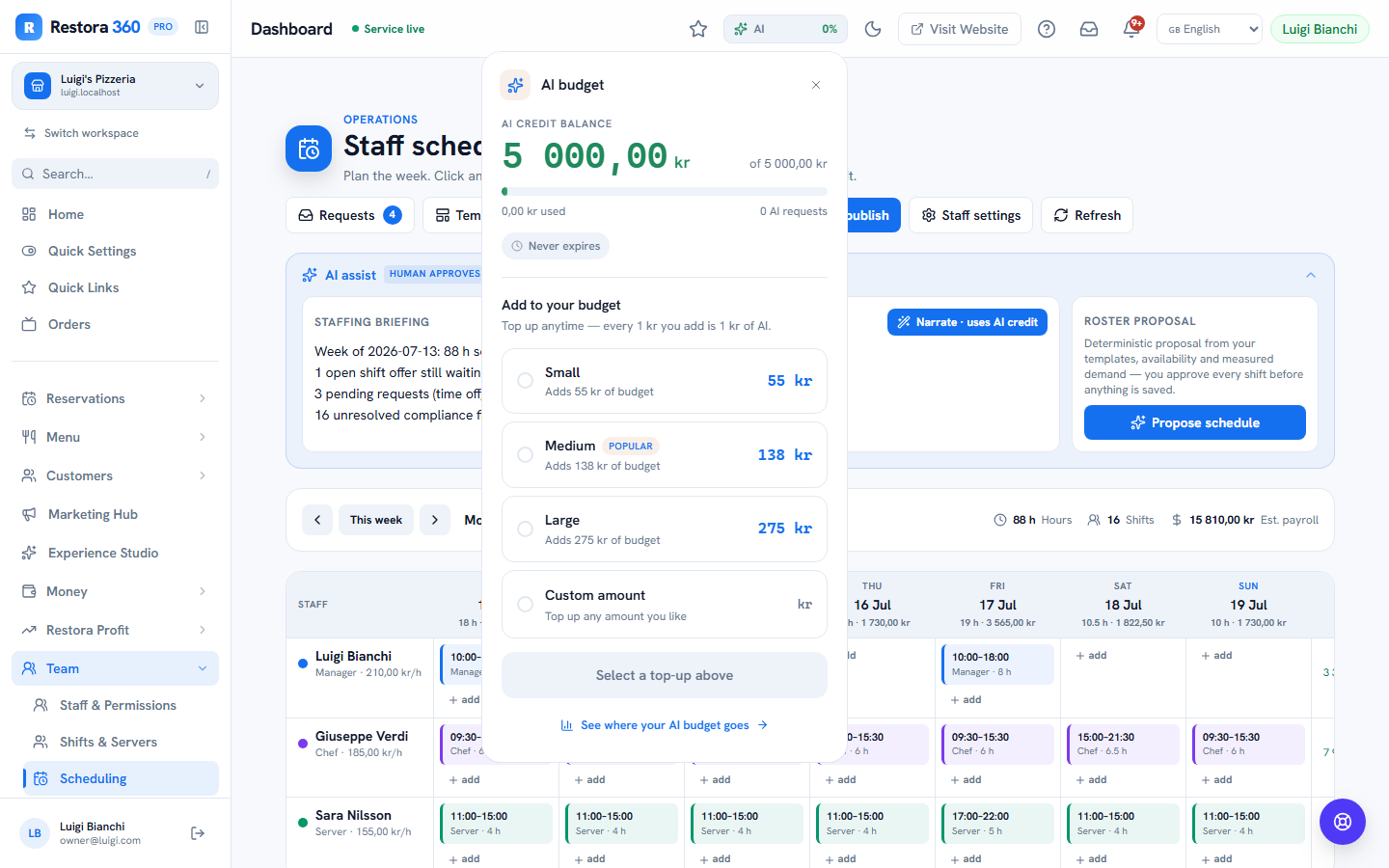
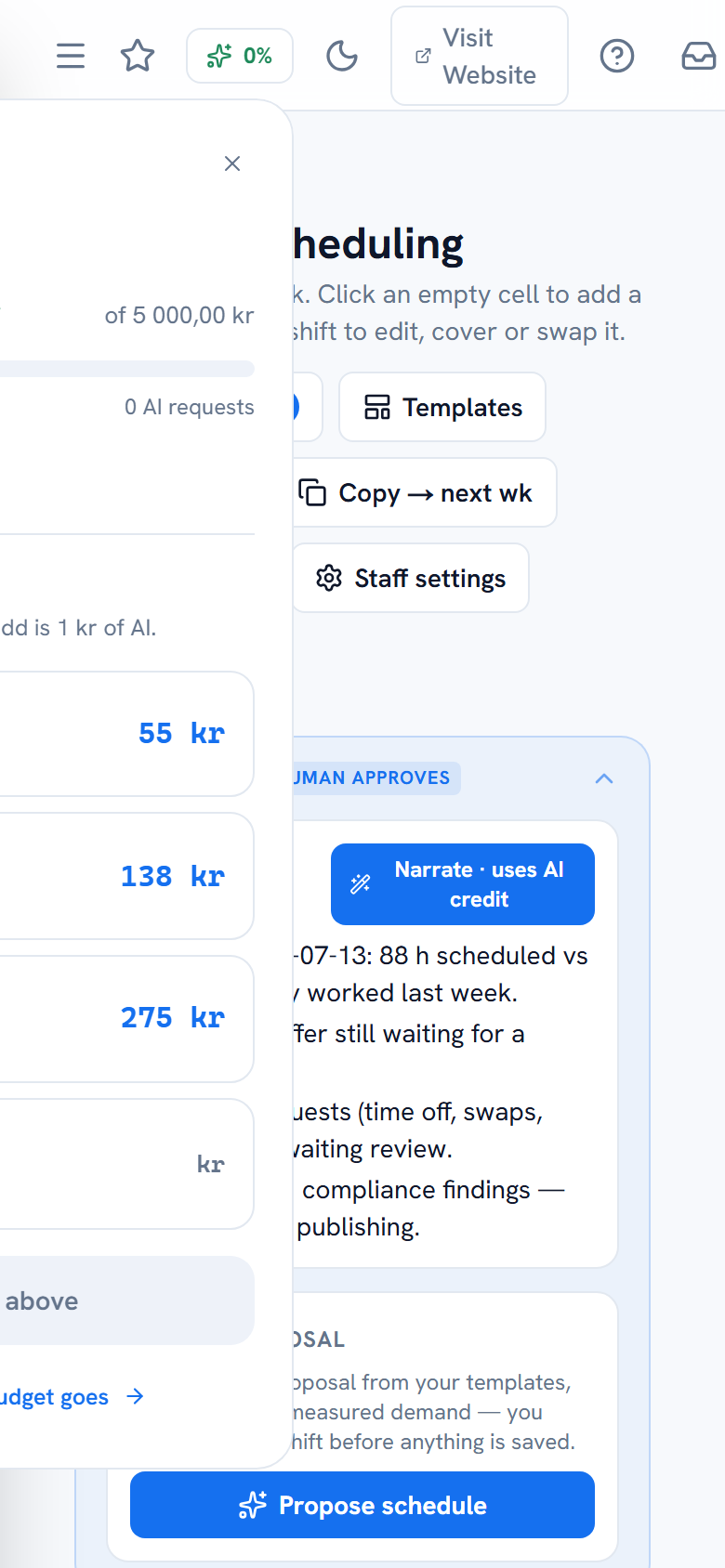
The scheduling page is a weekly grid: one row per person, one column per day, Monday-start. Click any empty cell to create a shift — pick start and end time, optionally override the job role for that shift ("Sara covers the bar on Friday") and add a note. Click an existing shift to edit, delete, or hand it to someone else.

As you place shifts, the page keeps live totals per person and per day — hours and estimated wage cost, computed from each person's hourly rate — so you see the week's labour cost while you build it, not after.

Conflicts are flagged as you type: a shift that overlaps the same person's other shift, or lands on approved time off, gets a red ring and joins the conflict counter in the header.

Weekly scheduling grid with shifts, totals and cost per day — web view
Weekly scheduling grid with shifts, totals and cost per day — mobile view
Mobile view
The week at a glance: shifts per person, hour and cost totals per day and per person.

Step 5 — The shift editor in detail

Staff scheduling → click a cell or a shift

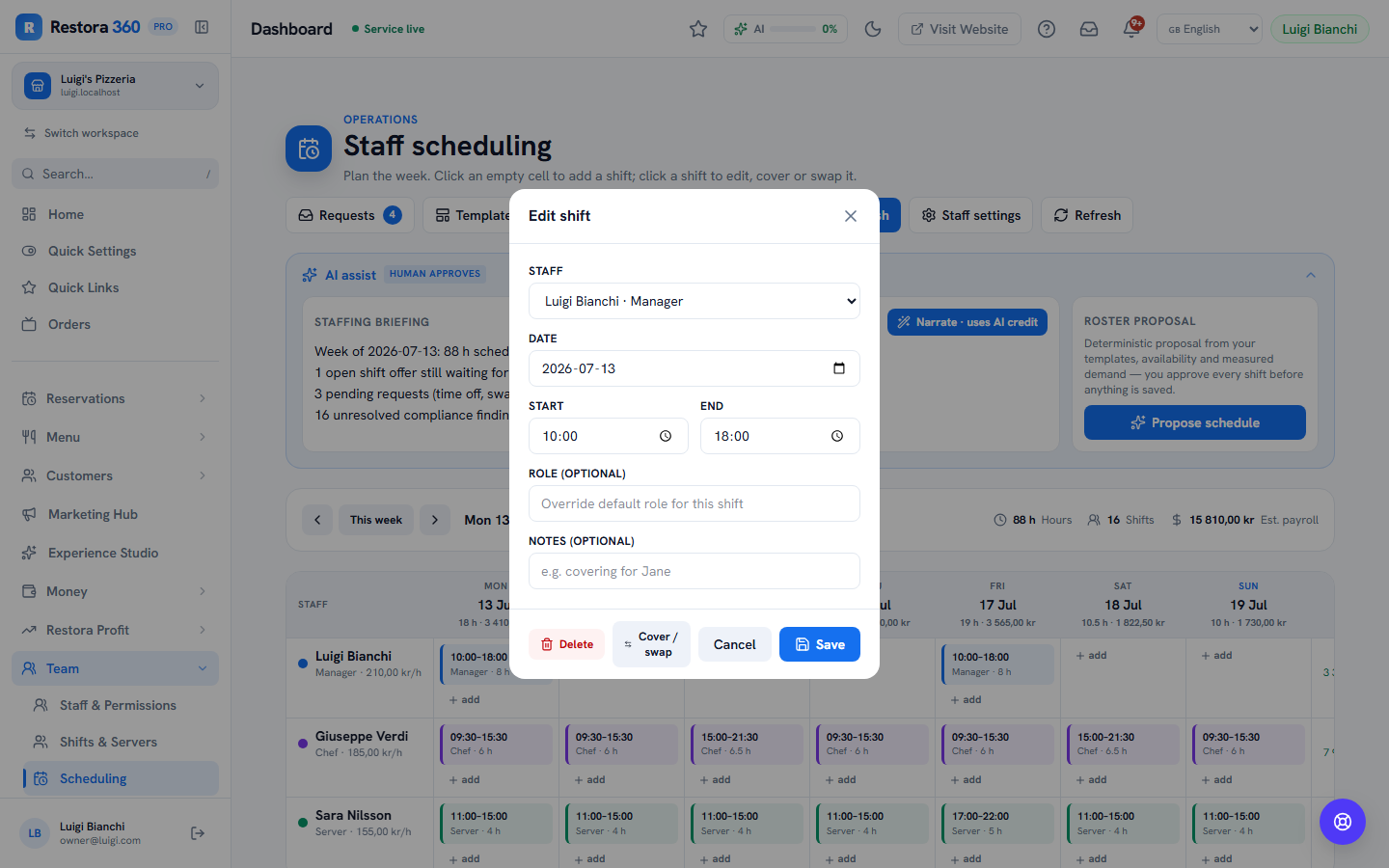
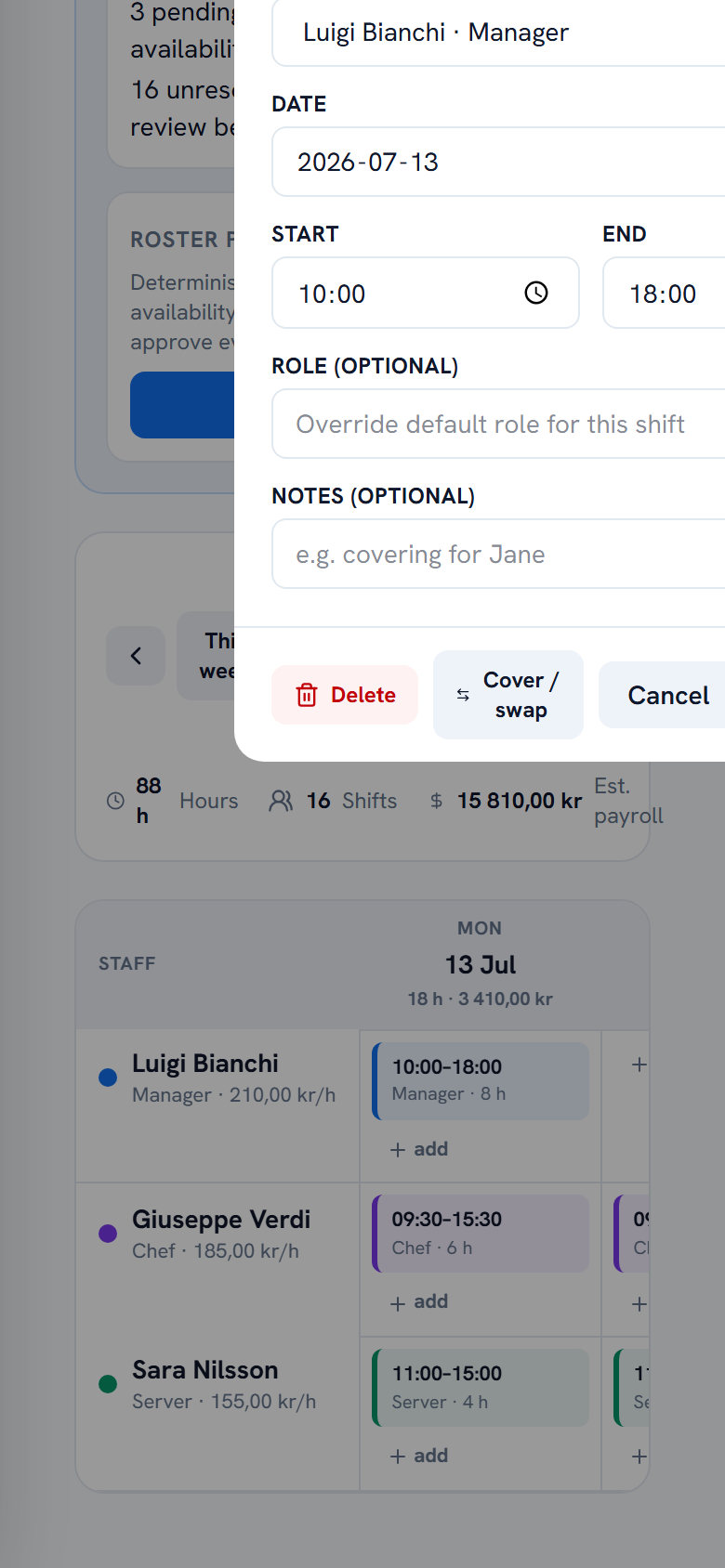
The shift editor is intentionally small: person, date, start, end, role override, notes. Two details are worth knowing. First, the role override only changes this one shift — the person's default job role stays untouched. Second, "Cover / swap" inside the editor lets a manager reassign the shift directly to a colleague — the same mechanic staff use to swap between themselves, but without the approval round-trip.

Shift editor modal with times, role override and notes — web view
Shift editor modal with times, role override and notes — mobile view
Mobile view
Create or edit a shift: time, role override for just this shift, and notes the worker sees.

Step 6 — Templates: build a normal week once

Staff scheduling → Templates

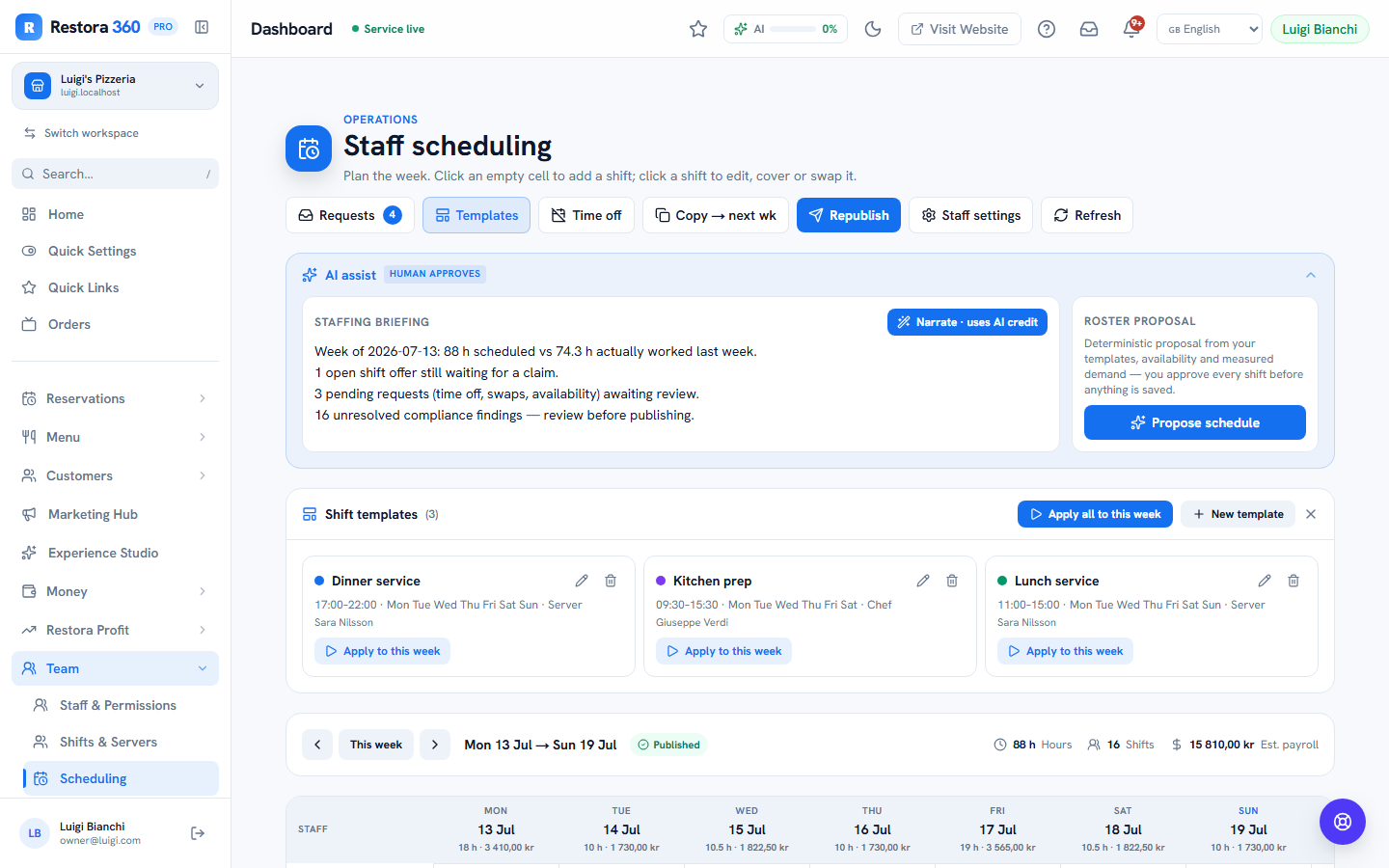
Most restaurants run the same skeleton week. Save it as templates — "Lunch service 11–15, Tue–Sun, default Sara", "Kitchen prep 09:30–15:30, default Giuseppe" — then apply the template set to any week with one click. Applying is idempotent: it never duplicates shifts that already exist, so you can apply, adjust by hand, and re-apply safely.

Shift templates panel with weekday sets and defaults — web view
Shift templates panel with weekday sets and defaults — mobile view
Mobile view
Templates: the standing weekly skeleton you stamp onto each new week.

Step 7 — Publish the week (staff see nothing until you do)

Staff scheduling → Publish

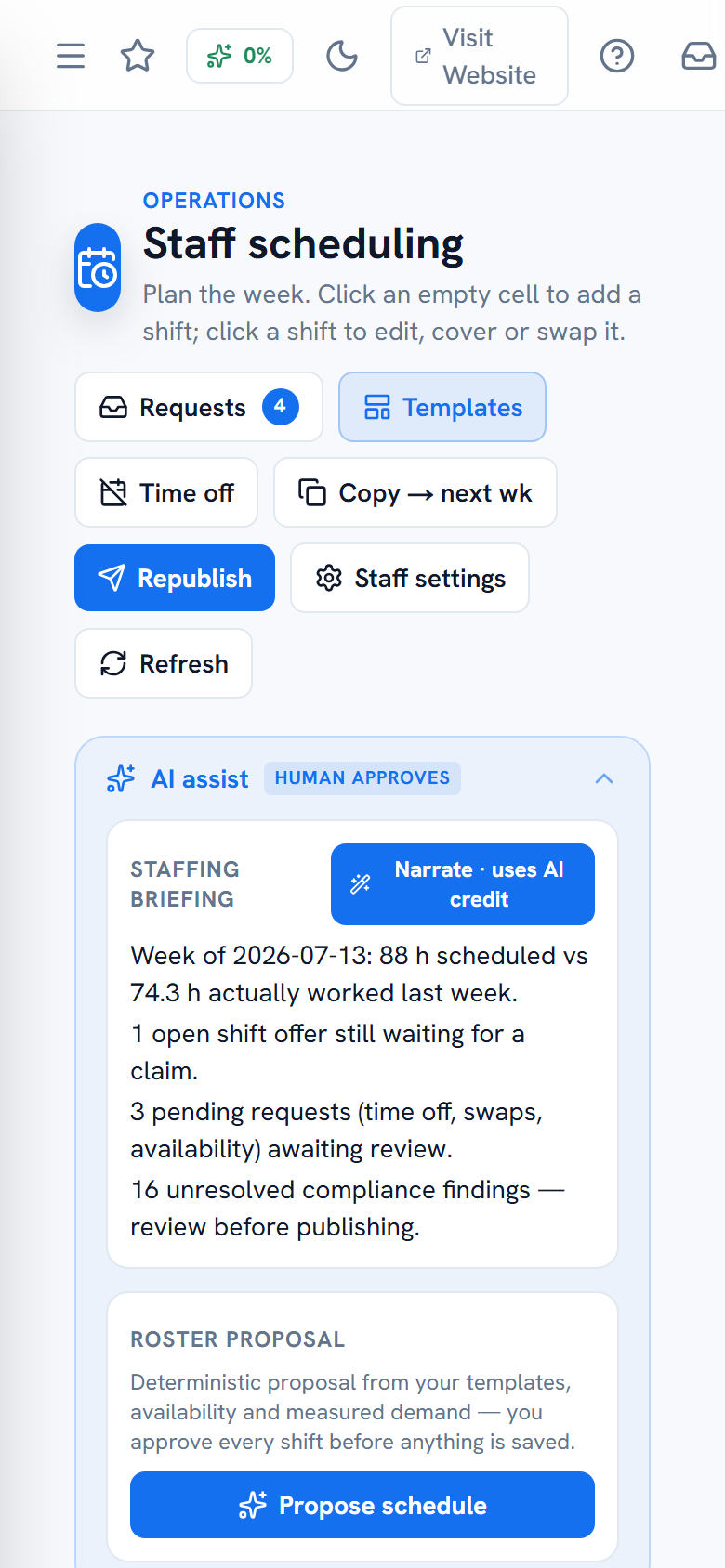
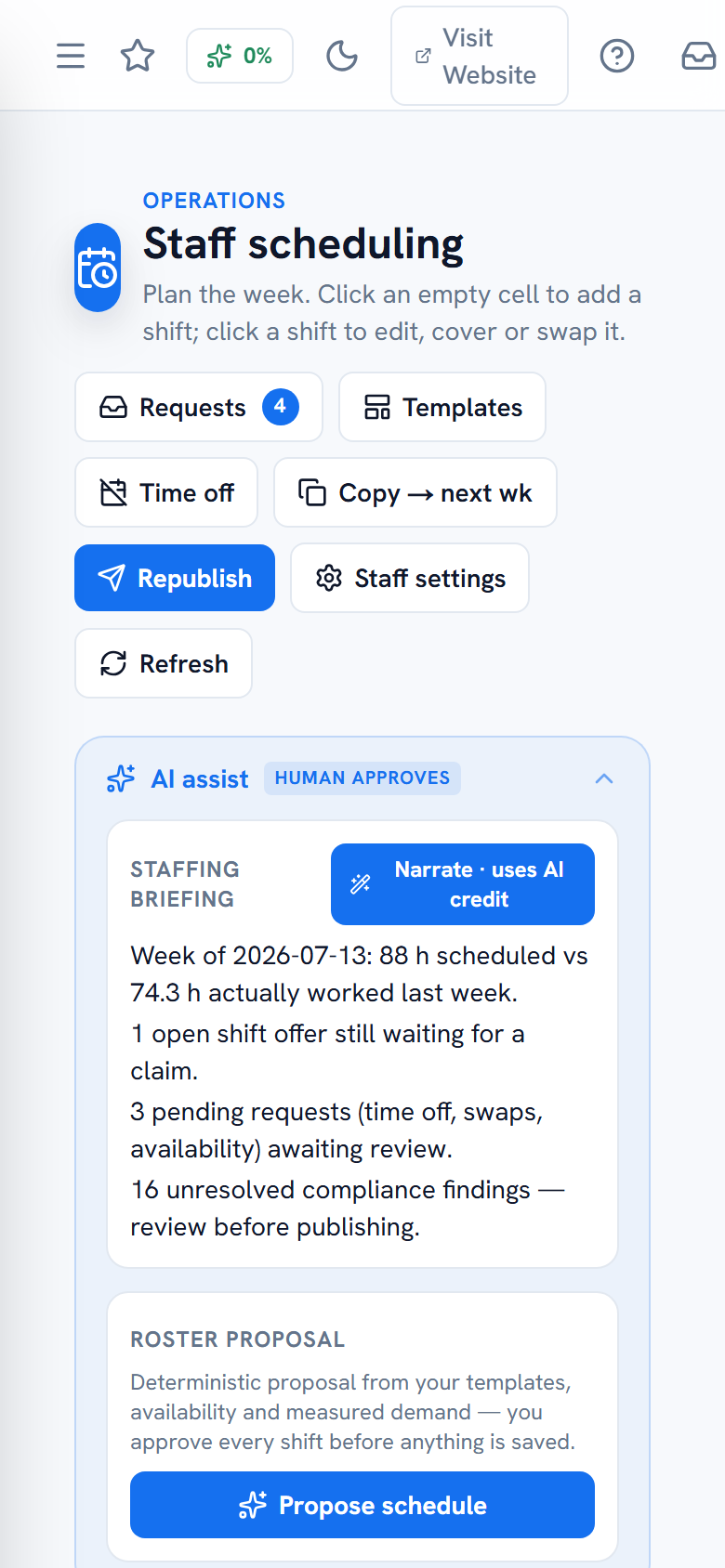
A week you are still building is a draft: completely invisible to staff. When you press Publish, the week becomes a published schedule period, every affected person is notified ("Your schedule is out") by email and app push, and the shifts appear in their portals.

Edit after publishing and the header offers Republish — only the people whose shifts actually changed are re-notified. If unresolved conflicts remain, publishing warns you and records that you chose to publish anyway.

Scheduling header showing the published week state — web view
Scheduling header showing the published week state — mobile view
Mobile view
Draft → Published: the moment the rota becomes visible and staff are notified.

Step 8 — Approve or decline requests

Staff scheduling → Requests (badge shows the pending count)

Everything staff ask for lands in one panel, newest first, in three groups. Time off: approve or deny vacation, sick and other leave — only approved time off blocks scheduling. Shift swaps: when you approve a swap, the system reassigns the shift for you. Availability: standing wishes like "I can't work Mondays" — approving one feeds the conflict detector, so future rotas warn you automatically.

Approvals are instant on the staff side: the request's status pill flips in their portal on the next refresh.

Requests panel with pending time off, swaps and availability — web view
Requests panel with pending time off, swaps and availability — mobile view
Mobile view
One inbox for time off, swaps and availability — approve, deny or delete.

Step 9 — Run the live day

Dashboard → Team → Shifts & Servers

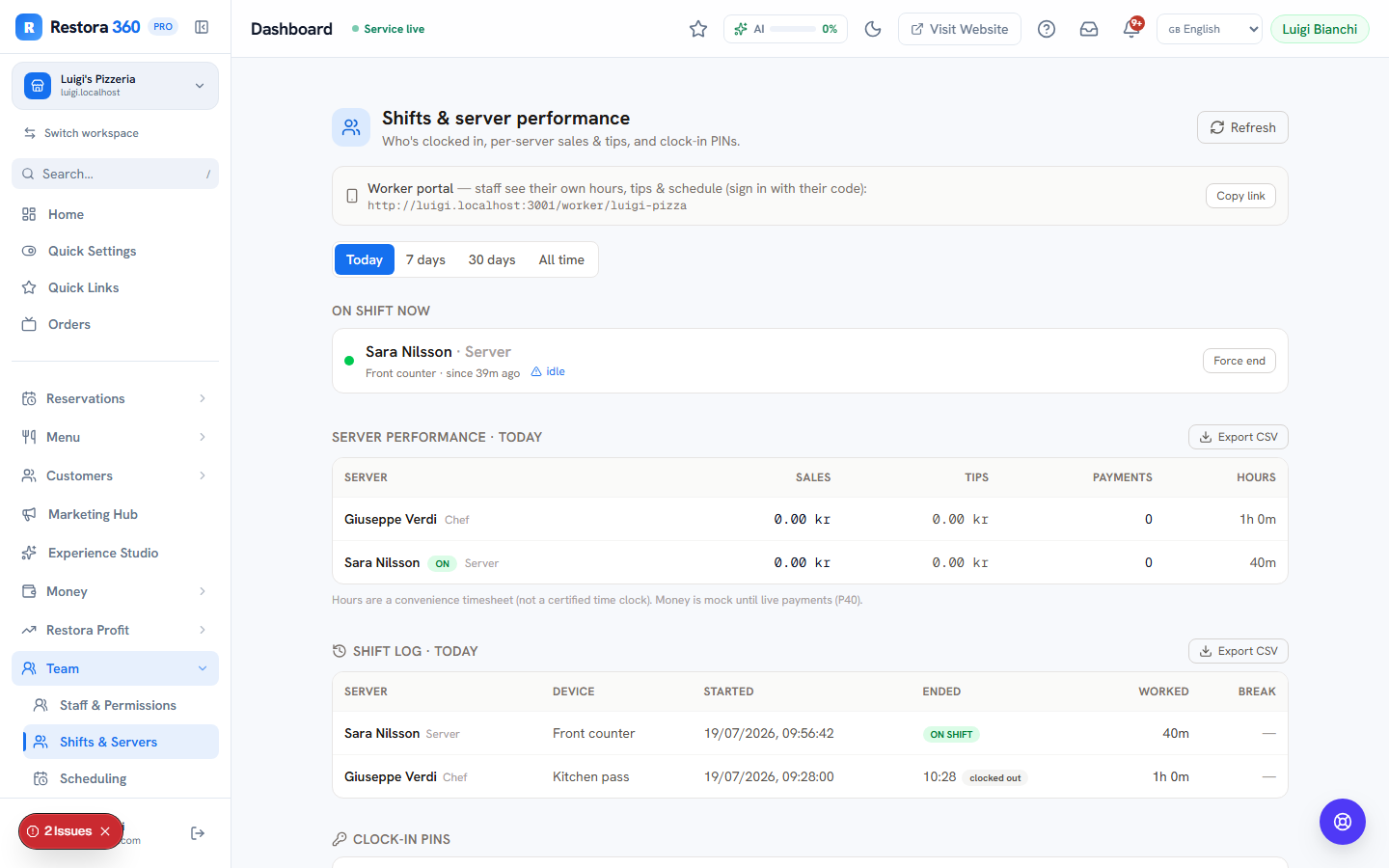
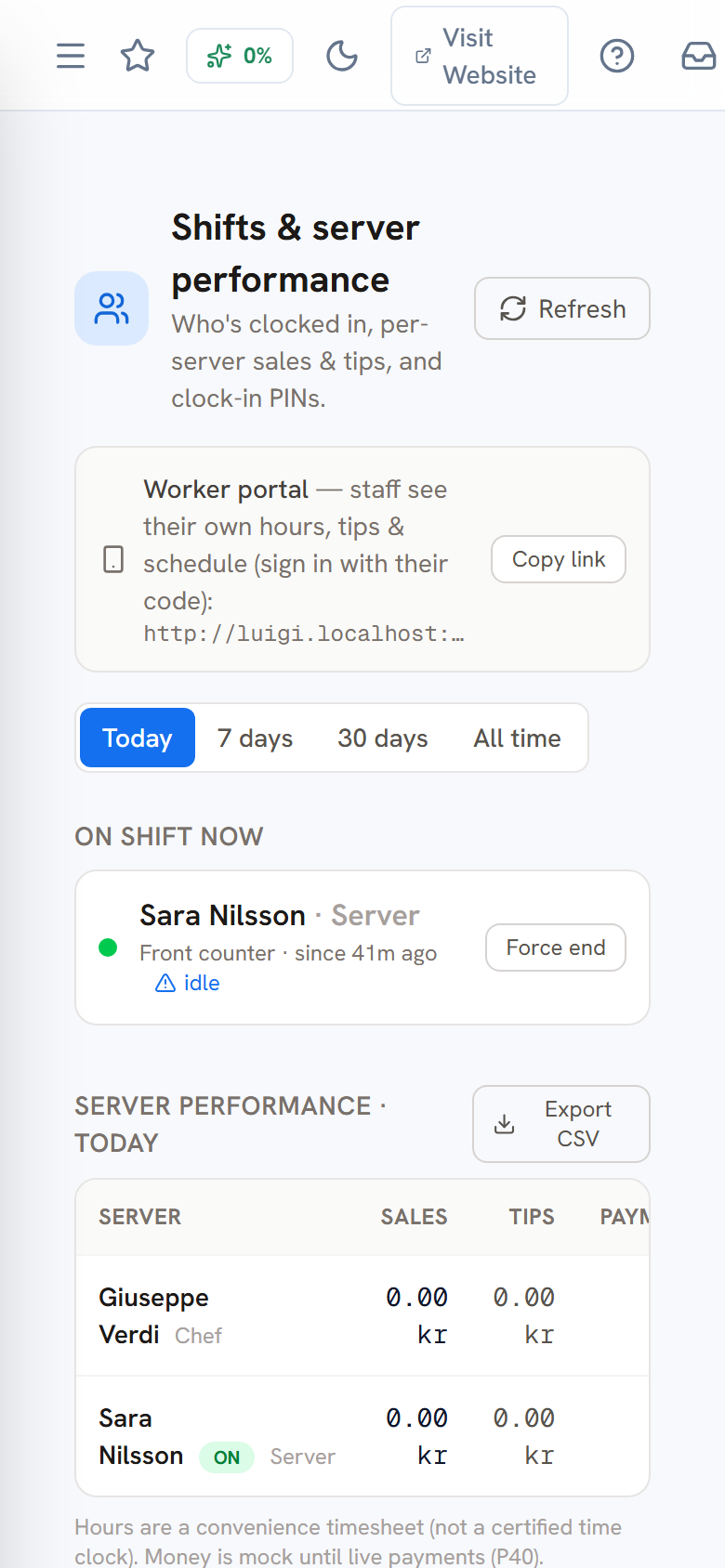
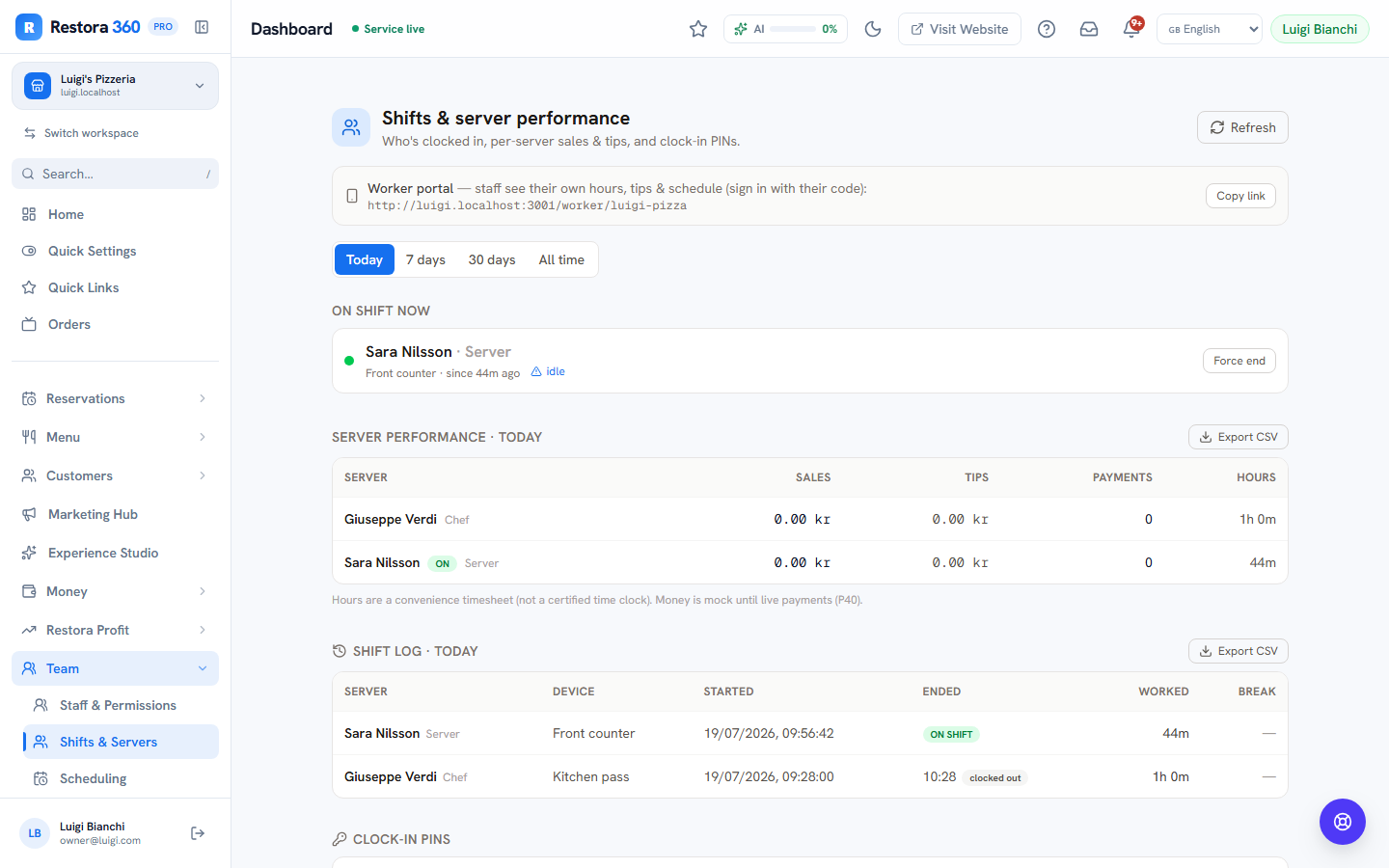
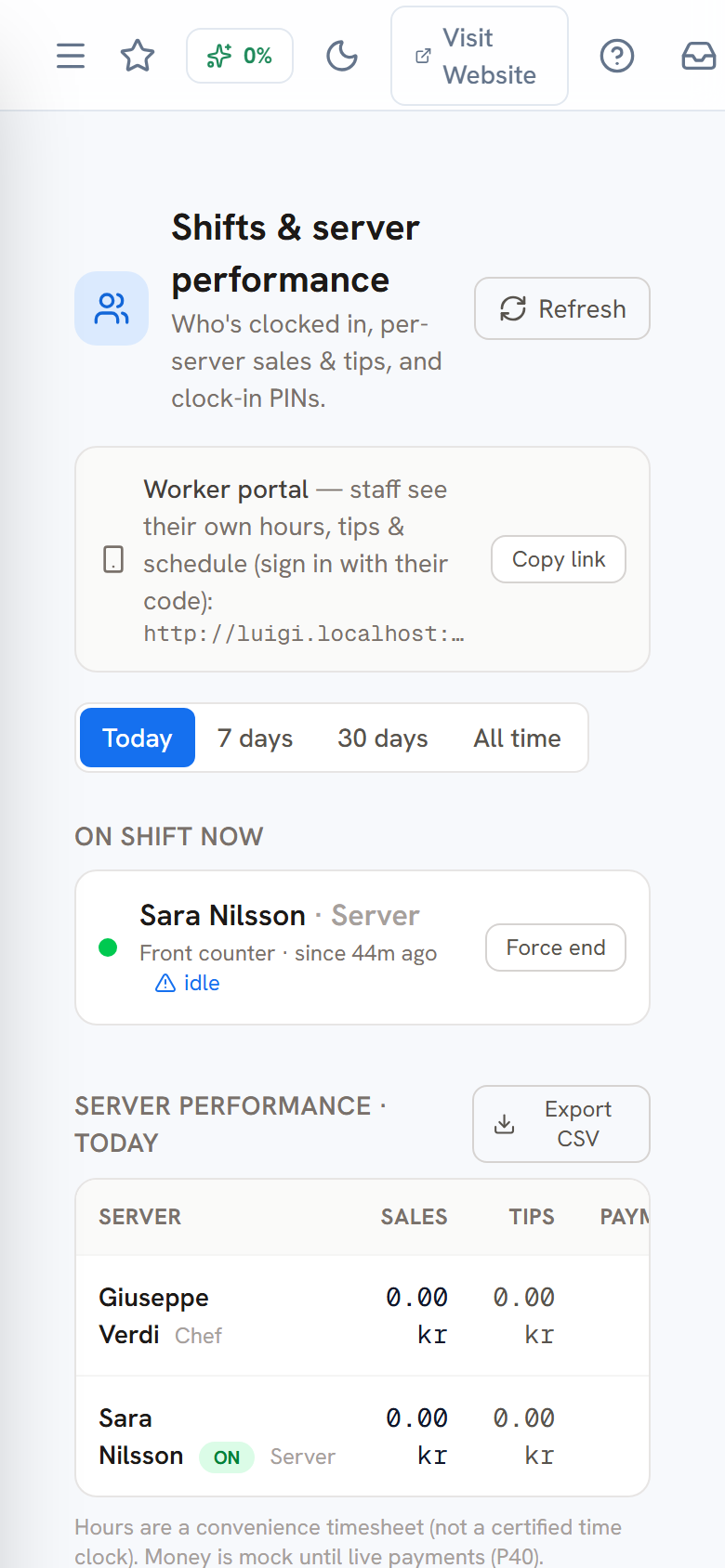
During service, Shifts & Servers is your live board: who is clocked in right now, on which device, since when — refreshed every 15 seconds. Below it, the performance table totals each person's sales, tips, payments and worked hours for today, the last 7 or 30 days, or all time; both the table and the full shift log export to CSV.

The shift log is the audit trail: every clock-in and clock-out with its end reason — a normal end, a handover to a colleague, an idle timeout, or a forced end by you.

If someone left without clocking out, their shift eventually ends itself on idle timeout — or you press Force end and the log records exactly that.

Live shifts board with one active shift and the performance table — web view
Live shifts board with one active shift and the performance table — mobile view
Mobile view
Live service: Sara is clocked in on the front terminal; per-server sales, tips and hours below.

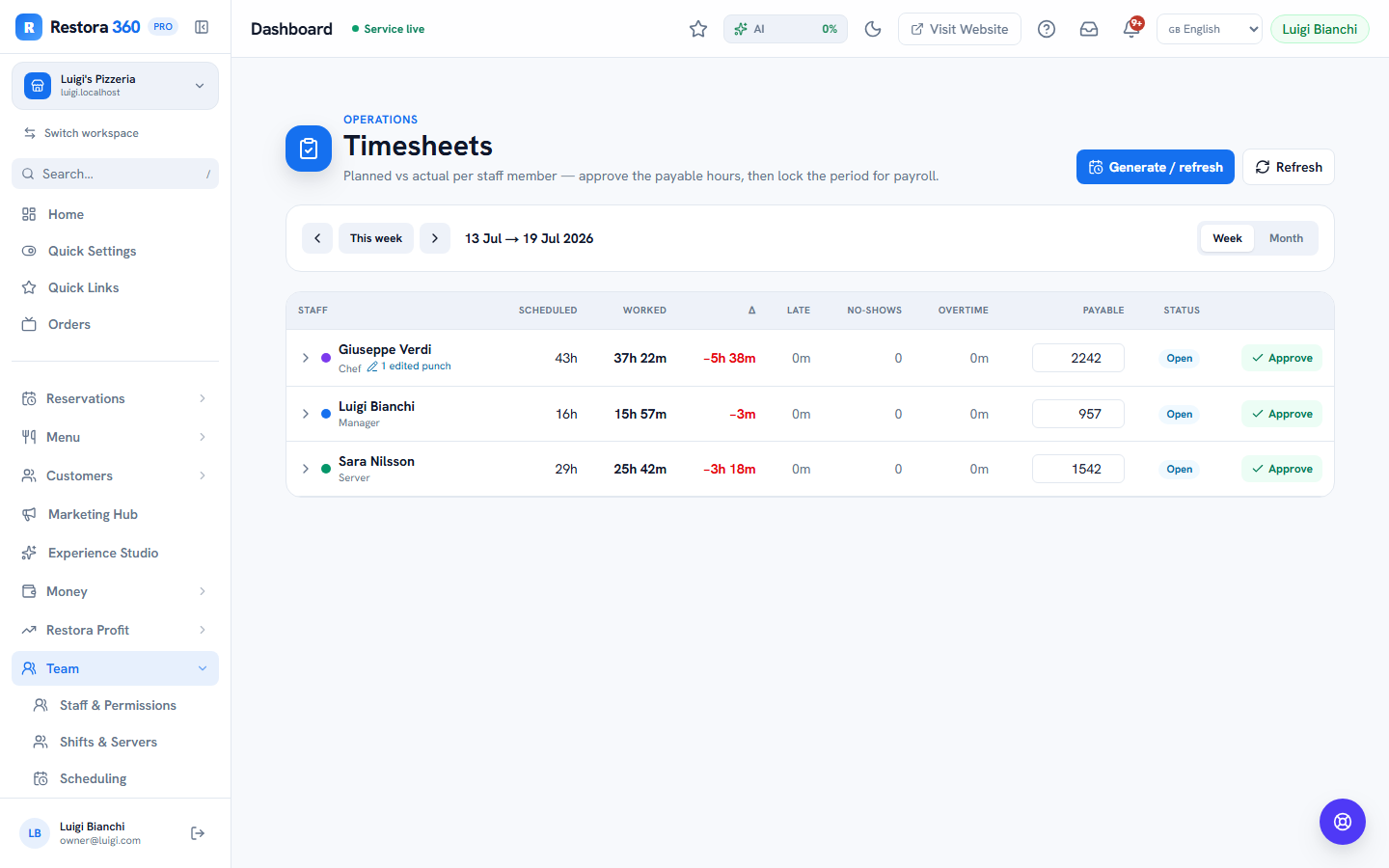
Step 10 — Reconcile timesheets: planned vs reality

Dashboard → Team → Timesheets

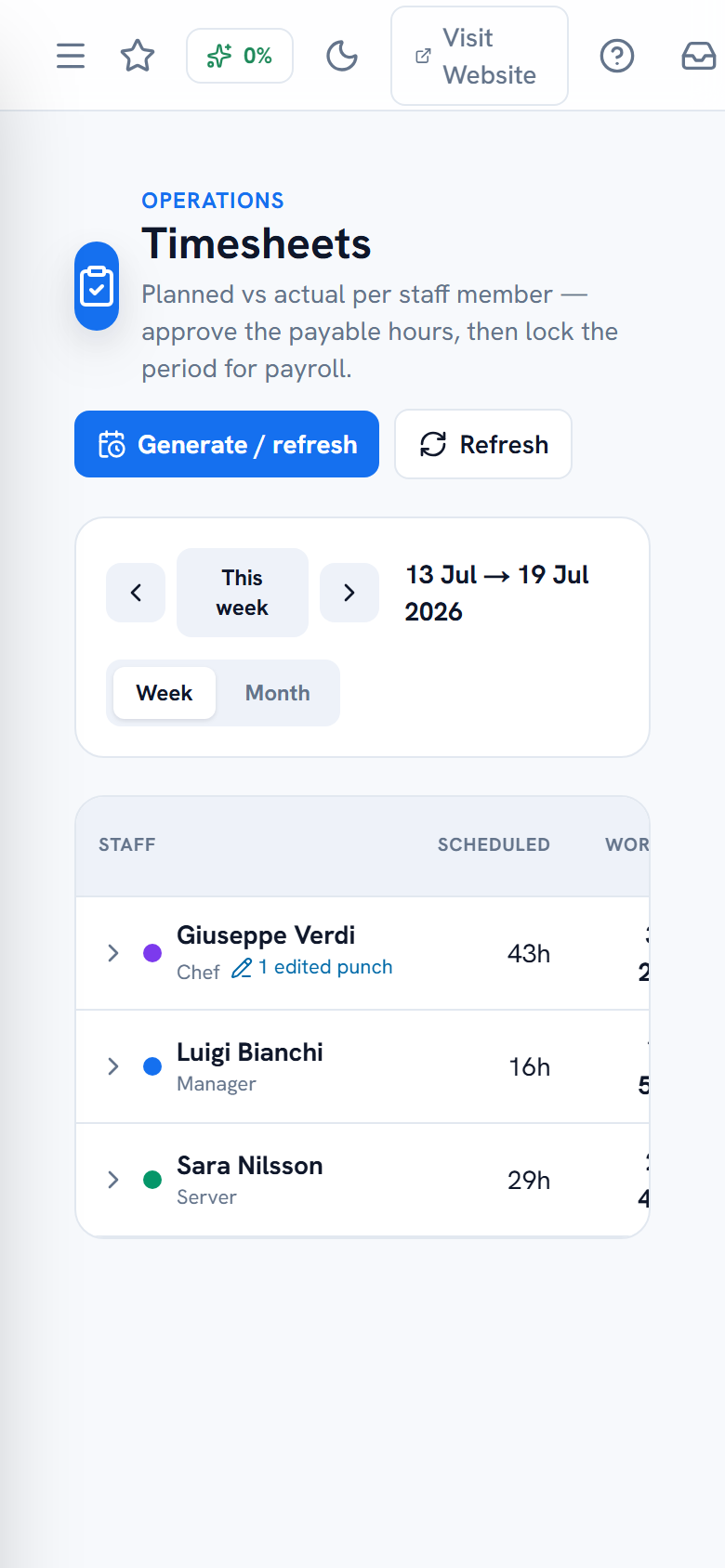
At week's end, generate the timesheet: for each person it lines up scheduled hours (the published rota) against worked hours (real terminal punches) and shows the variance, plus late arrivals, no-shows and overtime. Expand any row to the day level to see planned vs clocked, punch by punch.

Fix problems here, honestly: edit a punch or insert a missed one — every correction requires a written reason and is stored in the punch's audit trail (and flagged on the statutory register; the law prefers a flagged correction over a silent one).

When a person's week is right, set the payable minutes if they differ from clocked, then Approve. Approve the week, then Lock it — a locked timesheet is immutable and becomes the input payroll trusts.

Timesheets page comparing scheduled and worked hours with variance — web view
Timesheets page comparing scheduled and worked hours with variance — mobile view
Mobile view
Planned vs actual per person: variance, late, no-shows, overtime — then approve and lock.

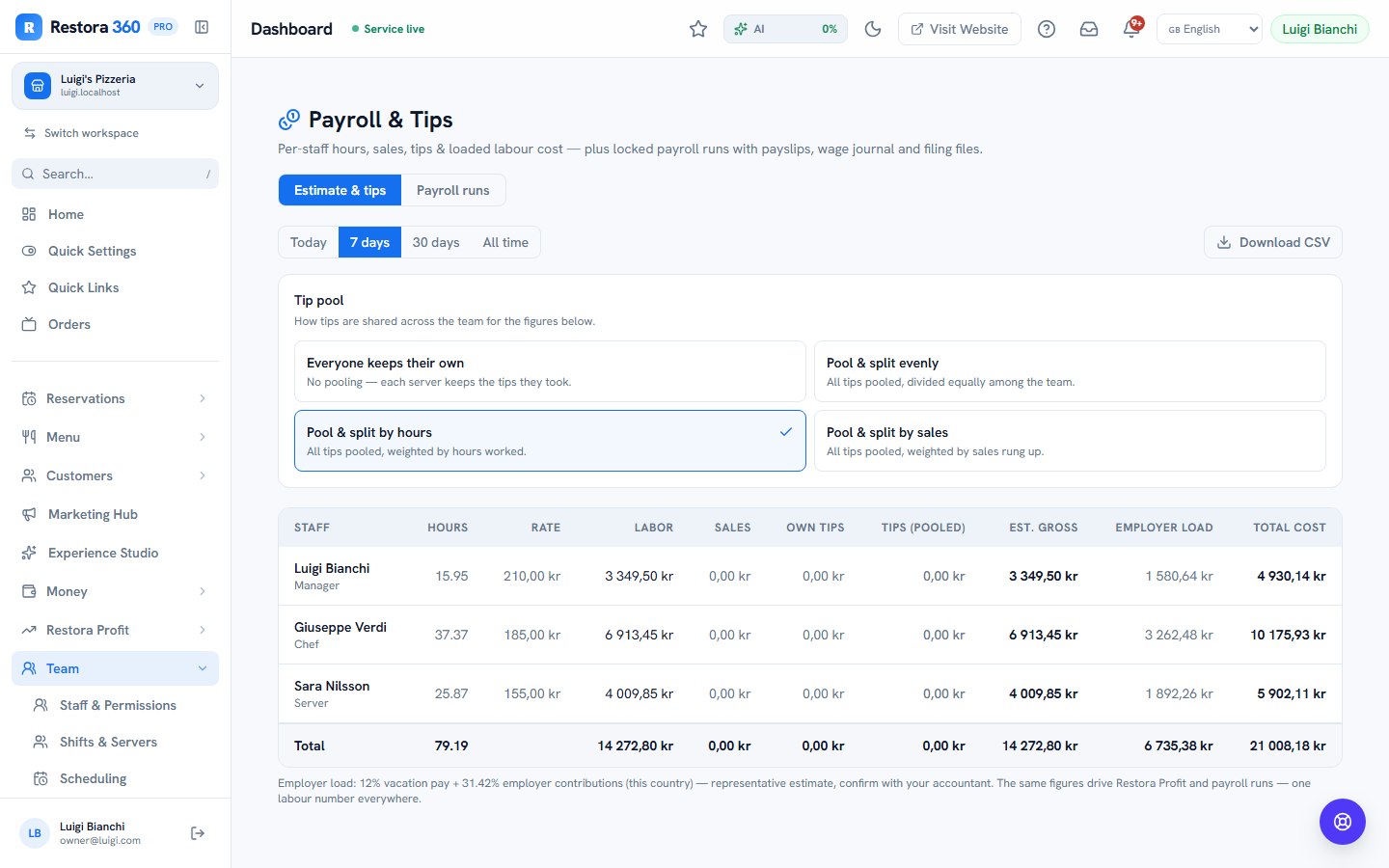
Step 11 — Watch labour cost and set the tip pool

Dashboard → Team → Payroll & Tips → Estimate & tips

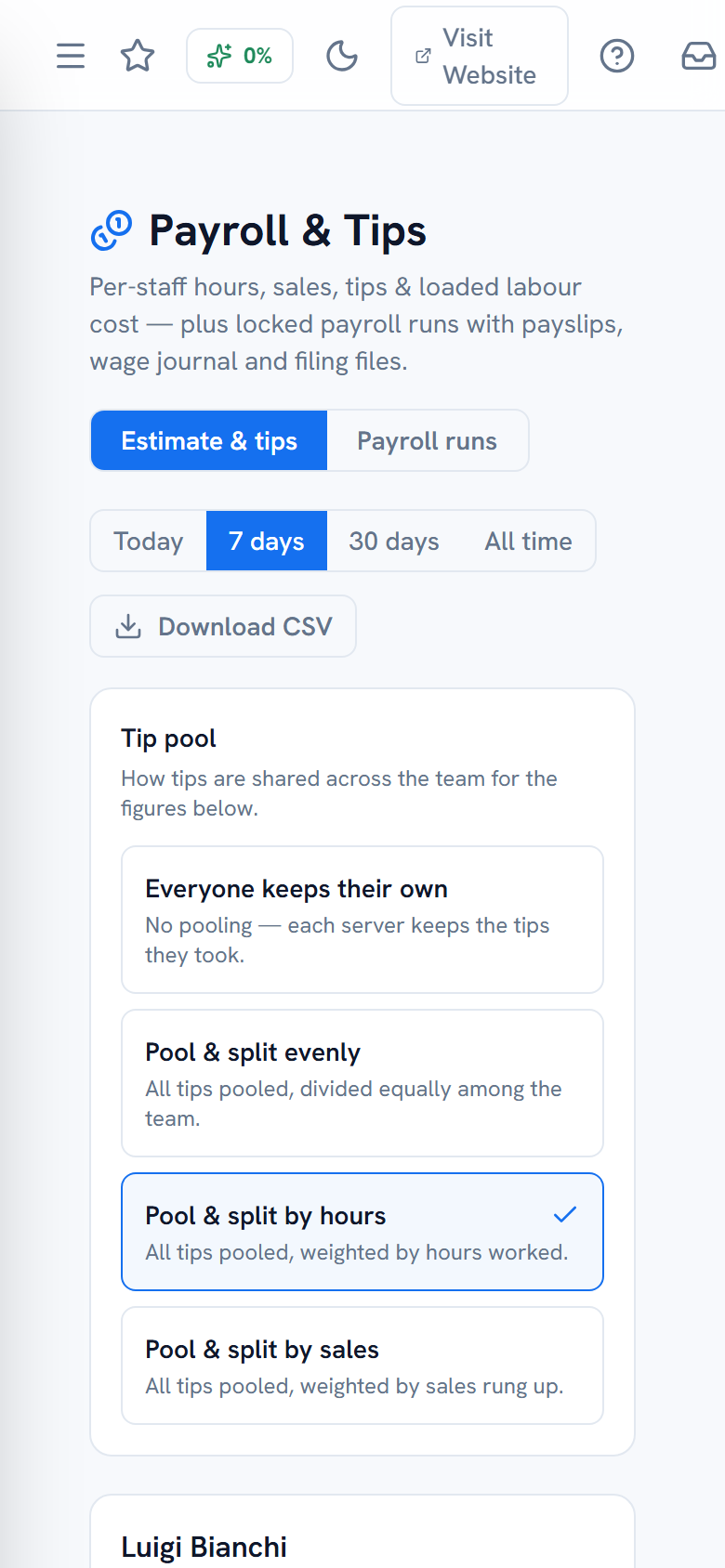
The estimate tab is your running answer to "what is this week costing me?": per person — hours, rate, labour cost, own sales, own card tips, pooled tips, estimated gross, employer load and total cost. Ranges: today, 7 days, 30 days, all.

Choose your tip policy here and the whole suite honours it: individual (everyone keeps their own card tips), even split, split by hours worked, or split by sales. The worker portal shows each person their own tips under the same policy — no spreadsheet arguments on Friday.

Payroll estimate with per-person labour cost and the tip pool policy — web view
Payroll estimate with per-person labour cost and the tip pool policy — mobile view
Mobile view
Live labour economics per person, and the tip-pool policy that the whole system follows.

Step 12 — Close the period: payroll runs, payslips, AGI

Dashboard → Team → Payroll & Tips → Payroll runs

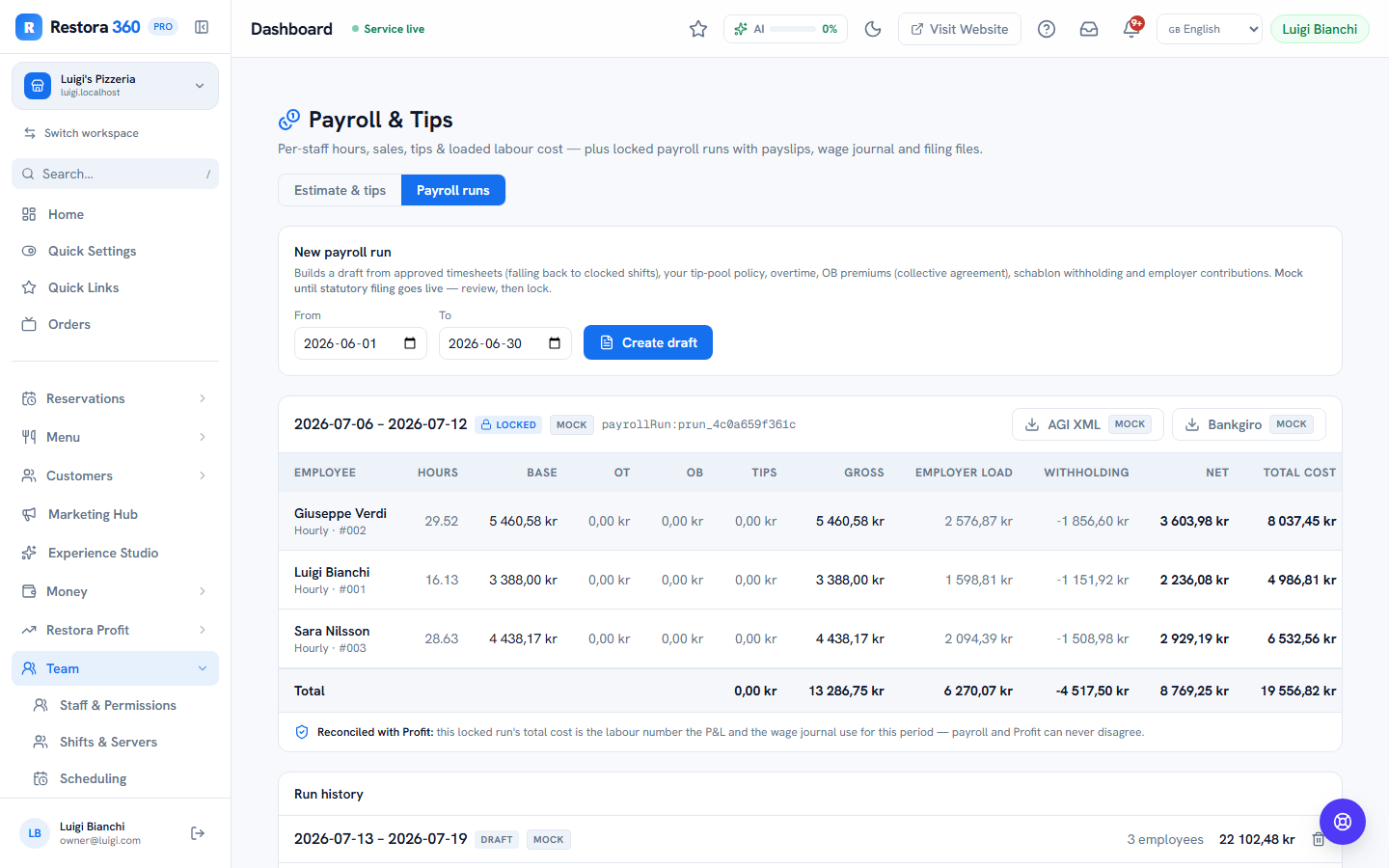
Create a draft run for the pay period. The engine builds each employee's line from approved timesheets (falling back to raw clocked shifts if you skipped step 10): base pay, overtime, OB premiums (evening/weekend supplements you configure), tips under your policy, gross, preliminary tax withholding, employer contributions and net.

From the run you can open each person's payslip as a PDF. While the run is a draft, payslips are watermarked as drafts; the withholding is a schablon (flat-rate) estimate and every payslip says so honestly — Restora 360 is not yet a registered payroll filer.

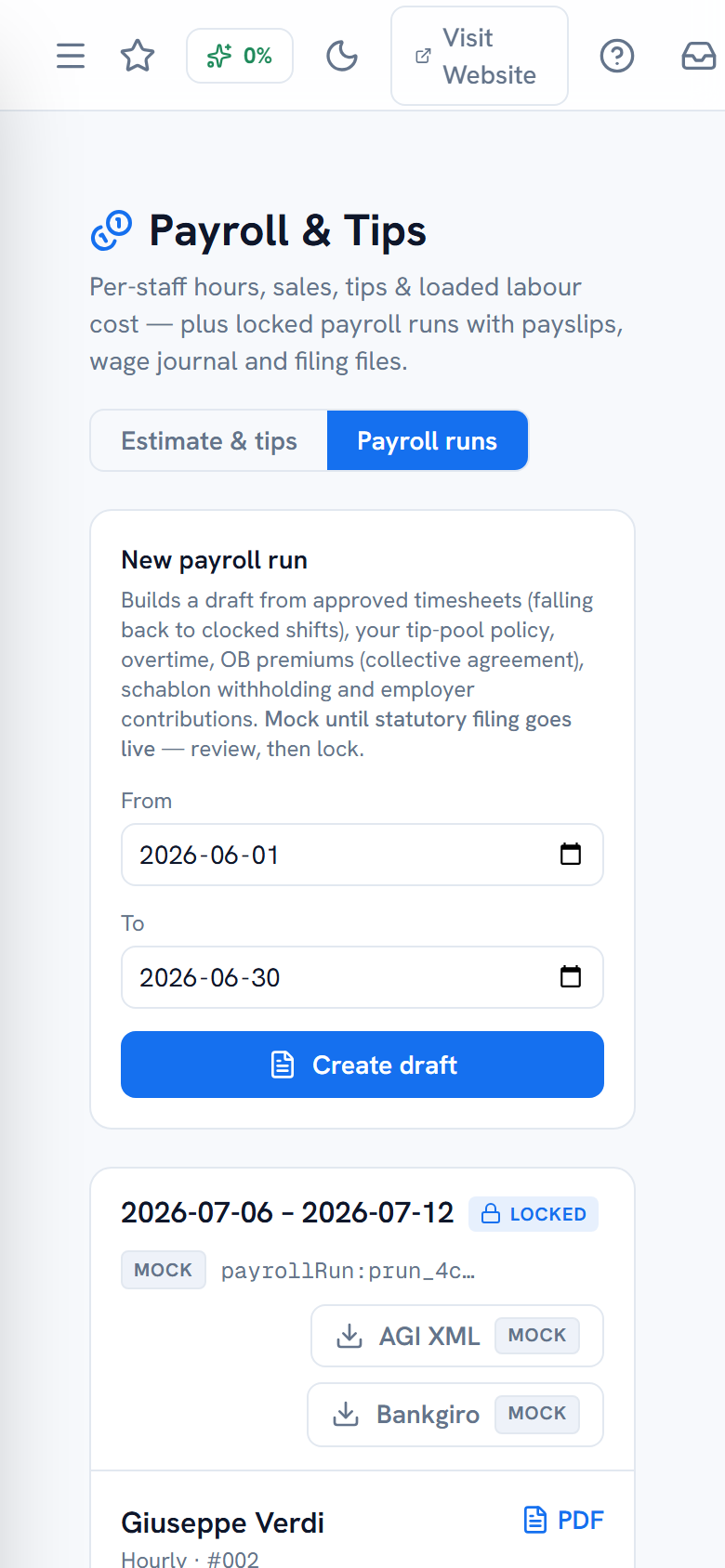
When the numbers are right, Lock the run. Locking is deliberate and irreversible: the run becomes the authoritative labour cost for your profit reports, staff can see their payslips in the portal, and two files become available: the Skatteverket AGI XML (per-employee monthly declaration) and a Bankgirot salary payment file. Both are clearly marked MOCK — you download and submit them yourself; nothing is transmitted automatically.

A locked payroll run with per-employee lines and AGI/Bankgiro downloads — web view
A locked payroll run with per-employee lines and AGI/Bankgiro downloads — mobile view
Mobile view
The locked run: per-person wage lines, payslip PDFs, and the AGI + Bankgiro files.

Step 13 — The staff register keeps itself (but check it daily)

Dashboard → Team → Staff Register

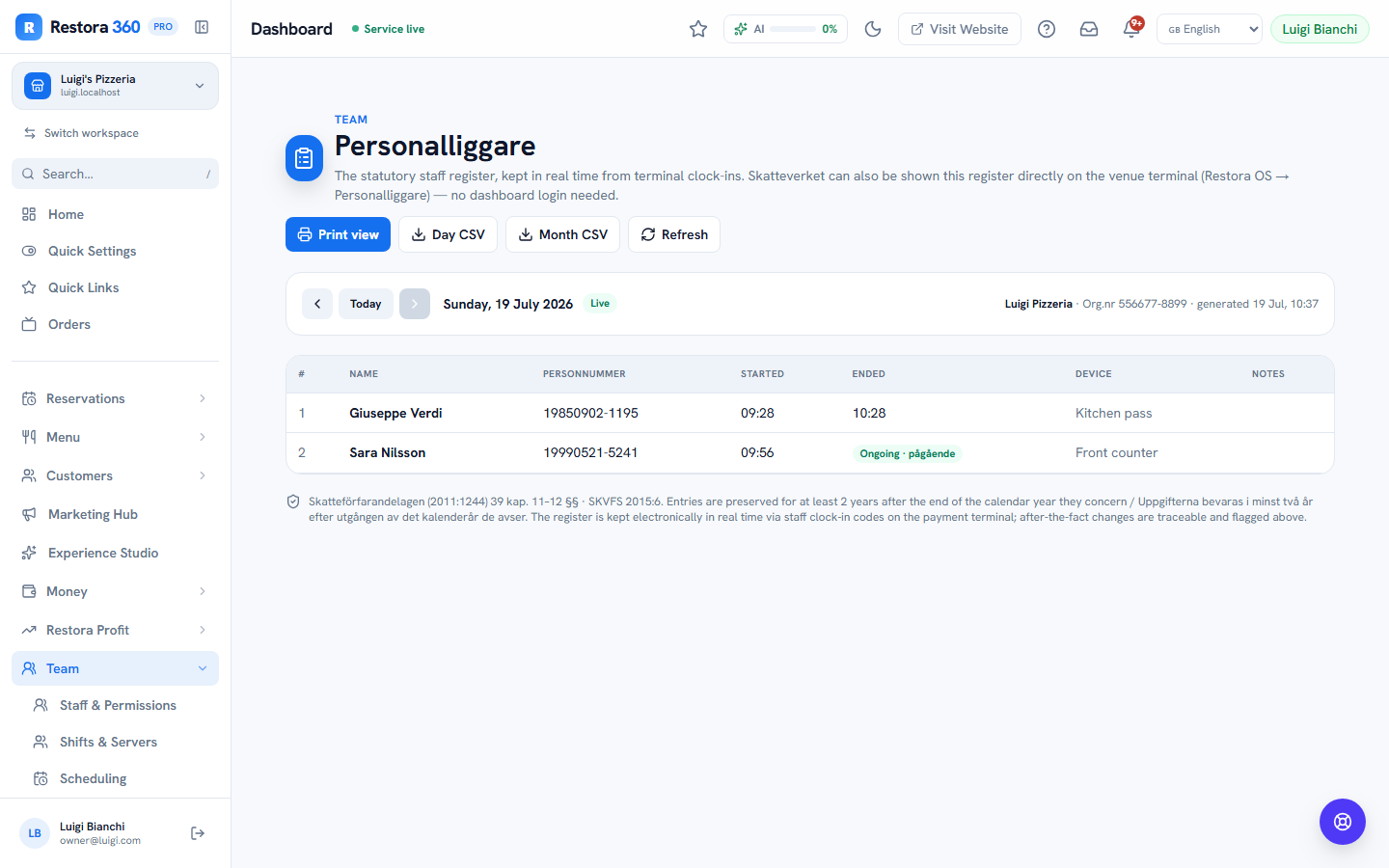
The personalliggare page is the statutory Swedish staff register, projected live from terminal clock-ins — you never type into it. Each day lists who worked: name, personnummer, start, end (or "ongoing"), and which device recorded it. Manual after-the-fact entries and corrected punches are visibly flagged, because an honest register shows its edits.

Your daily habit is ten seconds: glance at today's page during service and confirm everyone physically working is on it. If someone is working but missing — they forgot to clock in — add a manual entry via Timesheets (it will be flagged as manual, which is correct) and remind them.

The page also guards your compliance basics: it warns if the restaurant's organisationsnummer is missing (with an inline field to fix it) and lists staff who can clock in but lack a personnummer.

Print and CSV export sit at the top for anyone with the HR permission. The print view is a clean standalone document designed to be handed to an inspector.

The staff register for one day with times, devices and flags — web view
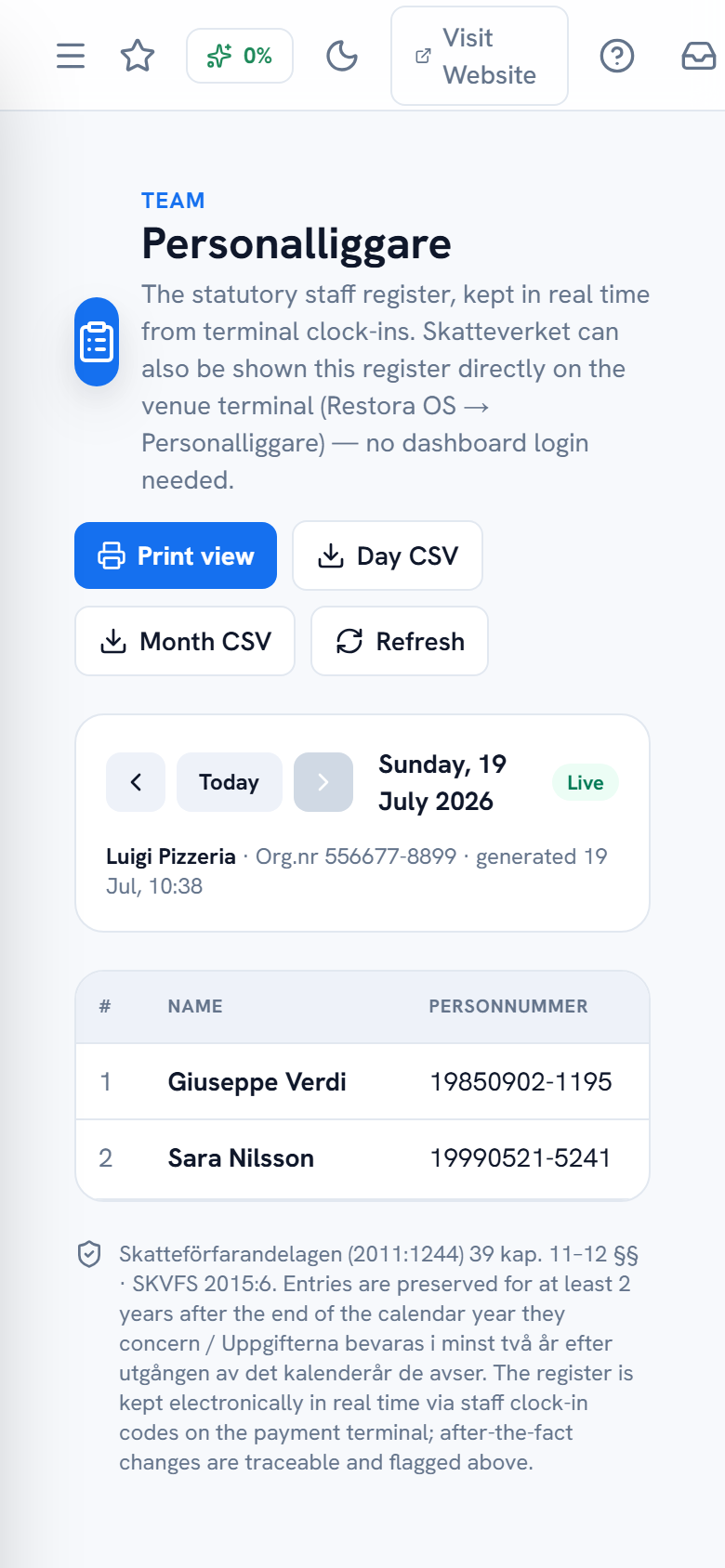
The staff register for one day with times, devices and flags — mobile view
Mobile view
Today’s register, filled by real clock-ins. Ongoing passes, devices, and flagged corrections.

Step 14 — Scan against Swedish working-time law

Dashboard → Team → Labour Compliance

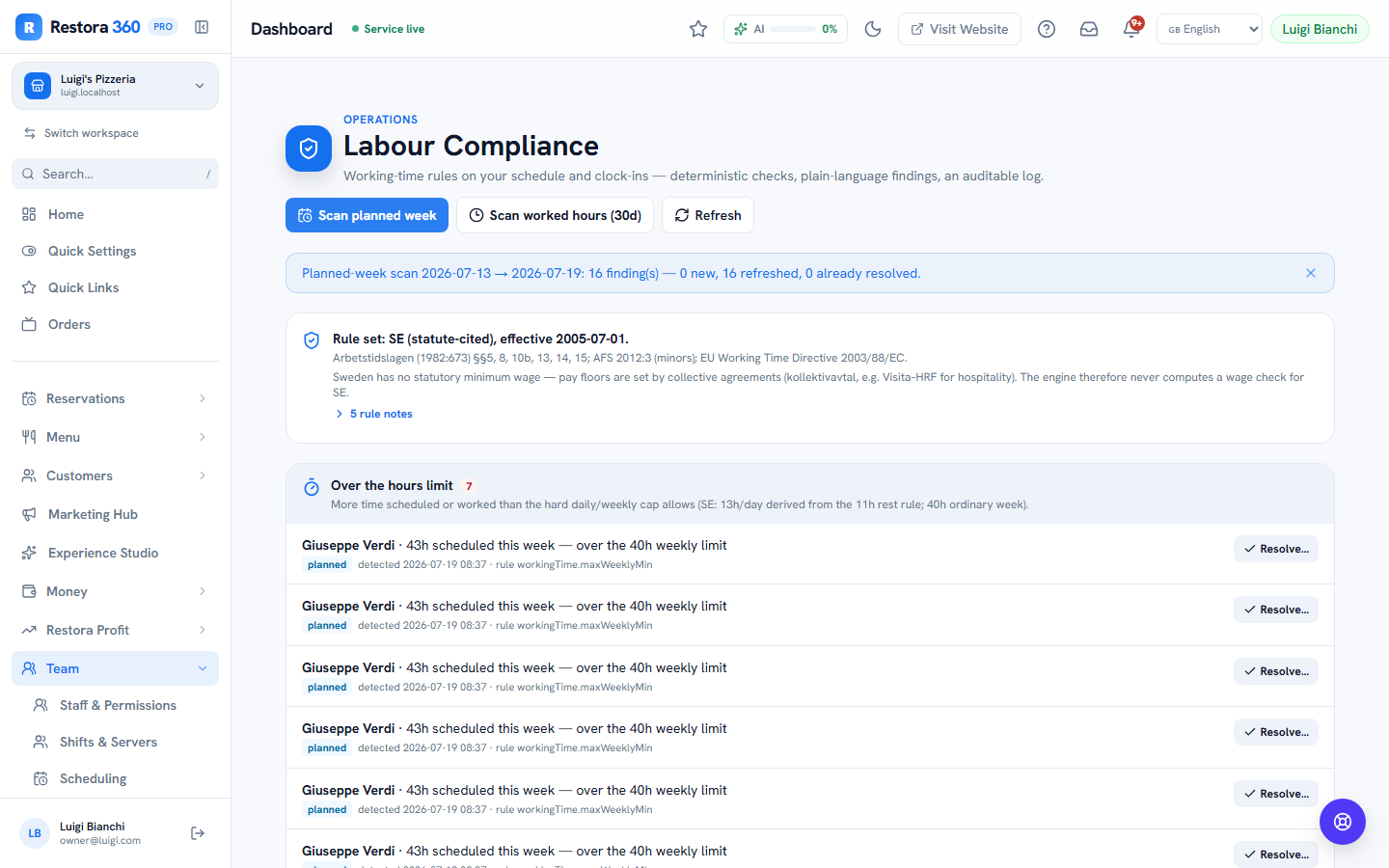
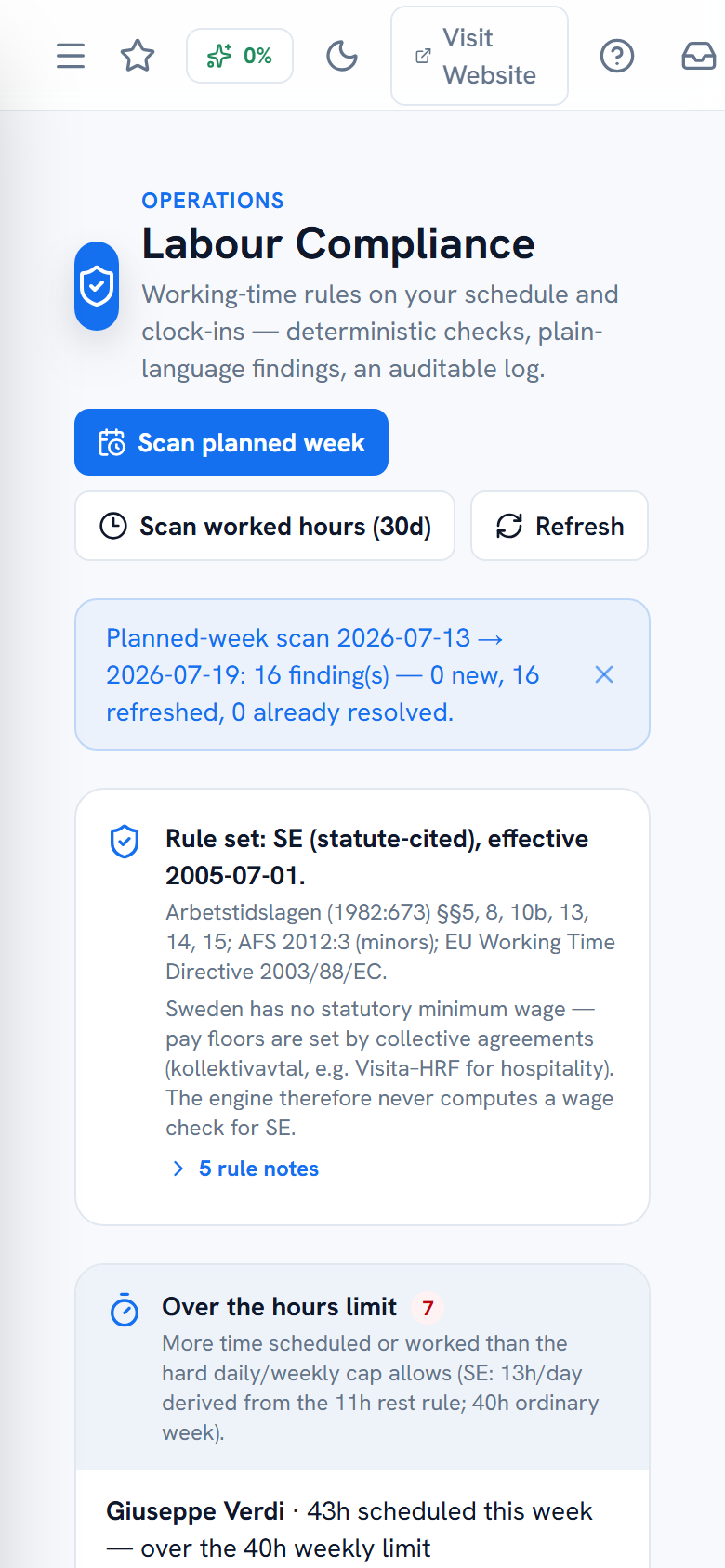
Two buttons, two perspectives. Scan planned week checks the rota you are about to publish — preventive. Scan worked hours (30d) checks what actually happened — detective. Findings are grouped and explained in plain language with the statute reference: weekly-hour ceilings, missing 11-hour daily rest, missing 36-hour weekly rest, breaks after five hours, overtime caps, minor-worker rules, and gaps like a missing date of birth.

Each finding has a Resolve button with an optional note, so your handling of every flag is on record. The page is explicit about what it is: a deterministic rule engine with dated Swedish rules — an assistant, not an authority. Where a rule depends on your collective agreement, it says so.

Labour compliance findings with statute references — web view
Labour compliance findings with statute references — mobile view
Mobile view
Preventive and detective scans against ATL working-time rules, each finding resolvable with a note.

Step 15 — Train and certify the team

Dashboard → Team → Training & Certifications

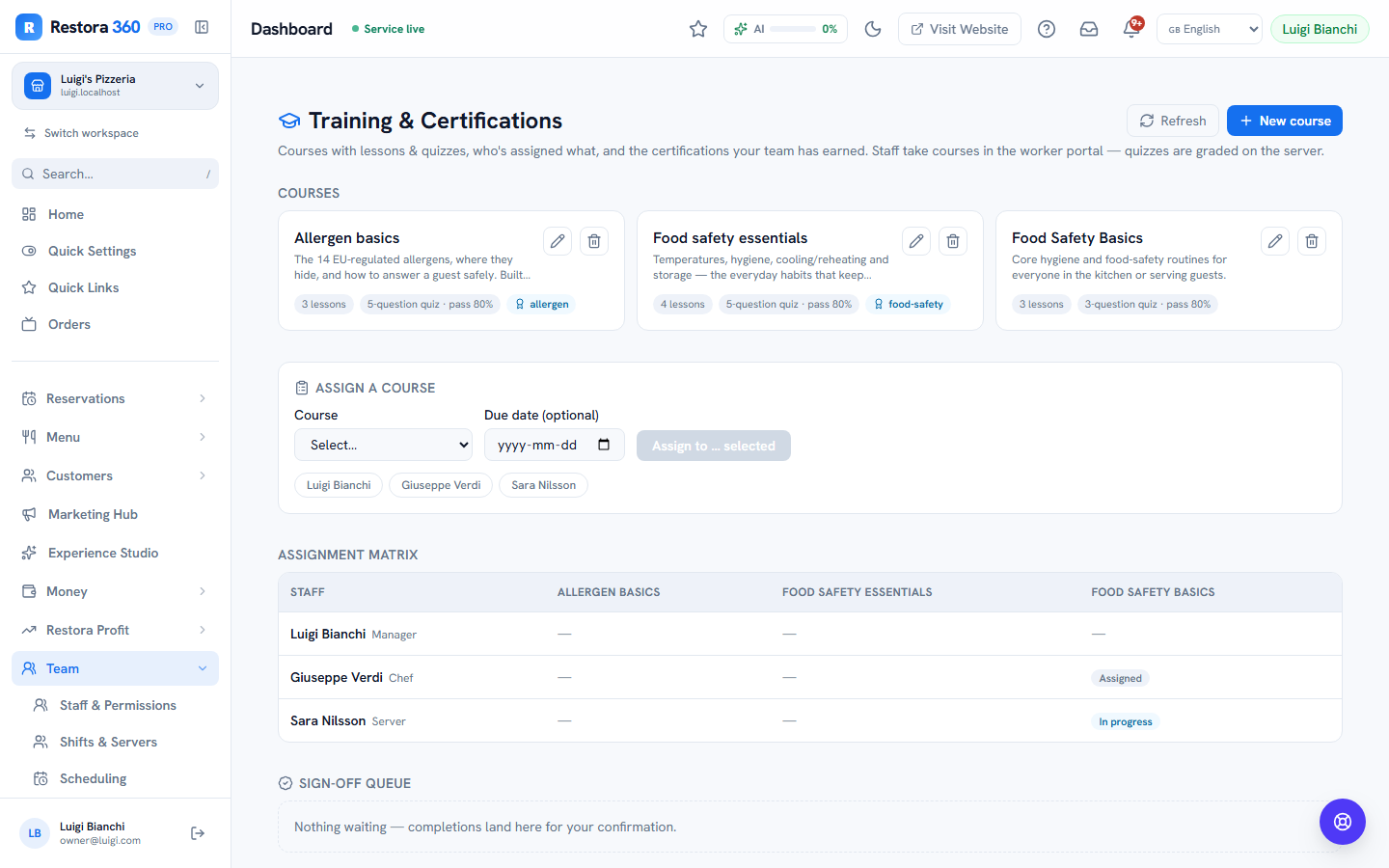
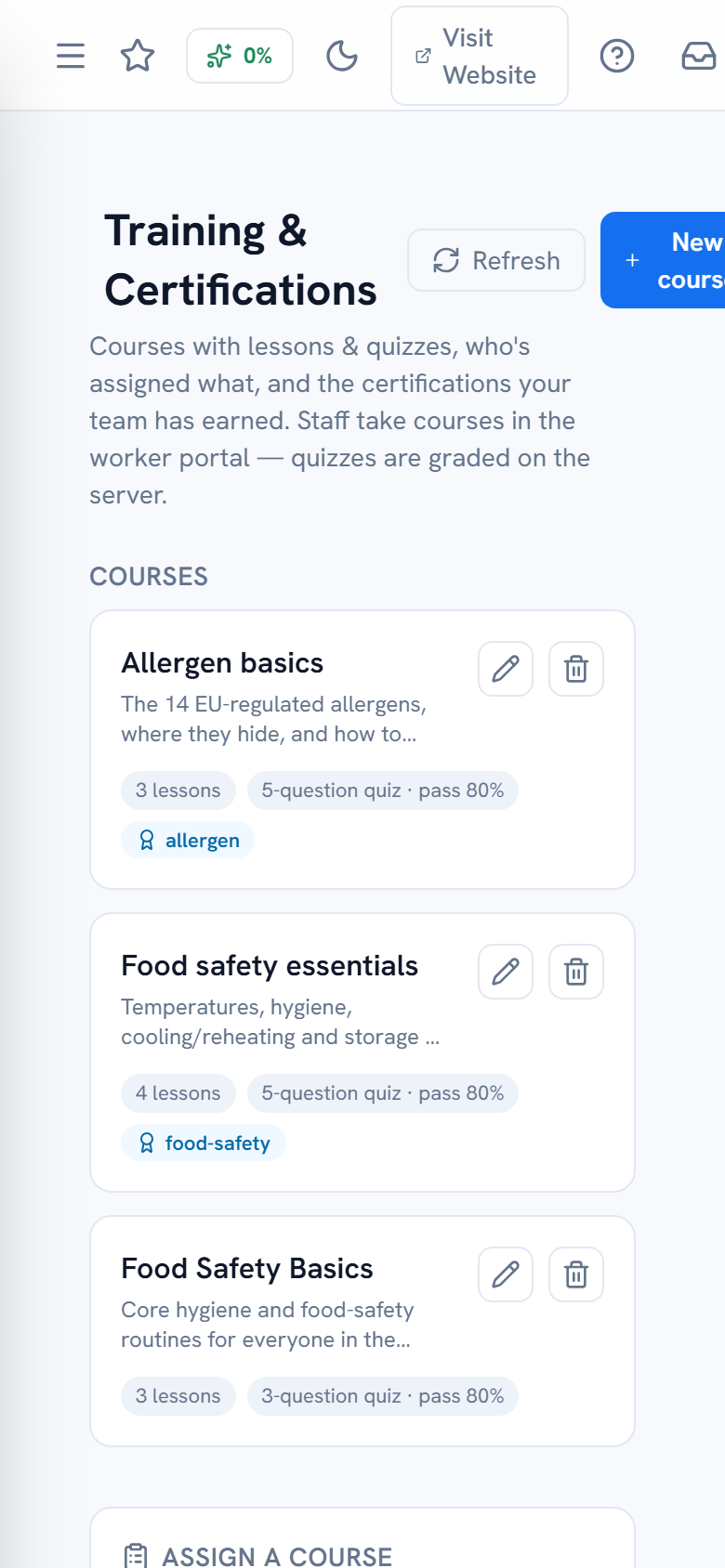
Build courses with lessons and an optional quiz (you set the pass mark), then assign them from the staff × course matrix with due dates. Staff take everything in their portal; quizzes are graded on the server, and the answer key never reaches their device. A course can grant a certification with a validity period — the overview colours each one valid, renew-soon or expired, which is exactly what you want visible before a hygiene inspection.

Training courses and the staff assignment matrix — web view
Training courses and the staff assignment matrix — mobile view
Mobile view
Courses, assignments and certification expiry at a glance.

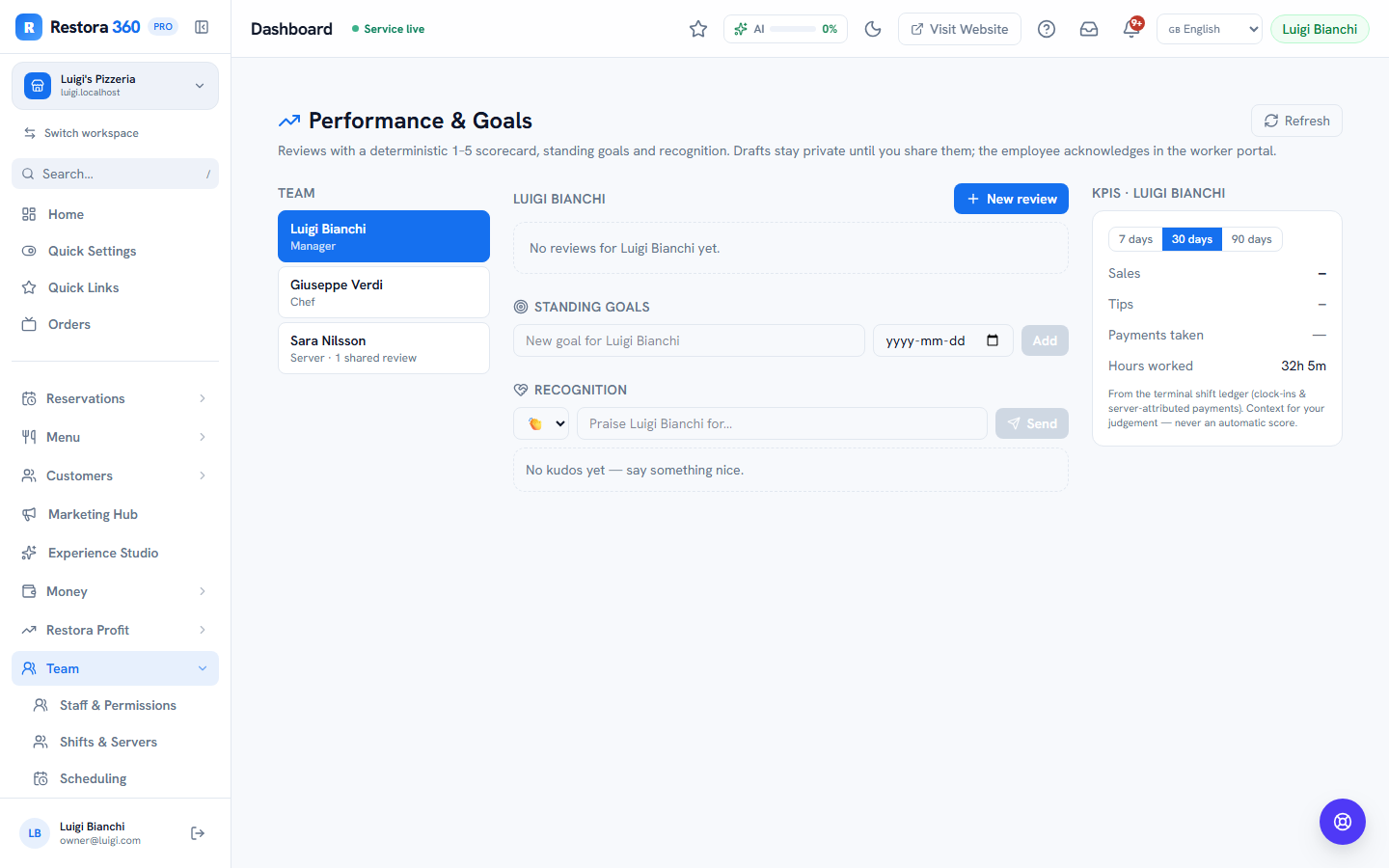
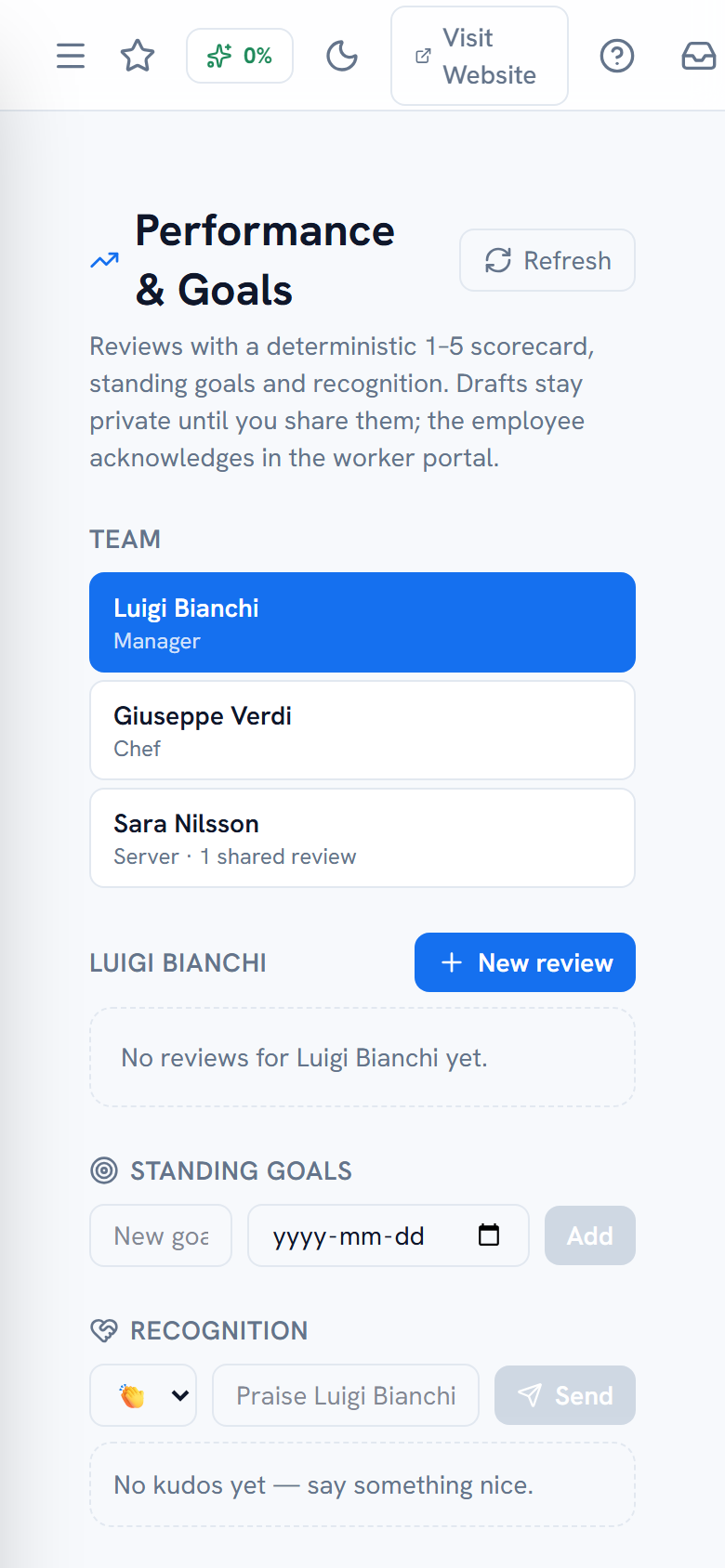
Step 16 — Reviews, goals and kudos

Dashboard → Team → Performance & Goals

Write structured reviews with 1–5 competency scores (service quality, teamwork, reliability, pace by default), set goals, and share when ready — the employee is notified and acknowledges in their portal, so "I never saw it" ends here. The kudos feed is lightweight public recognition anyone can see; the KPI side panel shows the person's real sales, tips and hours from the terminal ledger, display-only.

Performance page with a shared review and kudos feed — web view
Performance page with a shared review and kudos feed — mobile view
Mobile view
A shared review awaiting acknowledgement, goals, and the kudos feed.

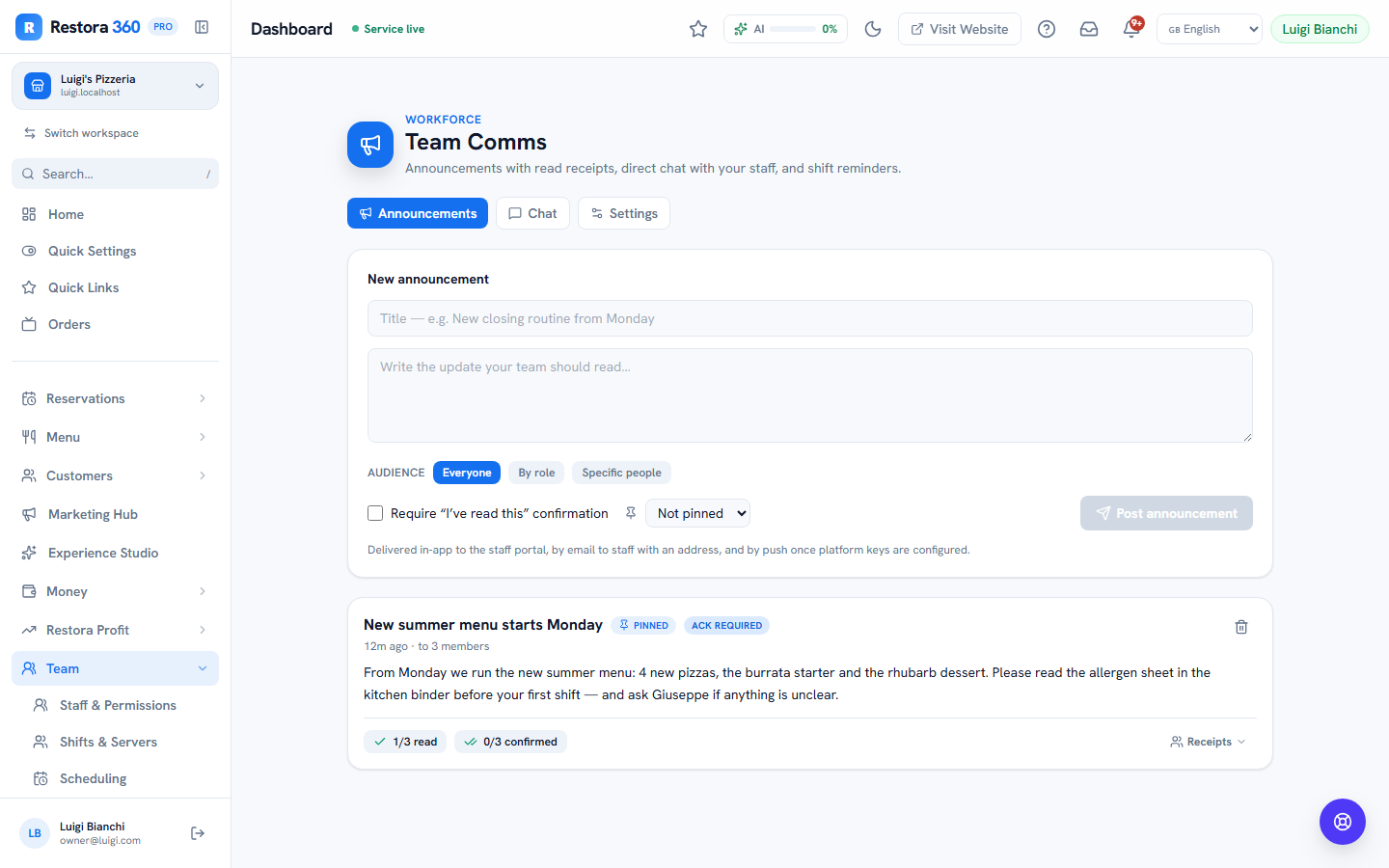
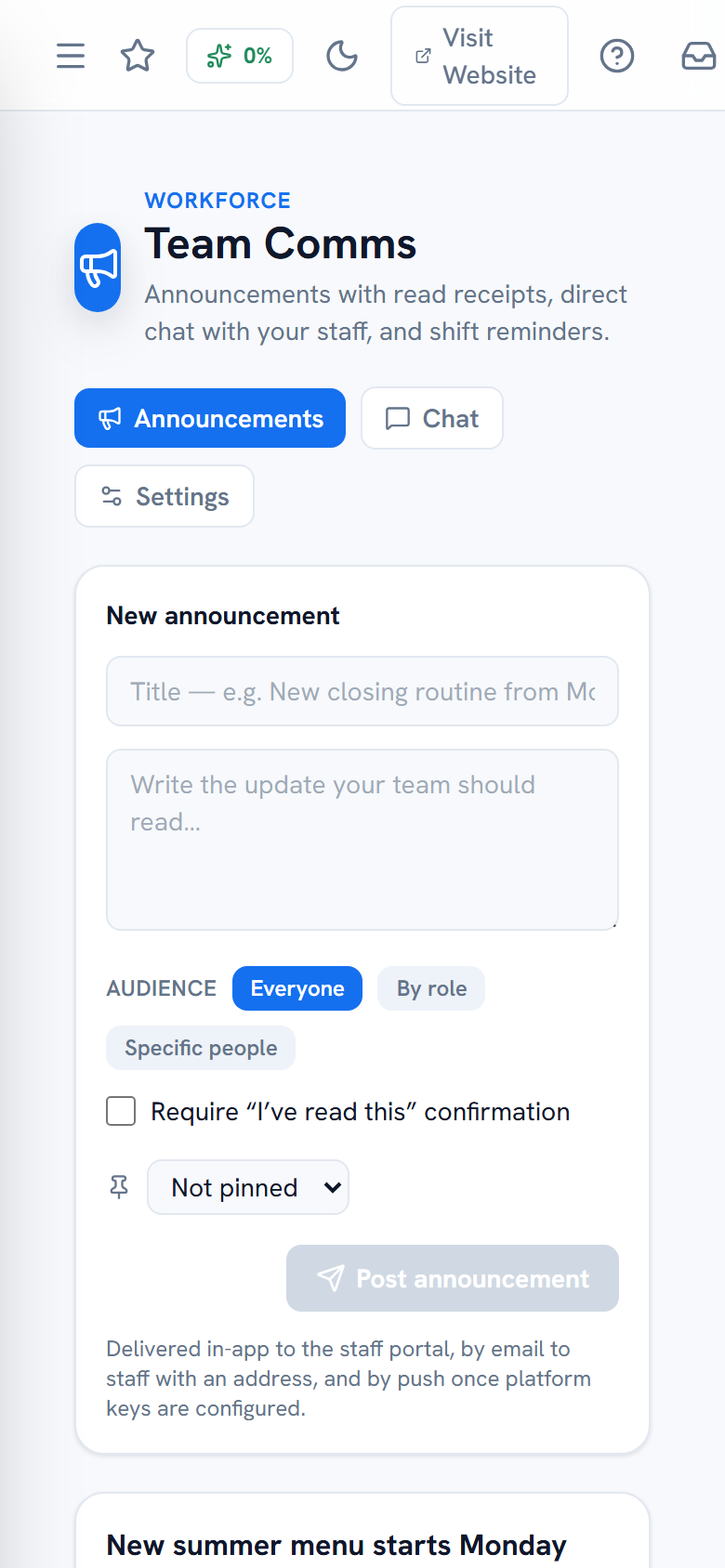
Step 17 — Announce, chat, and tune notifications

Dashboard → Team → Announcements & Chat

Announcements go to everyone or a chosen audience, can be pinned, and can require acknowledgement — you see exactly who has read and who has confirmed. Chat is a simple 1:1 thread between manager and each staff member. The settings tab shows the delivery channels honestly (email live; SMS only if your restaurant's SMS is configured; push once platform keys are set) and lets you tune the shift-reminder lead time.

Announcements with acknowledgement tracking — web view
Announcements with acknowledgement tracking — mobile view
Mobile view
A pinned must-read with per-person read and acknowledgement receipts.

Chapter 3

The worker guide — your shifts in your pocket

Everything a staff member needs lives in the worker portal: open the link your manager shared on your phone, tap in your 4-digit code, done. The native Android Staff app is the same thing with push notifications and offline resilience. This chapter is written to the worker — feel free to share it with your team as-is.

Step 1 — Sign in with your code

Your manager’s link → 4-digit code

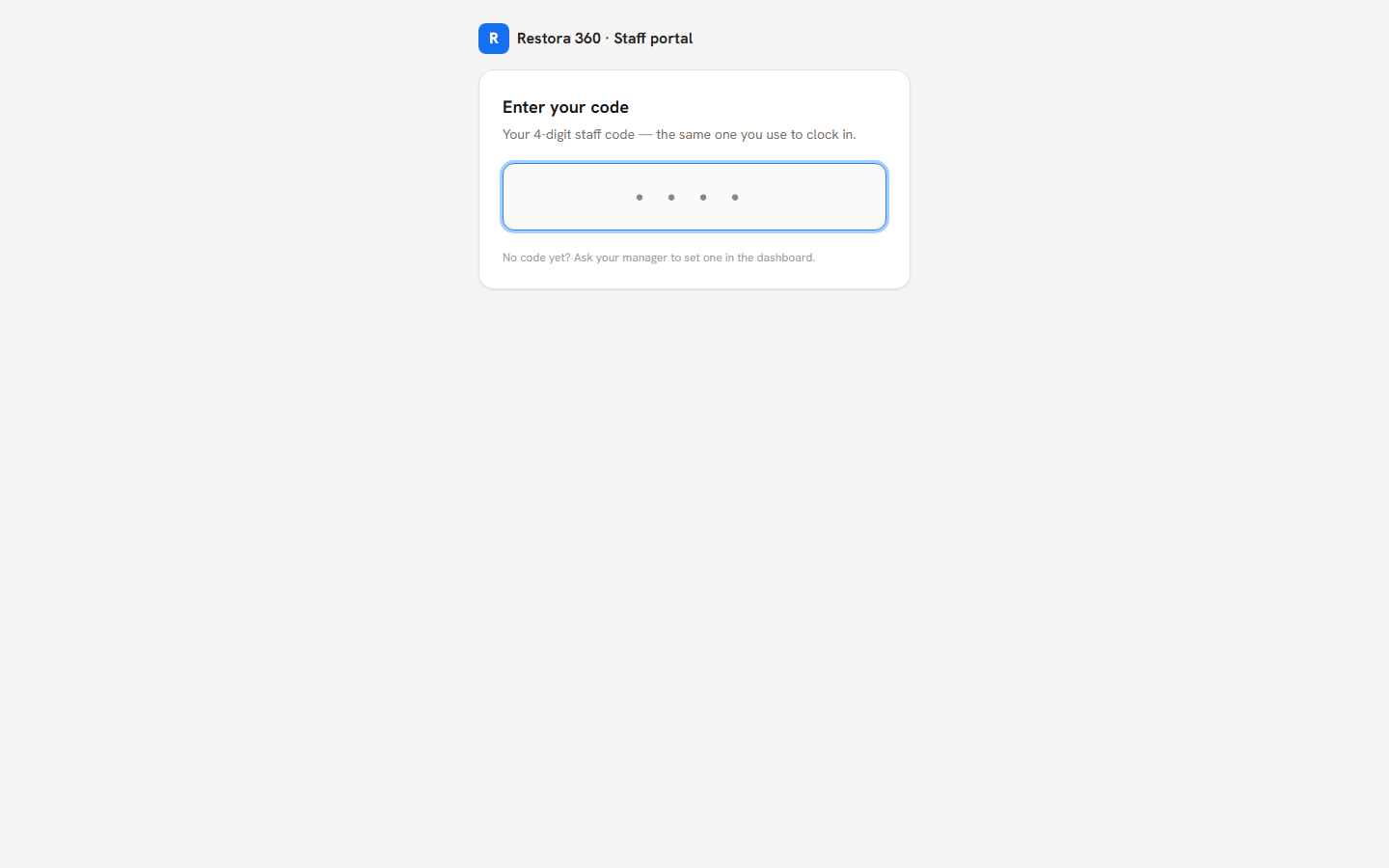
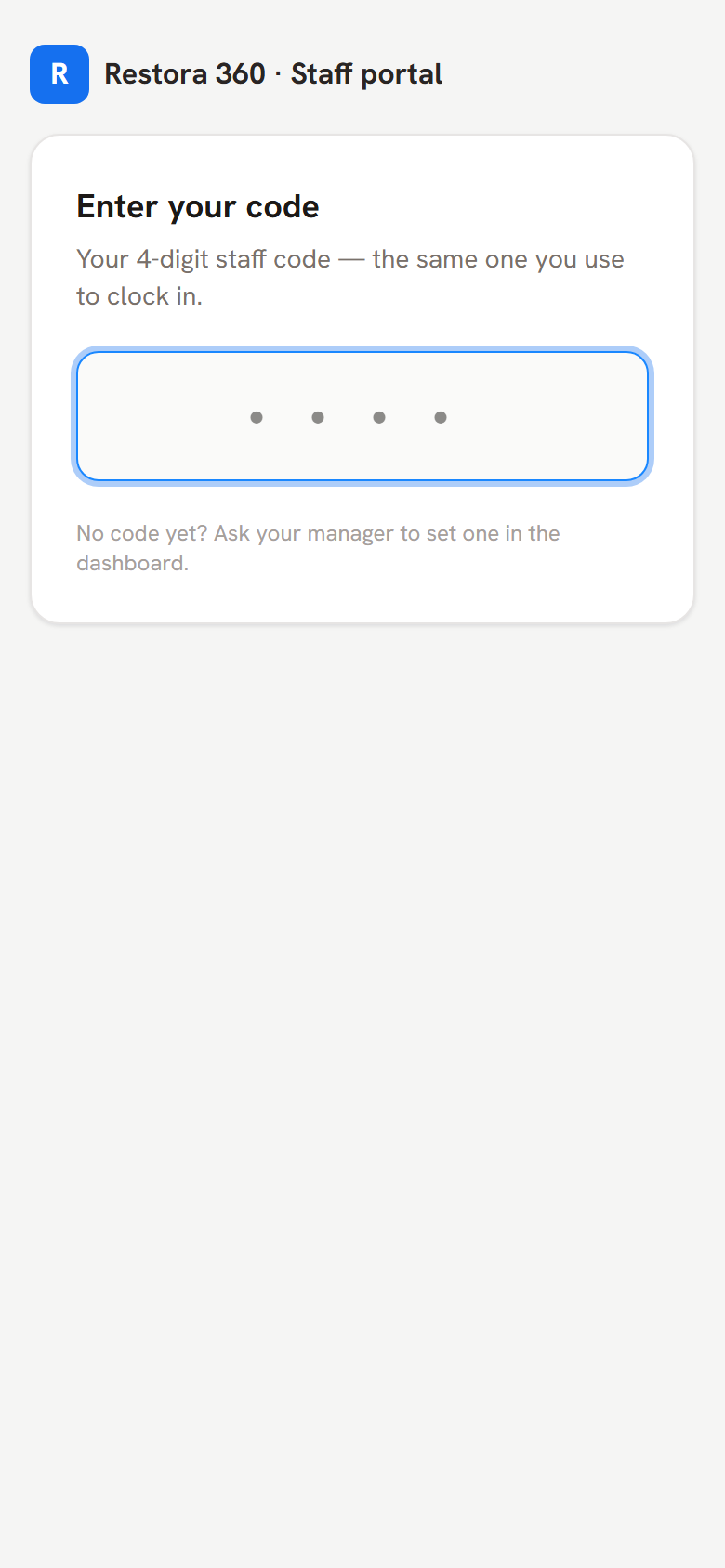
Your manager shares a link (or QR) to your restaurant's staff portal. Open it, enter your personal 4-digit code — the same one you clock in with — and you are signed in on that device. No email, no password, no app store required. On Android you can also install the Staff app and sign in with your restaurant's ID plus the same code.

Wrong-code attempts are strictly rate-limited, so keep your code to yourself; you can change it any time under More → Change my code.

Worker portal sign-in with the 4-digit code pad — web view
Worker portal sign-in with the 4-digit code pad — mobile view
Mobile view
The portal sign-in: your 4-digit code is your key.

Step 2 — Today: your day at a glance

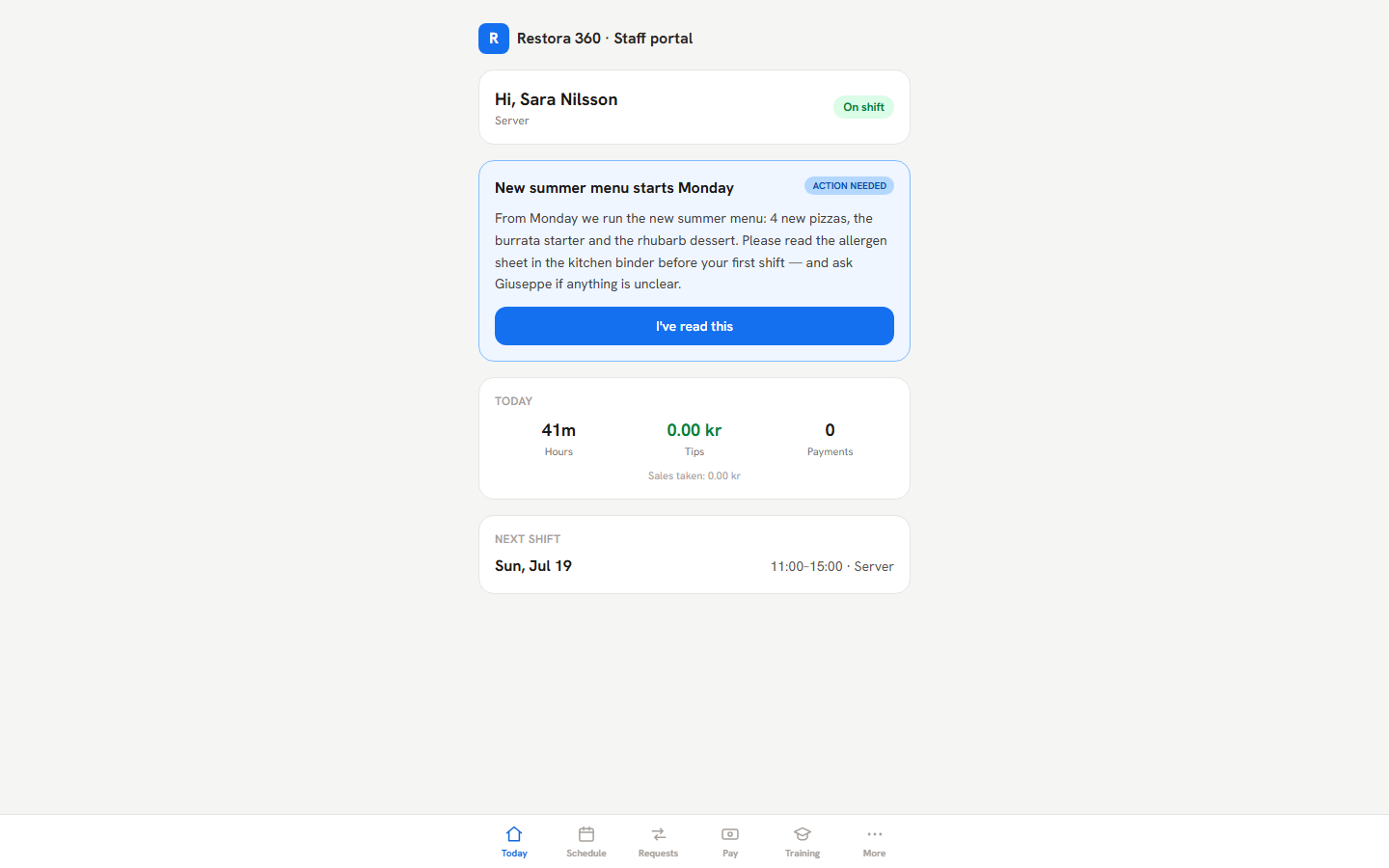
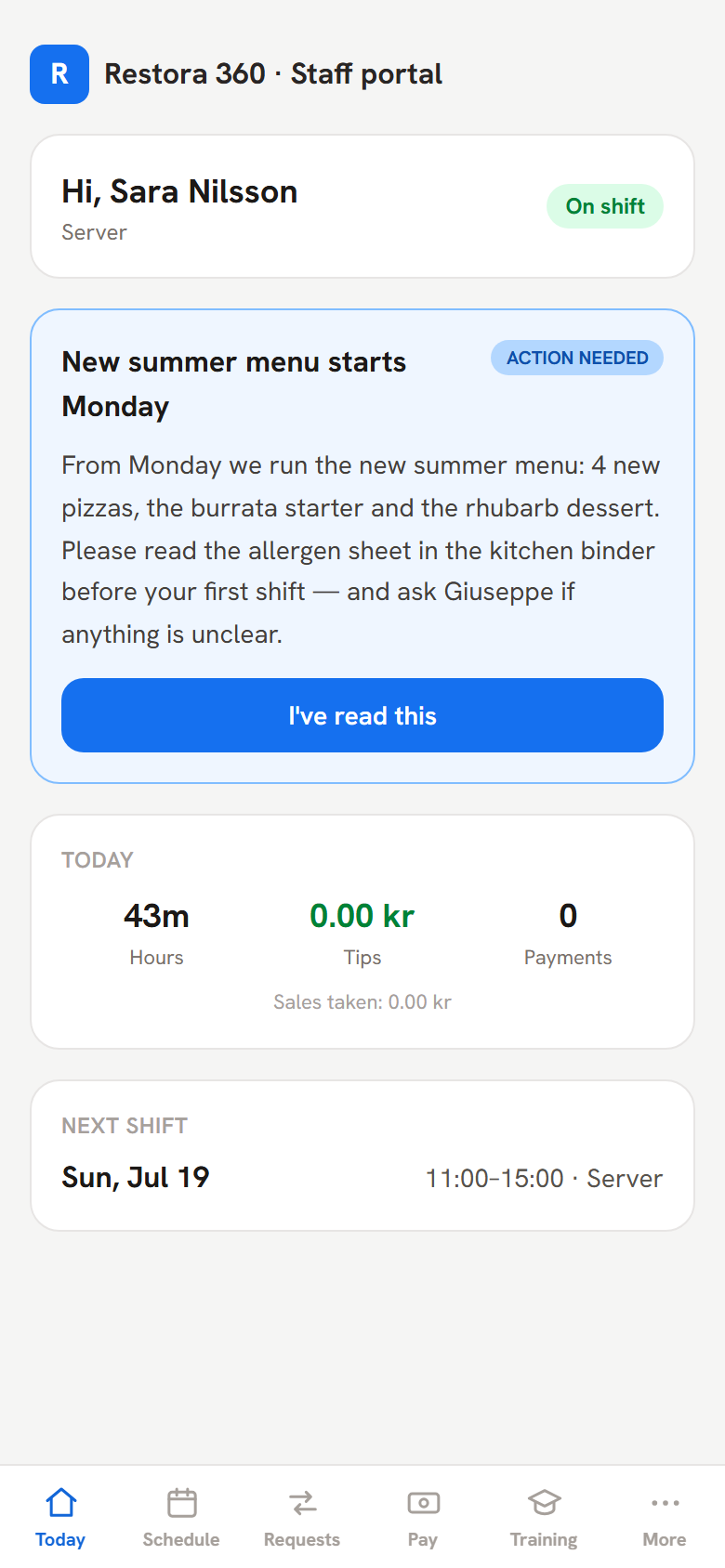
The Today tab greets you with your live status — on shift or off — plus today's worked hours, your tips for the day under the restaurant's tip policy, any must-read announcements waiting for your confirmation, and your next upcoming shift. It refreshes itself every half minute while open.

Worker Today tab with on-shift status, hours and tips — web view
Worker Today tab with on-shift status, hours and tips — mobile view
Mobile view
On shift right now: today’s hours and tips, and the next shift coming up.

Step 3 — Your schedule

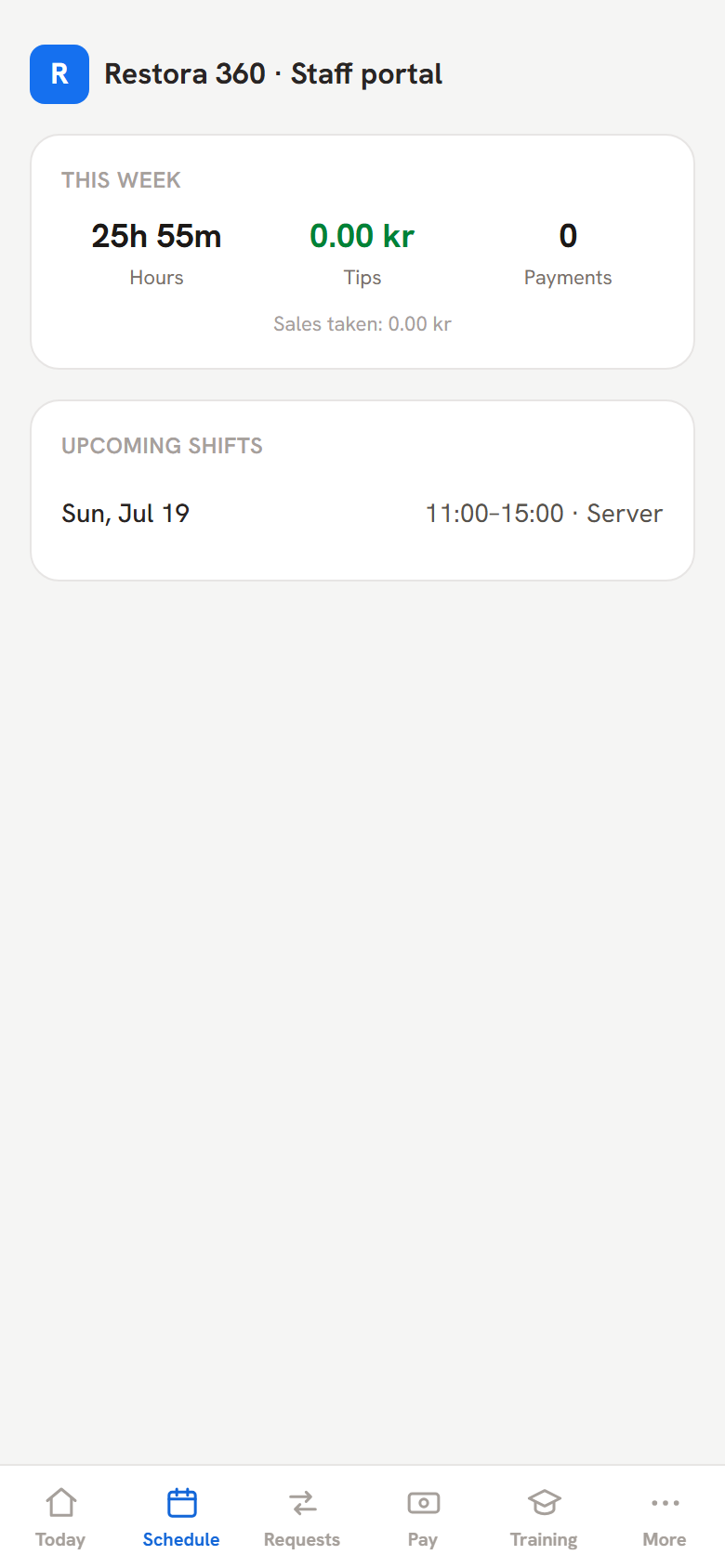
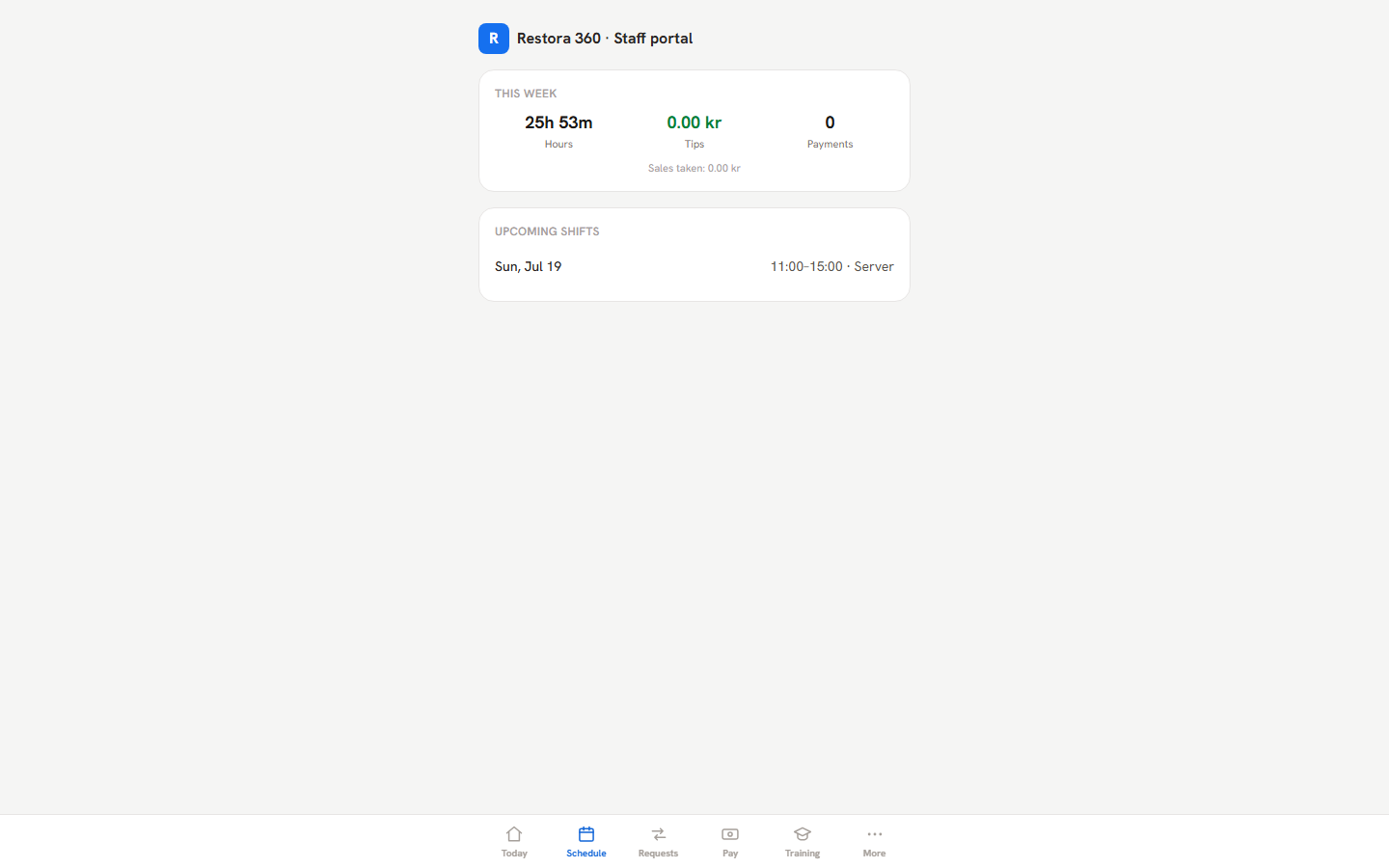
The Schedule tab lists your published shifts — date, times, role — plus a this-week hours summary. You only ever see published weeks: if next week looks empty, the manager simply hasn't published it yet. When a schedule is published or your shift changes, you are notified, and about two hours before each shift you get a "starts soon" reminder.

Worker schedule tab listing upcoming shifts — web view
Worker schedule tab listing upcoming shifts — mobile view
Mobile view
Published shifts only — with week totals above.

Step 4 — Clock in and out (at the till, not from the sofa)

The payment terminal at the venue

Clocking in happens on the restaurant's payment terminal: tap your 4-digit code on the shift screen and your work pass starts — Swedish law requires the staff register to reflect who is actually in the venue, which is why there is deliberately no clock-in from your phone.

Taking a break? Pause on the terminal, and tap back in when you return — break time is excluded from your worked hours. A colleague taking over the till just enters their own code: your shift ends as a handover, theirs begins. If you walk out without clocking out, the terminal eventually closes your pass on idle timeout, and the manager can correct the end time — every such correction is logged with a reason and visibly flagged.

Step 5 — Request time off

Requests → Time off

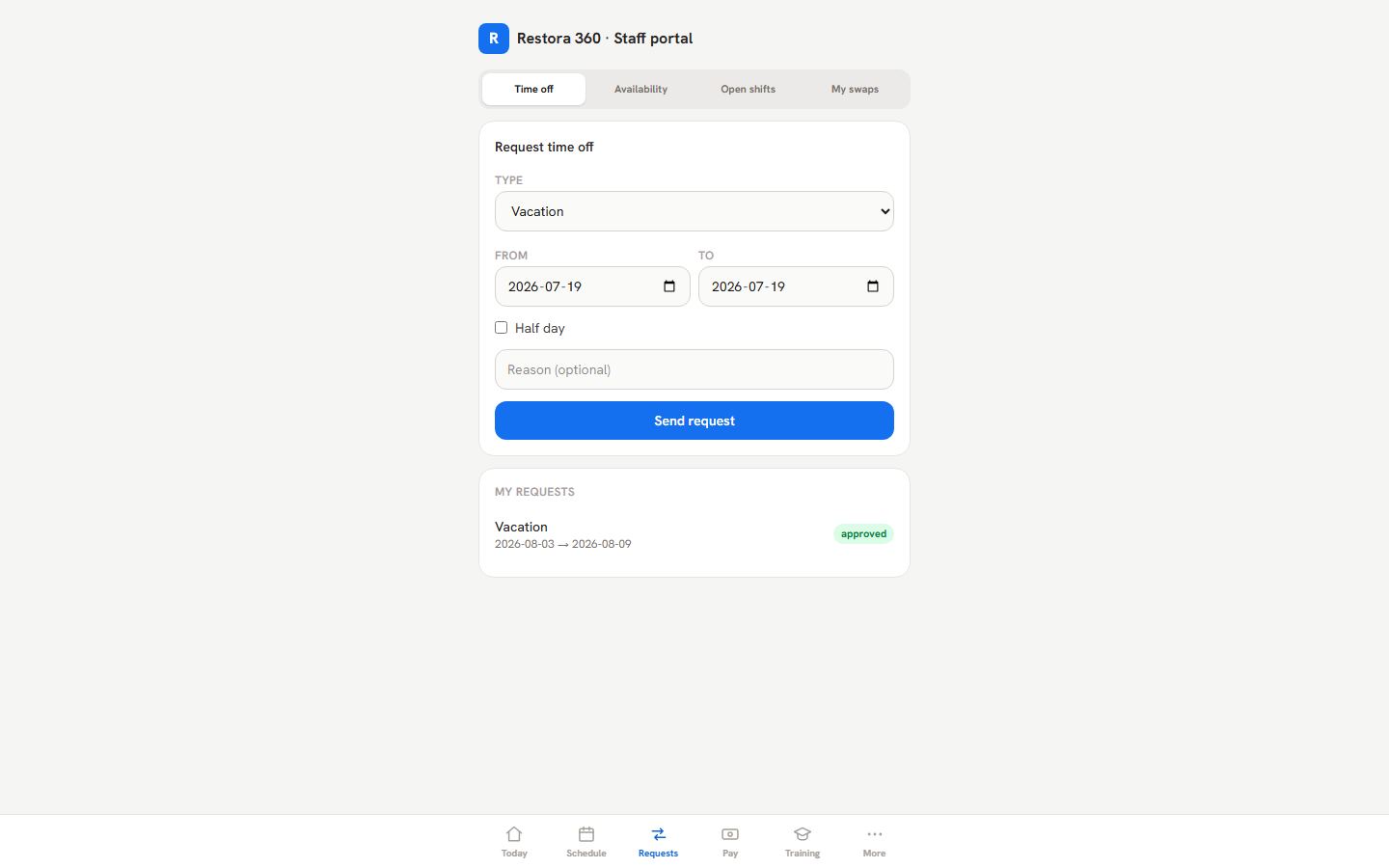
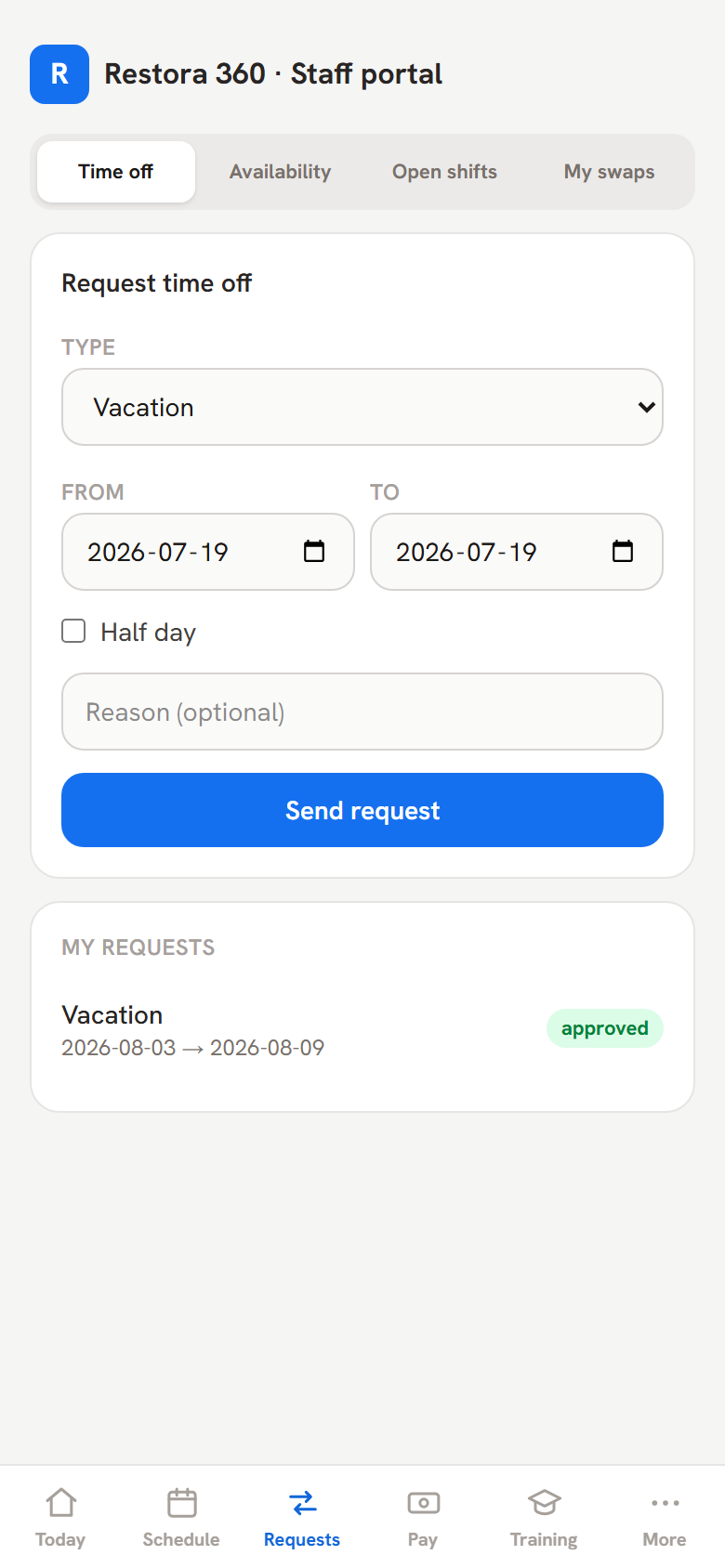
Pick the type (vacation, sick, other), the dates, optionally a half-day and a note, and send. Your request shows as pending until the manager decides; the status pill flips to approved or denied right in the same list. Approved time off automatically blocks the manager from scheduling you those days.

Time-off request form and status list in the worker portal — web view
Time-off request form and status list in the worker portal — mobile view
Mobile view
Request vacation in twenty seconds; watch the status pill for the answer.

Step 6 — Tell the rota when you can (and can’t) work

Requests → Availability

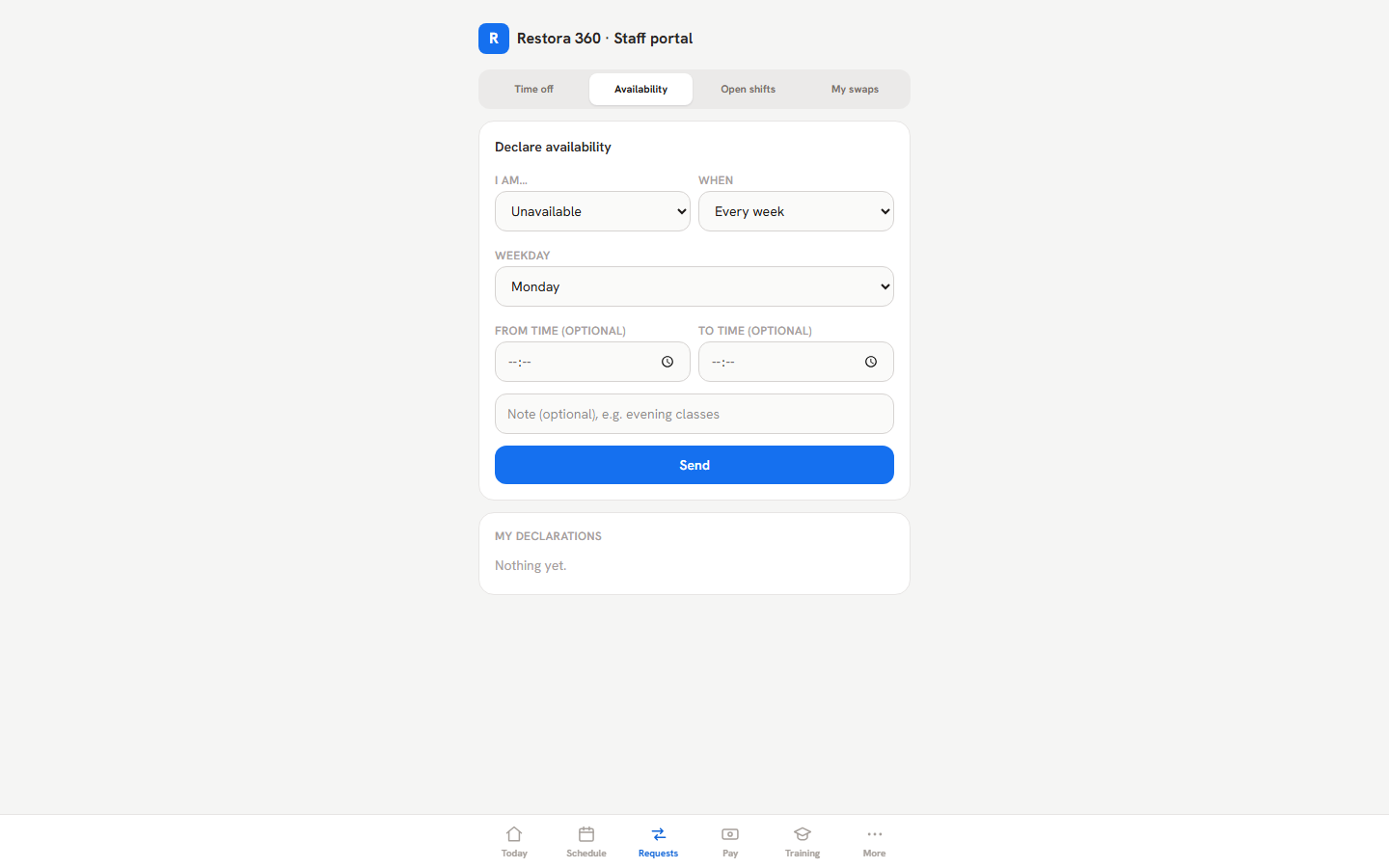
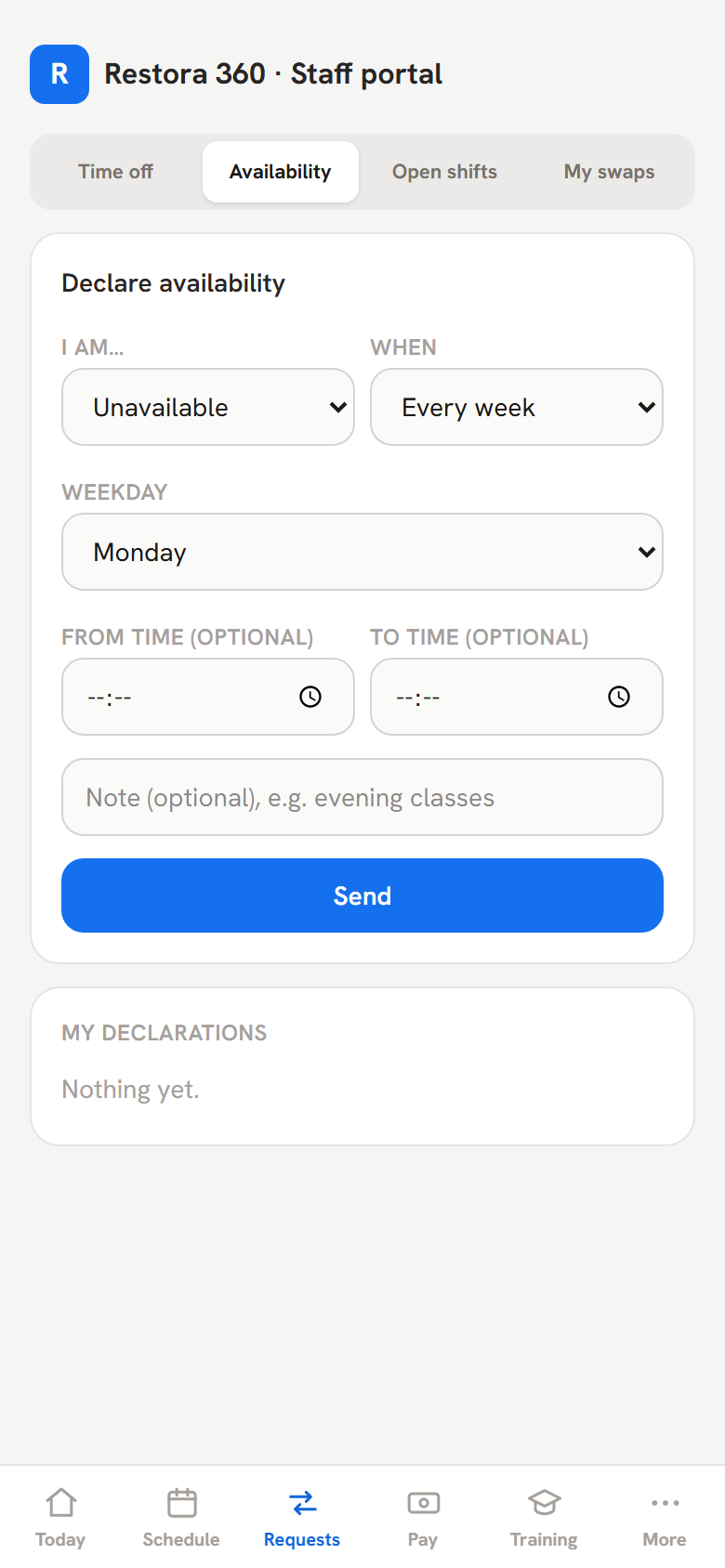
Availability is your standing pattern: unavailable Mondays, prefer weekend evenings, happy to take extra Thursdays. Submit it once; if you change your mind while it is still pending you can withdraw it yourself. Once approved, the scheduling grid warns your manager whenever a shift collides with it.

Availability preferences in the worker portal — web view
Availability preferences in the worker portal — mobile view
Mobile view
Standing availability: approved entries feed straight into the manager’s conflict warnings.

Step 7 — Swap a shift or grab an open one

Requests → My swaps · Requests → Open shifts

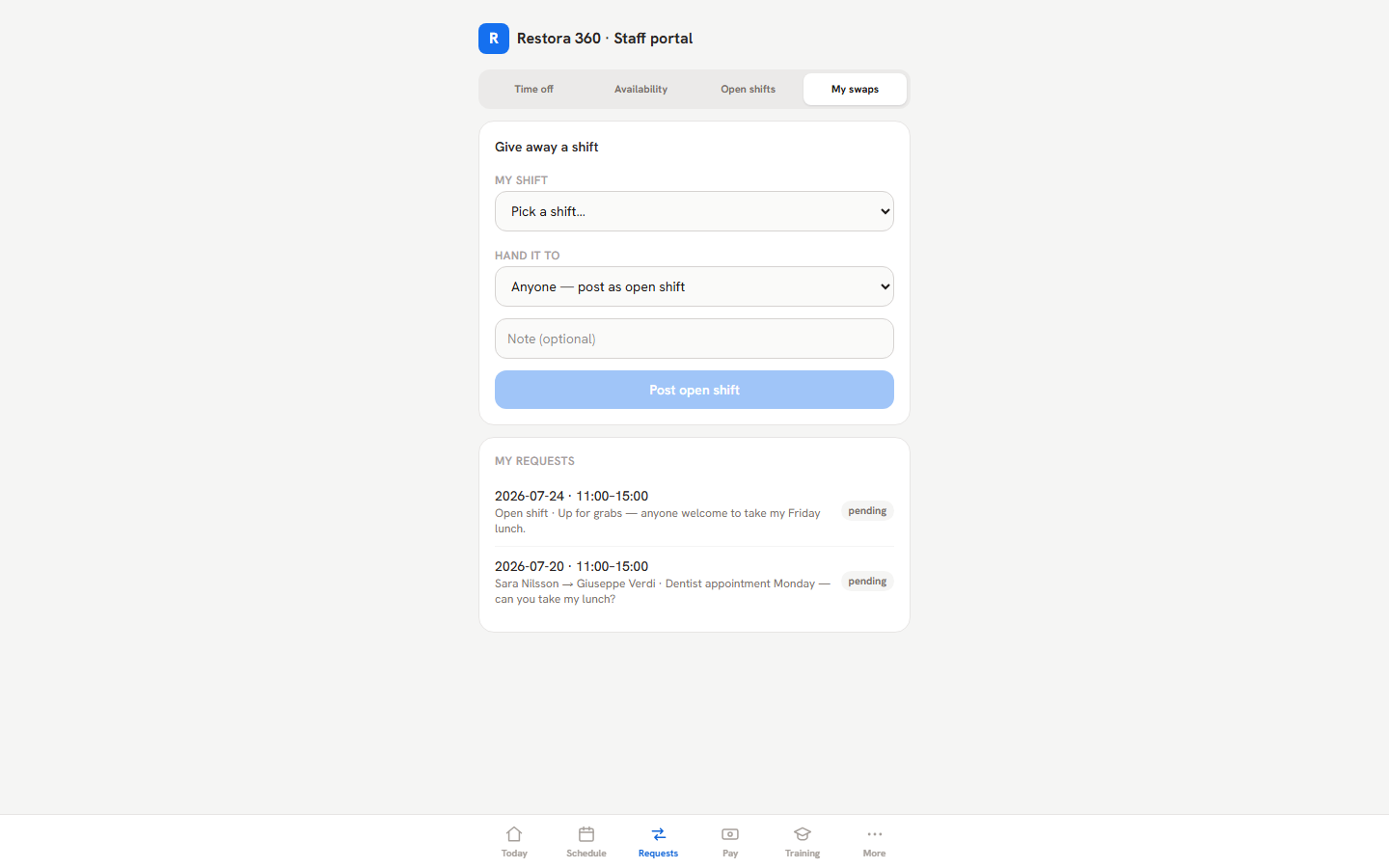
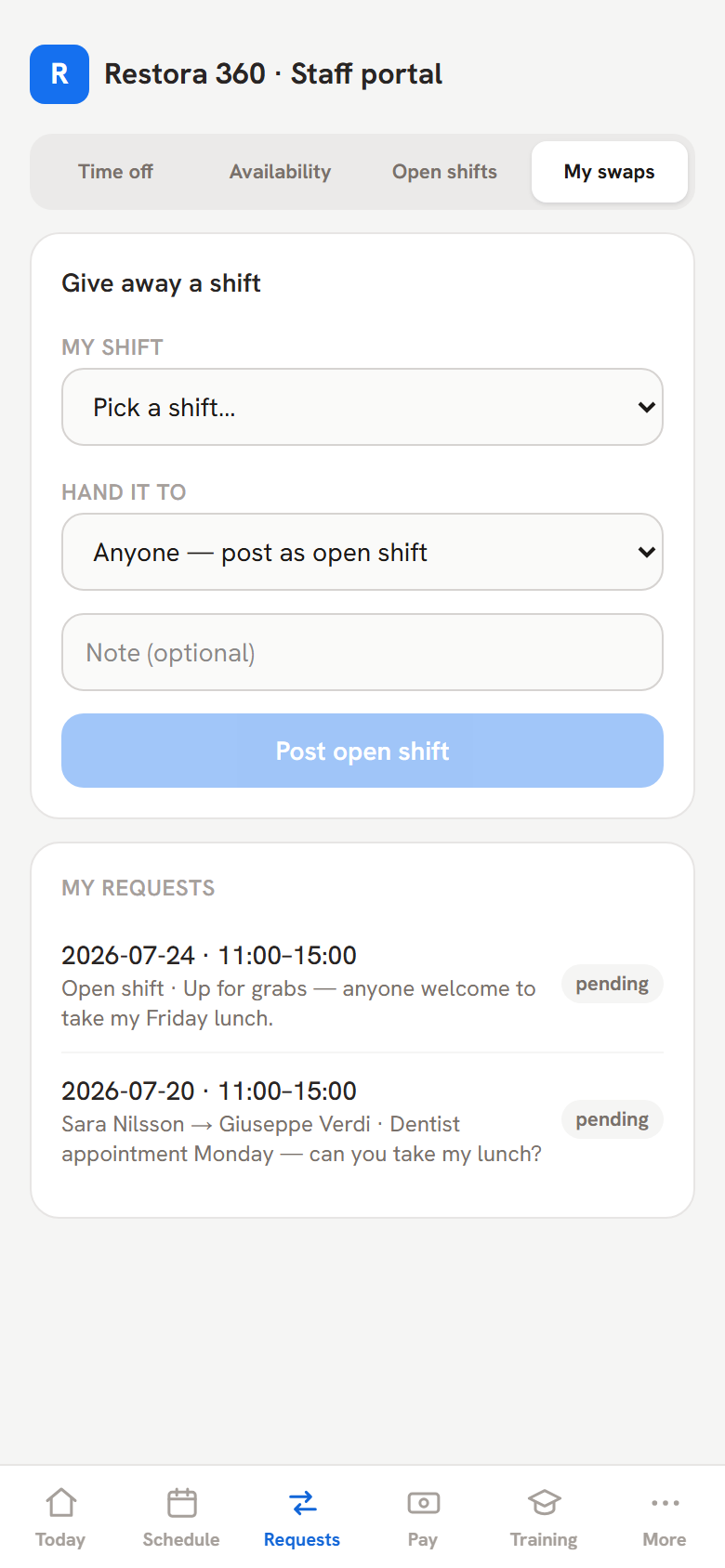
Can't make a shift? Offer it to a named colleague, or post it as an open shift for anyone. Colleagues see open shifts under Requests → Open shifts and claim with one tap ("Awaiting approval"). Nothing moves until the manager approves — and when they do, the rota updates itself and both of you can see the result.

Shift swap flow in the worker portal — web view
Shift swap flow in the worker portal — mobile view
Mobile view
Give a shift away to a colleague or the whole team — the manager has the final word.

Step 8 — Read your payslips

Pay

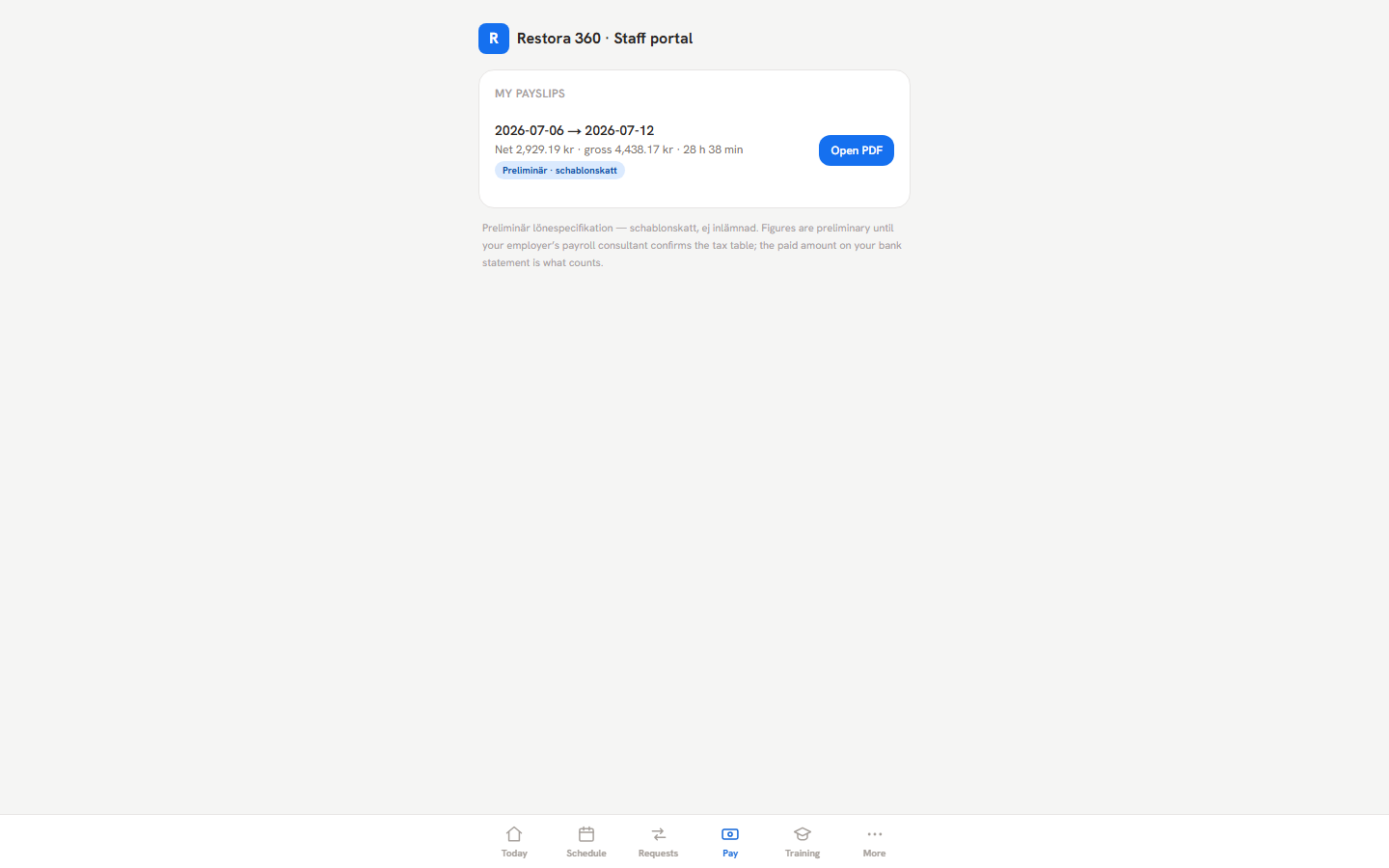
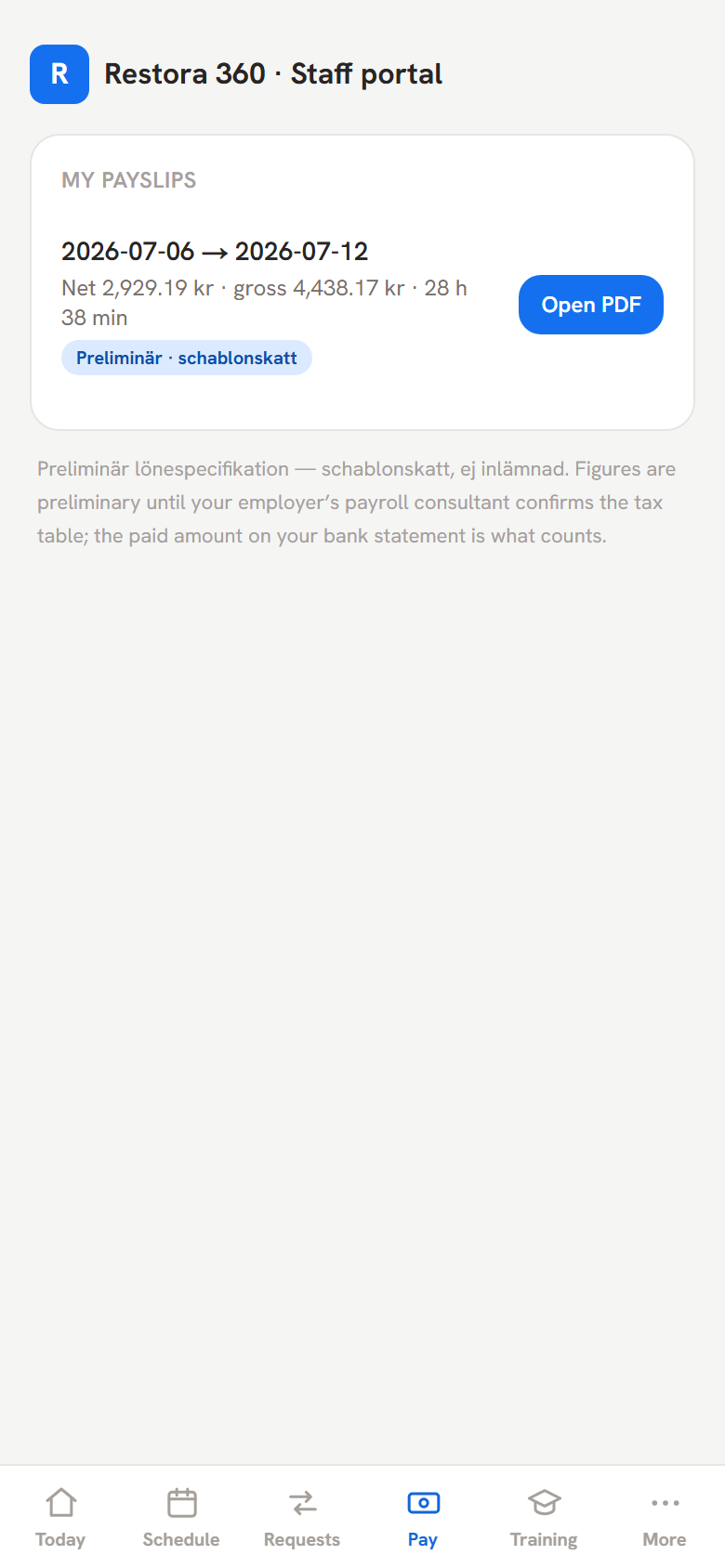
When the manager locks a pay period, it appears in your Pay tab: period, hours, gross and net, and the payslip as a PDF you can view or share. If a payslip is labelled "Preliminär · schablonskatt", that is the product being honest: the tax on it is a flat-rate preliminary estimate, not your final tax — your real deduction follows your tax table and your employer's payroll filing.

Worker Pay tab with payslip periods — web view
Worker Pay tab with payslip periods — mobile view
Mobile view
Locked periods only — with the honest preliminary-tax label where it applies.

Step 9 — Training and your certificates

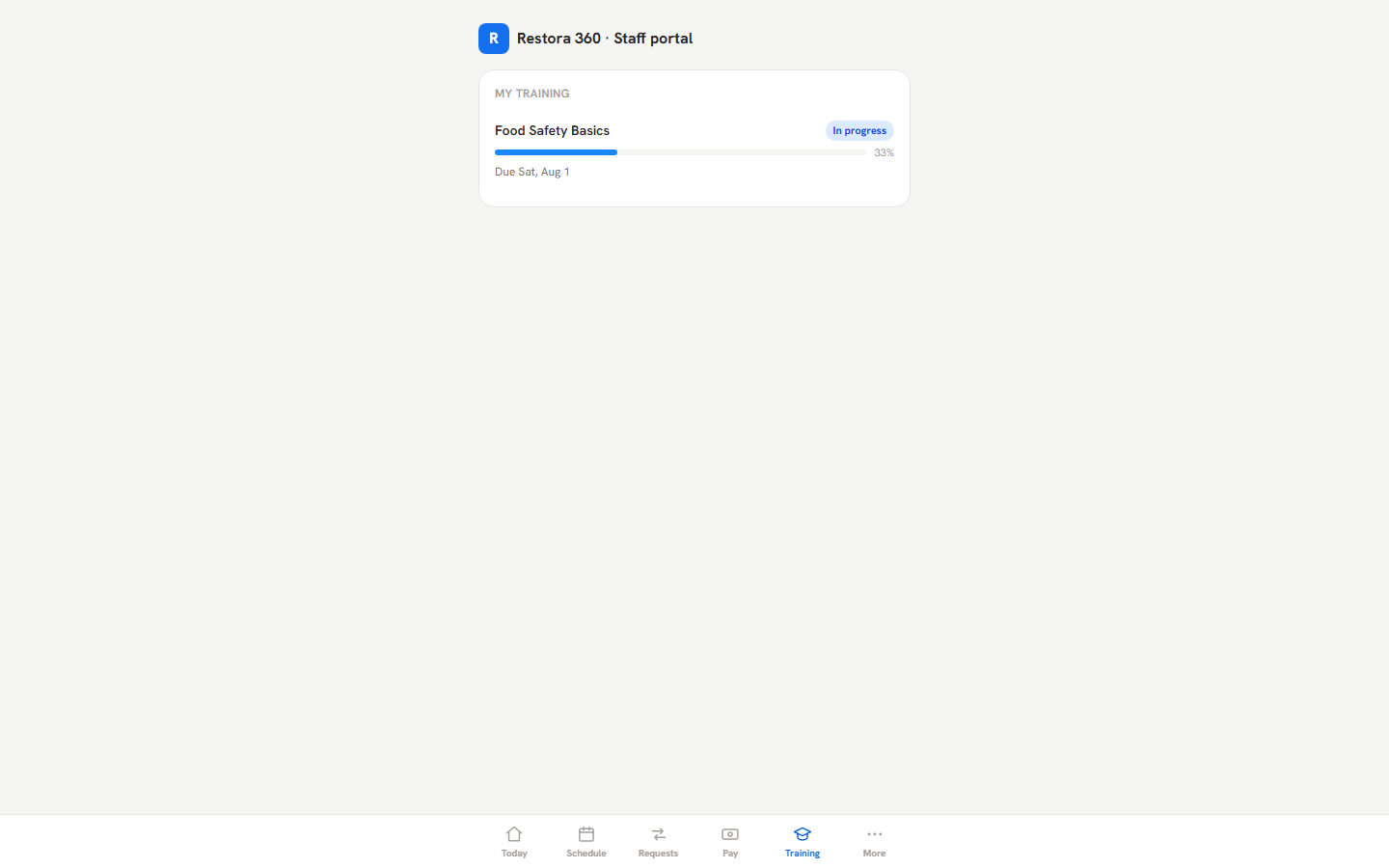
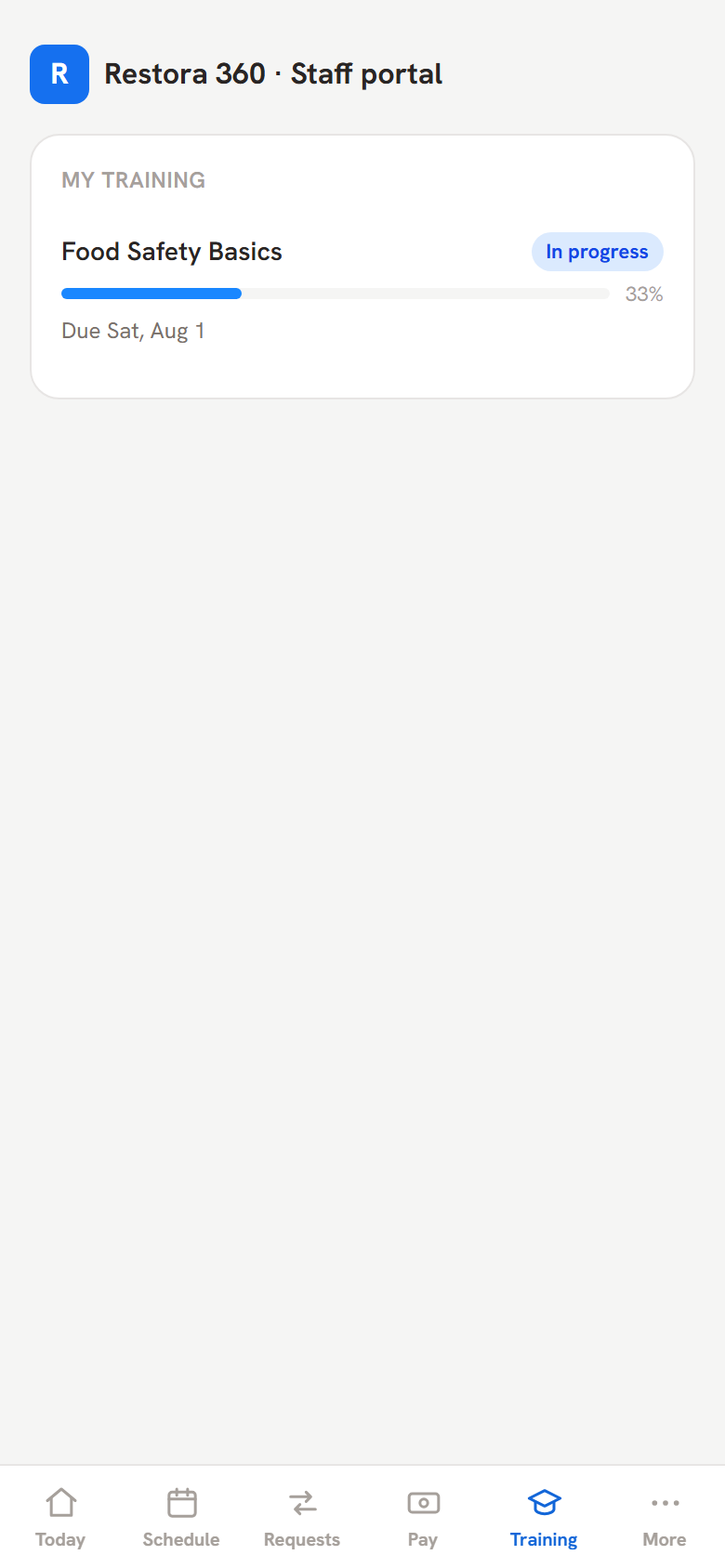
Training

Courses assigned to you appear with progress and due dates. Read the lessons, mark each done, and take the quiz at the end — it is graded on the server, and passing can earn you a certification that lives on your profile with its expiry visible. Overdue items turn red before your manager ever has to chase you.

Worker training tab with course progress — web view
Worker training tab with course progress — mobile view
Mobile view
Your assigned courses, progress, quiz — and the certificates you have earned.

Step 10 — News, must-reads and chat

Today → announcements · More → Team news & chat

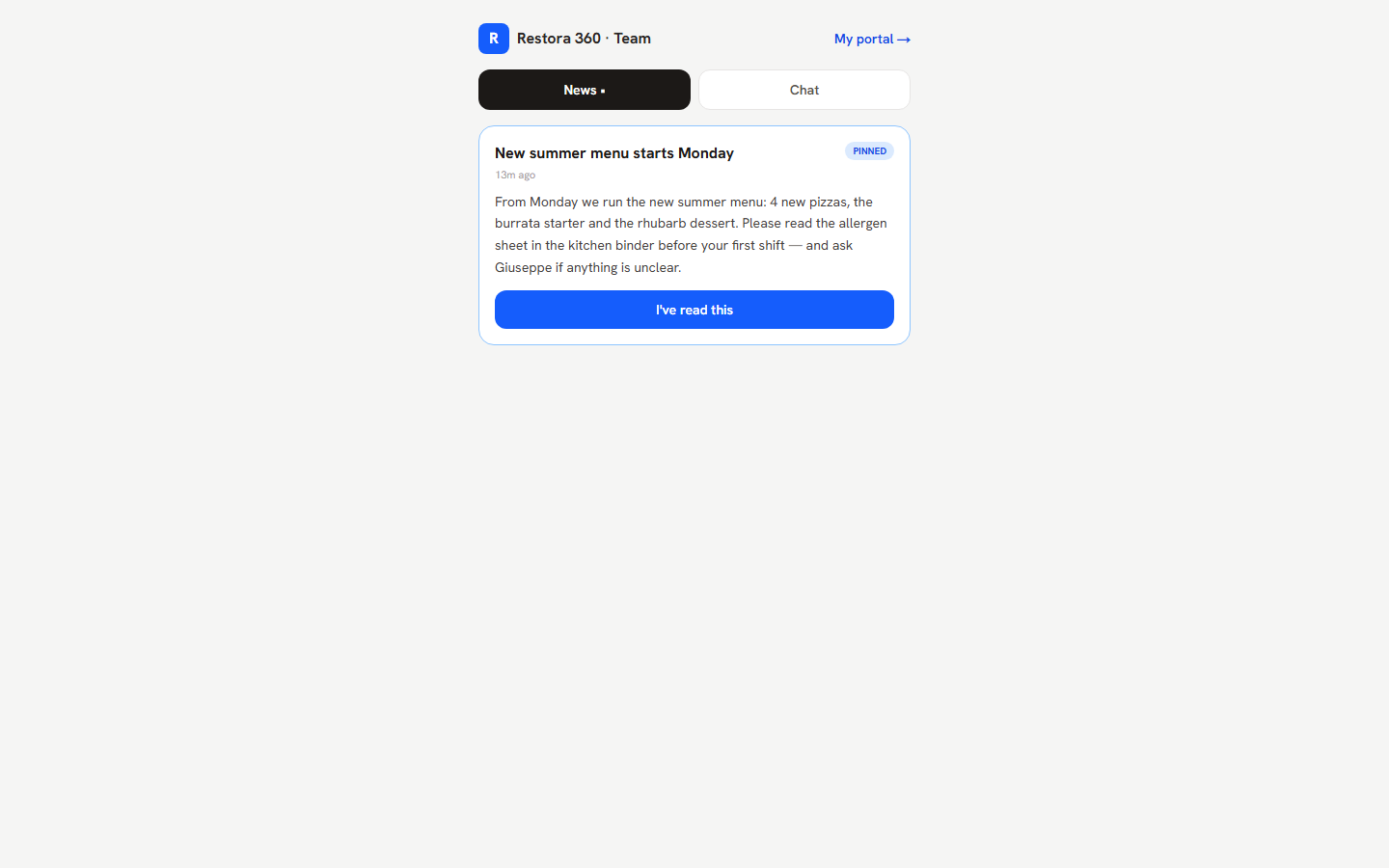
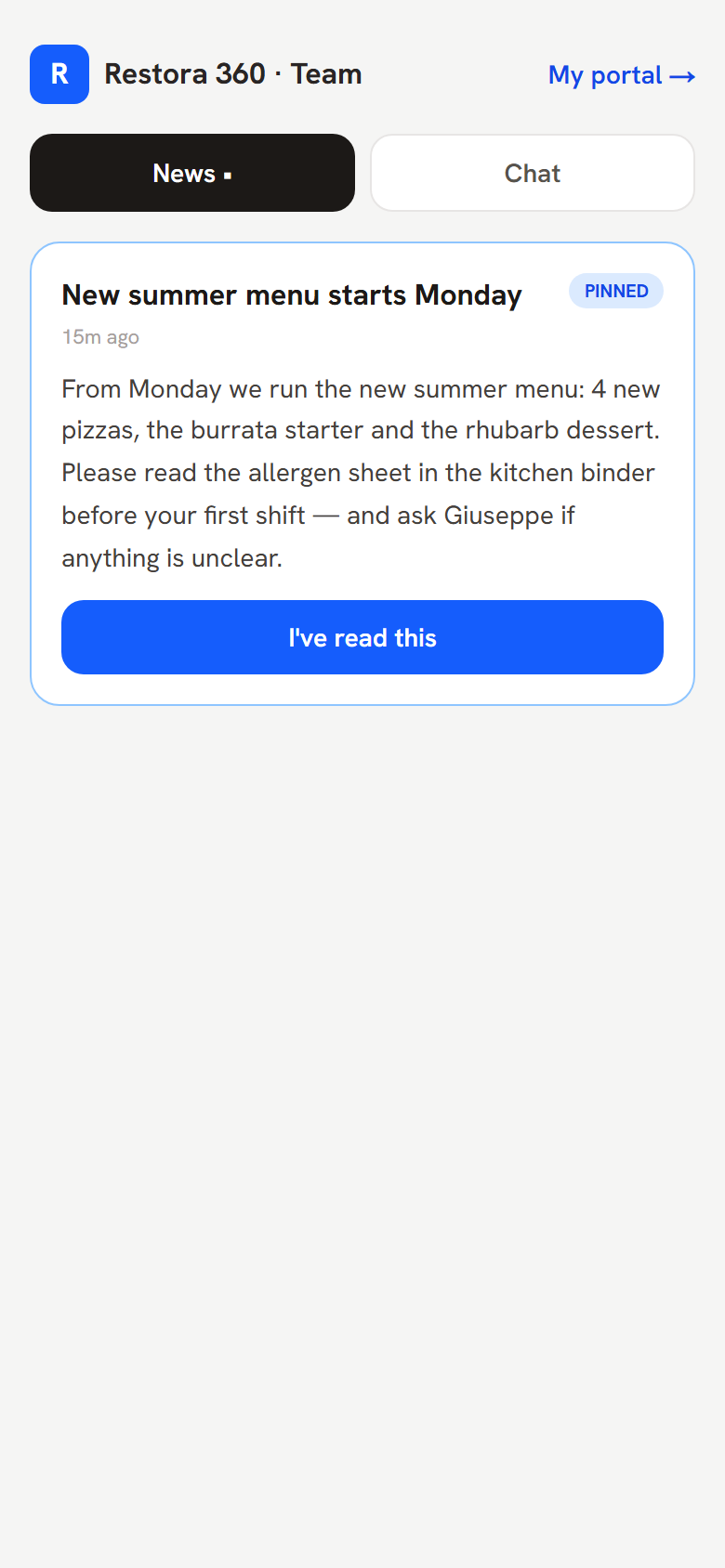
Announcements from the manager land in your news feed; the important ones ask you to confirm with one tap — do it, it is how "did everyone see this?" stops being a group-chat mystery. Chat is a private 1:1 thread with your manager for quick questions like "can you open Saturday?".

Worker news feed with a must-read announcement — web view
Worker news feed with a must-read announcement — mobile view
Mobile view
The news feed: pinned must-reads wait for your confirmation.

Step 11 — Reviews, goals and kudos

More → Reviews & recognition

When your manager shares a performance review, you read it here and acknowledge it — your acknowledgement is recorded. You also see your goals and the kudos wall, and you can send kudos to colleagues yourself. Recognition should not only flow downhill.

Step 12 — Your code and your data

More → Change my code · More → My data

Change your 4-digit code whenever you like. Under My data you can export everything the restaurant's system holds about you (your GDPR right to data access) — profile, shifts, requests, payslip periods — without asking anyone.

If you leave the job: your login and code are severed and your personal data is erased on request, with one legal exception — your entries in the staff register stay identifiable for the two years Swedish tax law requires, then disappear too. Your payslips are kept because bookkeeping law requires it. The legal chapter explains both.

Worker More tab with data export and code change — web view
Worker More tab with data export and code change — mobile view
Mobile view
Self-service GDPR export and code change — no manager required.

Chapter 4

The Skatteverket inspection — what happens and what to show

Skatteverket may visit any restaurant unannounced to check the staff register (kontrollbesök). The visit is usually short and calm: the inspector wants to see the register for today, check that everyone physically working is on it, and may ask people to prove their identity. Here is exactly how that plays out with Restora 360 — including when the owner is not in the building.

Step 1 — Any staff member opens the register on the terminal

Payment terminal → “Personalliggare” button (no code needed)

The clock-in screen of the payment terminal carries a Personalliggare button that anyone can tap — deliberately reachable without any code, so the register is presentable even before opening or when only a 17-year-old extra is in the building. It opens a read-only "Skatteverket inspection view": today's register with names, start and end times, ongoing passes, the recording device, and honesty flags on manual or corrected entries. The inspector can step back day by day through the full retention window; the view never shows the future and can change nothing.

Personal identity numbers are masked in this open view. To reveal the personnummer column, any staff member enters their own 4-digit code — the reveal is rate-limited and written to the audit log with who unlocked it.

The staff register day view as shown during an inspection — web view
The staff register day view as shown during an inspection — mobile view
Mobile view
The register the inspector reads: real clock-ins, ongoing passes, flagged corrections.

Step 2 — Or: the manager opens the dashboard register

Dashboard → Team → Staff Register (HR permission for exports)

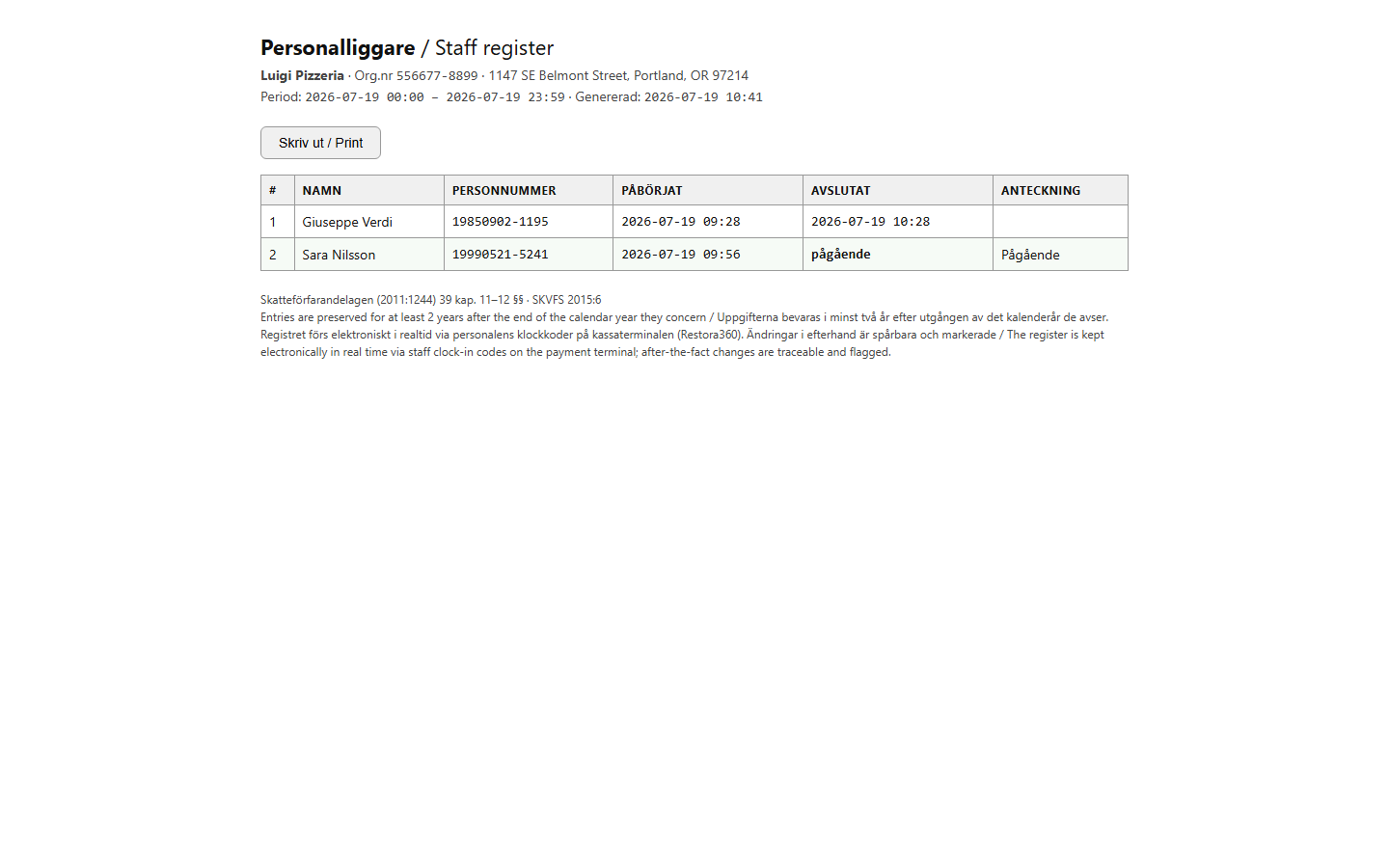
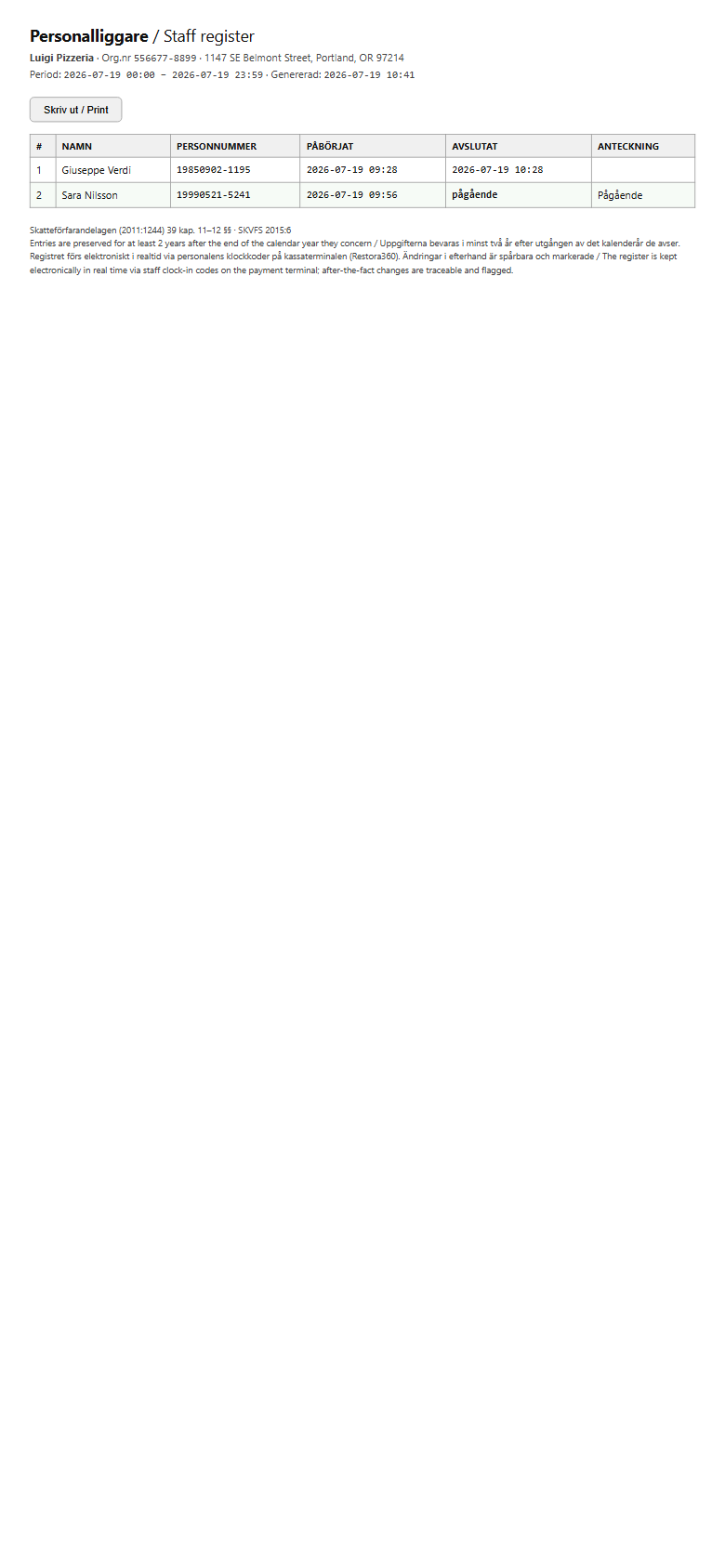
A manager with the HR permission can equally show the dashboard register on any laptop or phone — same data, same flags — and hand over a printed copy: the Print view is a standalone document with the venue name, organisationsnummer, period, the day's register and the statutory references, formatted to be given away. CSV export (day or month) covers the "can I take this with me?" request.

Both export actions are permission-gated and logged. There is no way to produce a "cleaned" version of the register — corrections always print with their flags.

The printable staff register document — web view
The printable staff register document — mobile view
Mobile view
The print view: an inspector-ready document with org.nr, period and statutory footer.

Step 3 — Identity checks against the register

The inspector may ask anyone performing work to identify themselves (Skatteverket may request ID at a kontrollbesök) and will match the people present against the register. This is the whole point of the exercise: the register must list everyone working right now, started when they actually started. People on the register but off-shift, or on approved break, are not a problem; a person working who is not on the register is.

Step 4 — What the inspector is judging (and what it costs)

The inspection checks: that a register is kept electronically in the approved form, that it is available in the venue, that entries are made at the time work starts (not reconstructed at night — this is why manual entries are flagged, and why flagged-but-honest beats invisible), that personnummer are recorded, and that the register covers two years back.

The control fee (kontrollavgift) for not keeping or not presenting a register is 12,500 kr per inspection, plus 2,500 kr for every person found working but not recorded. A repeat violation within one year raises the base fee to 25,000 kr. The fee is administrative — the inspector can decide it on the spot, and it is not deductible.

Chapter 6

Real-world scenarios, handled

Twelve situations every restaurant eventually meets — what the system does on its own, and what you do.

Someone forgot to clock in

Situation: Sara has been serving since 11:00 but never tapped in — the register is missing her.

What the system does: The register shows only real punches, so Sara is absent from today's page. The Staff Register page will not invent an entry.

What you do: Add a missed punch from Timesheets (insert missed punch, with a written reason). It appears on the register immediately, flagged as a manual entry — which is the honest, inspection-safe representation. Then remind Sara: the flag exists precisely because real-time beats reconstructed.

Someone forgot to clock out

Situation: Giuseppe went home at 22:00; at midnight his pass still shows "ongoing".

What the system does: With no activity, the terminal closes the pass on idle timeout and records "idle" as the end reason. A manager can also press Force end on Shifts & Servers at any moment.

What you do: Correct the end time in Timesheets to when he actually left, with a reason. The punch keeps its full edit trail and shows as corrected on the register.

A no-show during service

Situation: A scheduled server simply does not appear on Friday evening.

What the system does: The live board shows who is actually clocked in; the weekly timesheet marks the shift as a no-show when scheduled hours meet zero punches.

What you do: Post the shift as an open shift so colleagues can claim it, or message staff directly from Chat. After the week, the no-show is already on the timesheet for the performance conversation.

A last-minute swap

Situation: Sara cannot make tomorrow's lunch; Giuseppe is willing.

What the system does: Sara offers the shift to Giuseppe (or posts it open) from her phone; the request waits for approval; on approval the rota reassigns itself and both see the change.

What you do: Approve from Scheduling → Requests — one tap. For an emergency you can skip the round-trip entirely: open the shift in the editor and reassign it yourself.

The inspector arrives mid-rush

Situation: Two officials at the pass at 12:30, the owner is at the wholesaler.

What the system does: Any staff member taps Personalliggare on the terminal: the full read-only inspection view opens without any code. Personnummer unlock with any staff member's own code, audited.

What you do: Keep serving. The seventeen-year-old extra can lawfully present the register alone. If the inspector wants a copy, any manager with HR permission prints or exports it from the dashboard — even from a phone.

A new hire starts this afternoon

Situation: You hired a dishwasher at 13:00; they start at 16:00.

What the system does: Nothing blocks a same-day start: staff record, code and register readiness take about three minutes.

What you do: Add them on Staff & Permissions, enter at minimum the personnummer on the HR profile, set their 4-digit code on Shifts & Servers, and share the portal link. They clock in at 16:00 and the register is complete and lawful from minute one.

A trial-shift candidate ("provjobb")

Situation: Someone works a two-hour trial before you decide to hire.

What the system does: The register duty covers everyone performing work in the venue — paid or not, hired or not.

What you do: Give them a staff record and code before they start (you can deactivate it after), or insert a manual entry the moment the trial begins. An unrecorded trial worker is exactly the 2,500 kr-per-person finding.

An employee quits

Situation: Sara resigns at the end of the month.

What the system does: Deactivating her ends scheduling and portal access; her code is severed. A GDPR erasure pseudonymises her everywhere immediately — but her register entries stay identifiable inside the statutory 2-year window (encrypted snapshot), and payslips survive under bookkeeping law.

What you do: Set her inactive with her employment end date, run her final pay period, and only then process an erasure request if she makes one. Never delete the record outright — the law needs the history.

The terminal dies mid-shift

Situation: The till tablet reboots (or the network drops) while three people are clocked in.

What the system does: The running shift is cached encrypted on the device and survives reboot and offline periods; punches sync when connectivity returns. The register lives on the server, not the device.

What you do: Carry on. If a punch was genuinely lost, insert it as a missed punch with a reason — flagged, honest, done.

A pay dispute

Situation: "I worked way more hours than this payslip says."

What the system does: Every paid minute traces back: payslip → locked run → approved timesheet → individual punches with their full edit history and reasons.

What you do: Open the timesheet week together and walk the punch log. If the record is wrong, correct it (audited) and settle the difference as a correction on the next run — locked history stays locked.

You locked payroll and then found an error

Situation: A locked run undercounted Giuseppe's overtime.

What the system does: Locked runs are immutable by design — that immutability is what makes them trustworthy to your accountant and to Profit reports.

What you do: Add the missing amount as a correction line on the next period's run (and note it). This mirrors standard payroll practice everywhere: history is never rewritten, it is corrected forward.

You employ a 17-year-old

Situation: A gymnasium student works weekends.

What the system does: Their date of birth marks them a minor to the compliance scanner: hour ceilings, night-window and rest rules from AFS 2012:3 apply to every scan, planned and worked.

What you do: Enter the correct date of birth on the HR profile, then treat compliance findings on their shifts as hard stops, not suggestions. School-term rules are stricter — when in doubt, check av.se.
Questions & answers

Frequently asked questions

Do my staff need to download an app?

No. The worker portal is a web page — share the link, staff sign in with their 4-digit code on any phone. On Android they can additionally install the native Staff app (same code, same data, adds push notifications), and the portal itself can be added to the home screen like an app.
Why can't staff clock in from their phones?

By design. The Swedish personalliggare must record who is actually present in the venue; a sofa clock-in would make the register unreliable and put your inspection at risk. Clock-in therefore lives only on the venue's terminal. (An advisory geofence exists for terminals that report location, and it is deliberately lenient — shared tills without GPS always work.)

What if two employees want the same 4-digit code?

Codes must be unique per restaurant. The system refuses to attribute anything to an ambiguous code — if a collision ever existed, that code simply stops working until a manager resets one of the two. Practically: let people pick their own, and the collision case never comes up.

Is the personalliggare here approved for Skatteverket?

The register follows the electronic-register rules (SKVFS 2015:6): real-time entries from clock-ins, visible corrections with audit trails, personnummer, organisationsnummer, availability in the venue via the terminal inspection view, print/CSV handover, and two-year retention. There is no pre-approval scheme for register software in Sweden — what matters is that your register is kept correctly, which is exactly what the flags and warnings help you do.

Does Restora 360 file my AGI or pay salaries automatically?

No — and it says so on the files. Locked payroll runs export a correctly formatted Skatteverket AGI XML and a Bankgirot salary file, both watermarked as mock/preliminary: you download, review and submit them yourself (or hand them to your accountant). Automatic filing and disbursement are on the roadmap and will be separate, clearly announced go-lives.

Are the payslips real payslips?

They are honest preliminary payslips: hours, wage components, tips, OB and overtime are real, but tax is a flat-rate (schablon) estimate until statutory filing goes live, and every affected payslip is labelled "Preliminär · schablonskatt". Draft-run payslips are additionally watermarked as drafts. Use them for transparency with staff; your registered payroll/accountant produces the final statutory ones.

Who can see personnummer and bank details?

They are encrypted at rest and masked in every screen. Only users holding the HR permission can reveal a full personnummer, and each reveal is written to the audit log. During an inspection, the terminal's register view reveals personnummer only after a staff member enters their own code — also audited. Bank details never appear anywhere after entry except as last-4-digits.

What happens to all this data when an employee leaves?

Deactivate them: scheduling, portal and code access end. On an erasure request, their personal data is pseudonymised immediately — except register entries inside the statutory 2-year window (kept identifiable via an encrypted snapshot, as GDPR art. 17(3)(b) permits for legal obligations) and payroll/payslip records kept under bookkeeping law. Clock-in geolocation is deleted outright.

Can I run this in a country other than Sweden?

The scheduling, portal, timesheets and tip tools are country-neutral and work anywhere. The statutory layers — personalliggare, ATL compliance rules, AGI, OB conventions — are Sweden-specific rule modules; other countries' modules follow the same architecture but ship separately. This guide is the Sweden edition.

What does Staff & Shifts cost?

It is included in the Basic plan at 299 kr/month (billed yearly) together with the POS and Kitchen Display — no per-employee fees, no percentage of payroll. Individual modules can be toggled per restaurant under Add-ons.

Does scheduling use AI? Should I trust it with legal rules?

The rota optimizer and the staffing briefing are deterministic — they propose, you review and accept per shift, nothing applies itself. Compliance findings, the register and every payroll number are pure rule code with statute references; no AI ever decides a legal or wage question. The only AI touchpoint is an optional paid "narrate" rephrasing of the briefing text, clearly marked.

What if the internet is down during an inspection?

The terminal caches the running shift state and its register view is served by your venue's terminal against the server; in a full outage, the dashboard register is reachable from any phone with coverage, and the punches queued on the device sync when the network returns. If something was genuinely lost, insert the punch manually with a reason — flagged and honest.

Can a manager change punches without anyone noticing?

No. Every hour edit and every inserted punch requires a written reason, keeps its full edit trail, and renders flagged on the timesheet, the shift log and the statutory register — permanently. There is no "clean" export that hides corrections.

How do tips actually get to people?

Card tips are recorded per clocked-in server automatically. Your tip policy (individual / even / by hours / by sales) decides the split; the estimate page and each worker's Today tab show the same numbers. Payout happens through payroll (tips appear as payslip lines on a run) or however you pay out today — the system's job is that the split is transparent and undisputed.

We already publish schedules in a group chat. Why bother publishing here?

Because publishing here is what powers everything downstream: staff see shifts in their portal, get "schedule is out" and "shift starts soon" notifications, swaps and time off check against the real rota, timesheets compare plan vs punches, and compliance scans your actual plan. A screenshot in a chat does none of that.

Is my restaurant's data isolated? Where does it live?

Each restaurant's data is tenant-isolated on Restora 360's European infrastructure; staff PII is encrypted at rest as described above. Workers can only ever reach their own record through the portal — the worker session is scoped to one person at one restaurant.

Something unanswered? Talk to a human — a real person replies within a business day.

Ready when you are

See it with your own restaurant

Everything in this guide is included in the Basic plan — 7-day free trial, no card to begin.