Skip to content
User guide

A waiter's shift, start to finish — the complete guide

Written to you, not your manager: seating a table, taking an order by seat and course, splitting the bill, working the bar, and handing over cleanly at the end of the night. Real screenshots for every step, on the phone you actually carry.

Updated 19 July 202624 min readSweden edition · EnglishReal product screenshots
About POS & Waiter PoS guide (owner/manager) Start free trial

Chapter 1

Before your shift — the two screens you live in

This guide is written to you, the waiter — feel free to read it on your own phone before your first shift. Almost everything you do lives in two screens: Take an order, where you build a ticket table-side, and Table Billing (or Bar, if you're working the bar), where a table actually pays.

Everything you do here plugs into the same system your manager sees from the office — the same menu, the same tables, the same ledger. Nothing you do on the floor needs a second entry anywhere else.

Your shift, start to finish

Clock in, check which tables are yours, take orders as guests sit down, send them to the kitchen, settle bills as tables finish, and hand over cleanly at the end. That's the whole loop — this chapter maps it once, and Chapter 2 walks every step with real screenshots.

One thing worth knowing up front: an order you send to the kitchen is unpaid. It settles later, on the table's bill, once the guests are ready to leave — you're not charging a card every time you tap "send."

  • Take an order → building and sending tickets, table by table.
  • Table Billing / Bar → settling up once a table (or a bar tab) is ready to pay.

Clocking in (covered in the Staff & Shifts guide)

You clock in and out on the payment terminal at the venue with your personal 4-digit code — never from your own phone, by design, since the law requires the staff register to reflect who is actually in the building. That whole flow, plus your schedule, requests and payslips, is covered in full in the companion Staff & Shifts guide, so it isn't repeated here.

About the examples in this guide

Every screenshot here is a real capture from the demo restaurant "Luigi's Pizzeria" — the same demo tenant used across all of Restora's guides. Table numbers, guest names and amounts are fictional demo data.

You'll see the mobile view (the phone you actually carry on the floor) alongside the web view (the same screen on a tablet at the host stand) for every step — this guide is written mobile-first because that's how you'll actually use it.

Chapter 2

Your shift, step by step

Follow this top to bottom your first week; after that it's mostly steps 2–8, on repeat, table after table.

Step 1 — Check your section

Dashboard → Tables

Before service, glance at Table Management: which tables are available, which are already occupied, and which area you're covering tonight. Each table card shows its seat count and area (dining room, patio, bar…), so you know at a glance what you're walking into.

Step 2 — Seat guests and open the table

Tables → tap a table → Open table

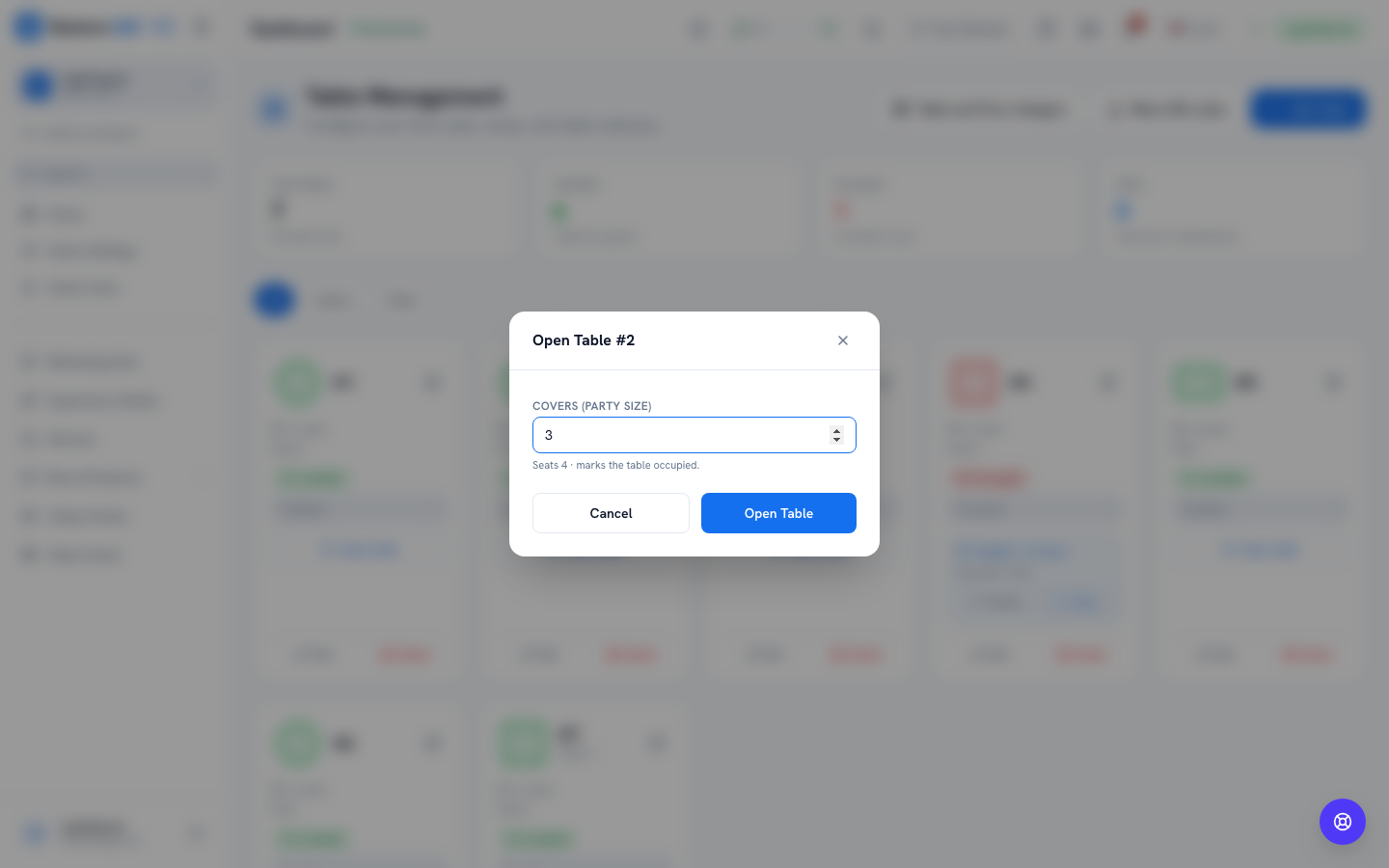
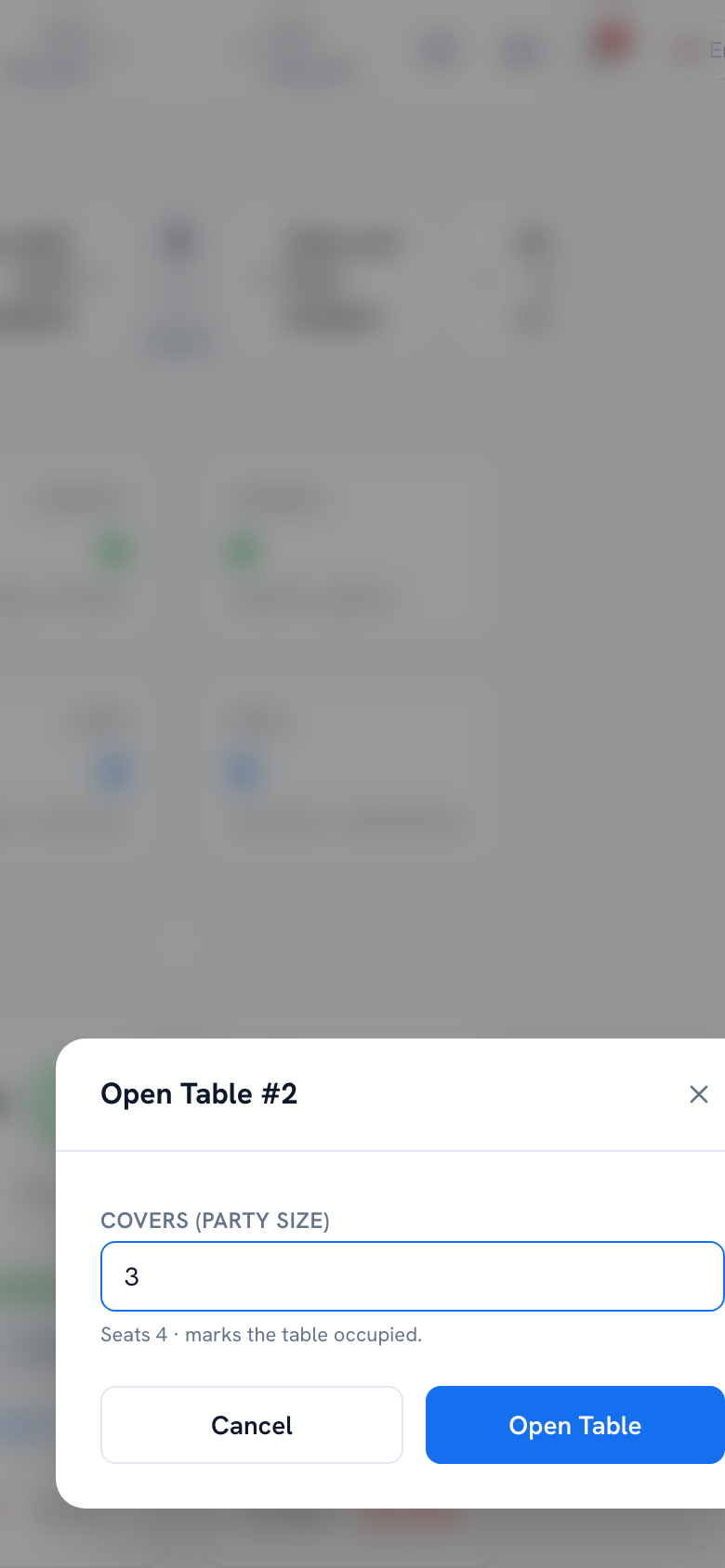
When a party sits down, tap "Open table," enter the covers (how many guests), and the table is now occupied with a running session — that's what your order and their eventual bill attach to. A party moving to a different table? Use "Transfer" instead of opening a new one — it carries the whole order across.

Open Table dialog with a covers (party size) field — web view
Open Table dialog with a covers (party size) field — mobile view
Mobile view
Opening Table 2 for a party of three, right as they sit down.

Step 3 — Start the order

Dashboard → Take Order → pick the table

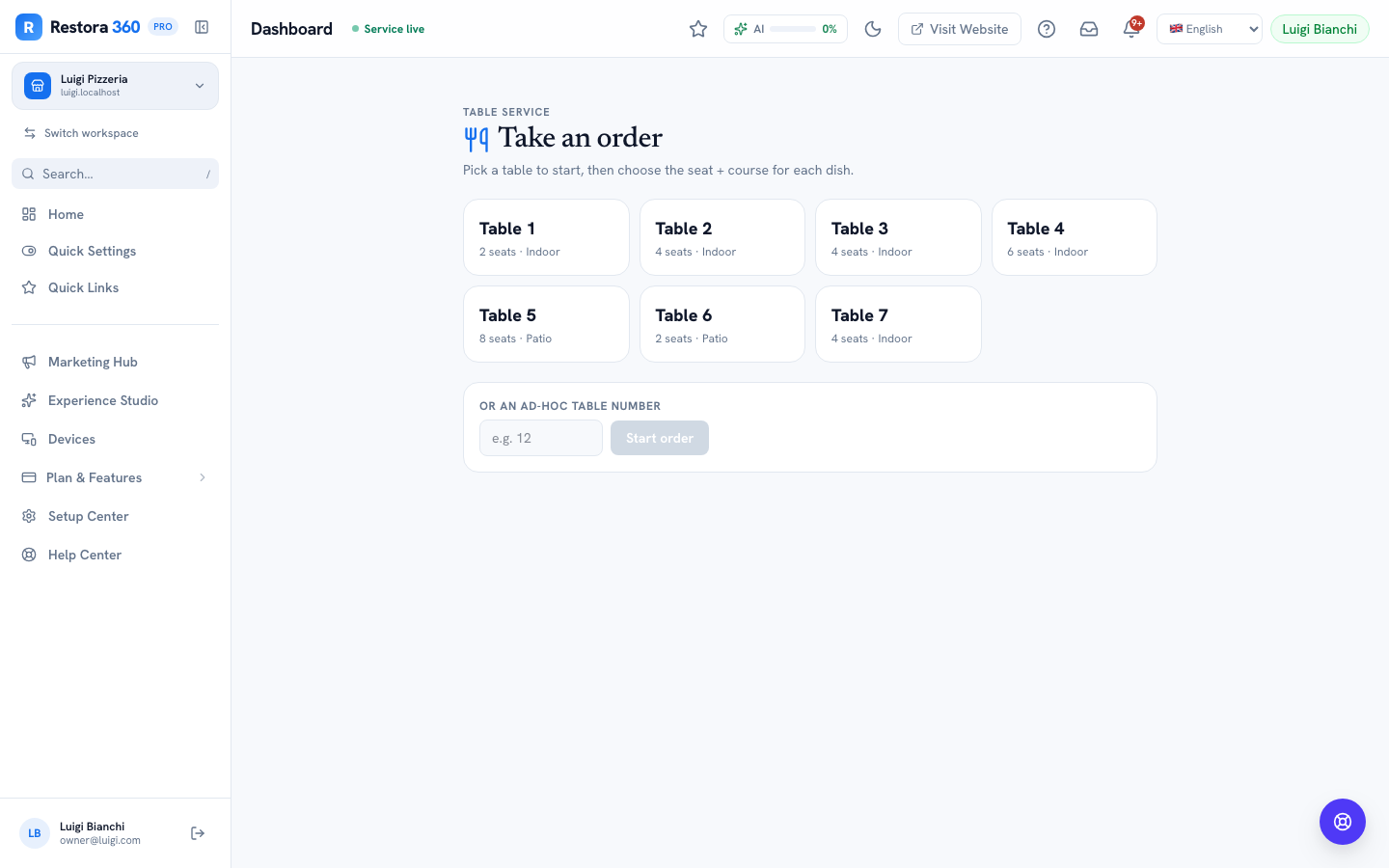
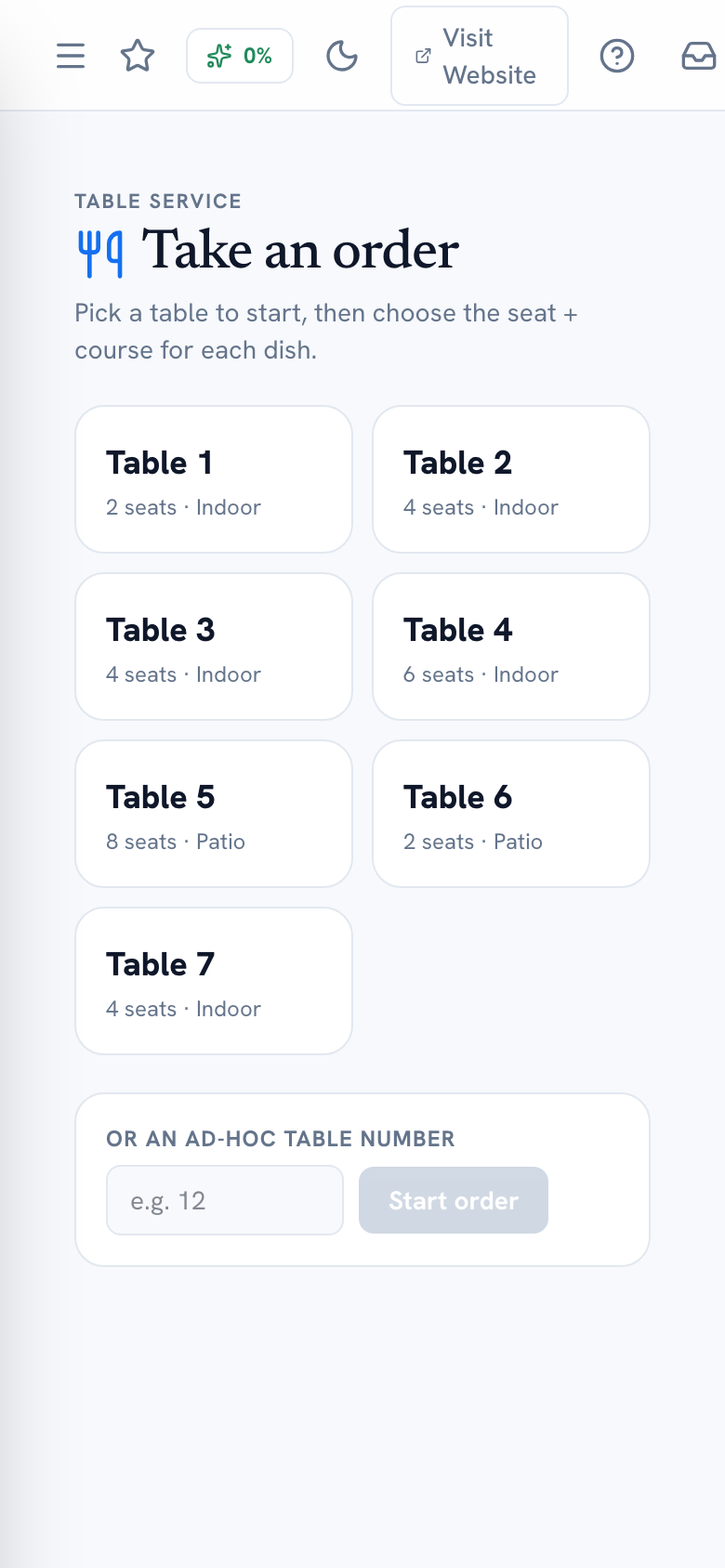
Tap into Take an order and pick the table you just opened (or type its number if it's an overflow table not in the grid). Set the party size if it wasn't already right, and you're into the order builder.

Take Order table picker with a grid of tables — web view
Take Order table picker with a grid of tables — mobile view
Mobile view
Picking Table 4 to start building its order.

Step 4 — Add dishes by seat and course

Take Order → the order builder

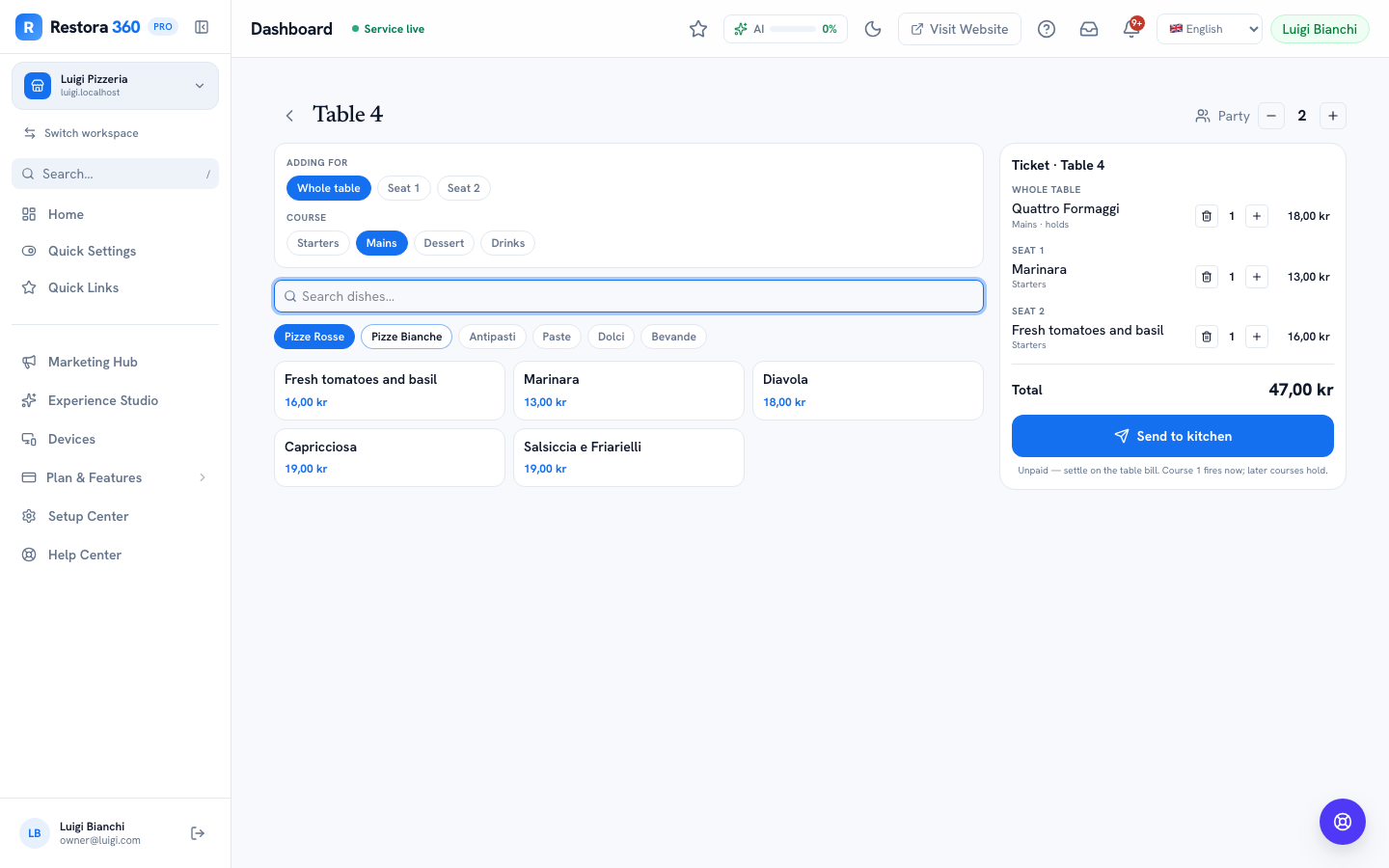
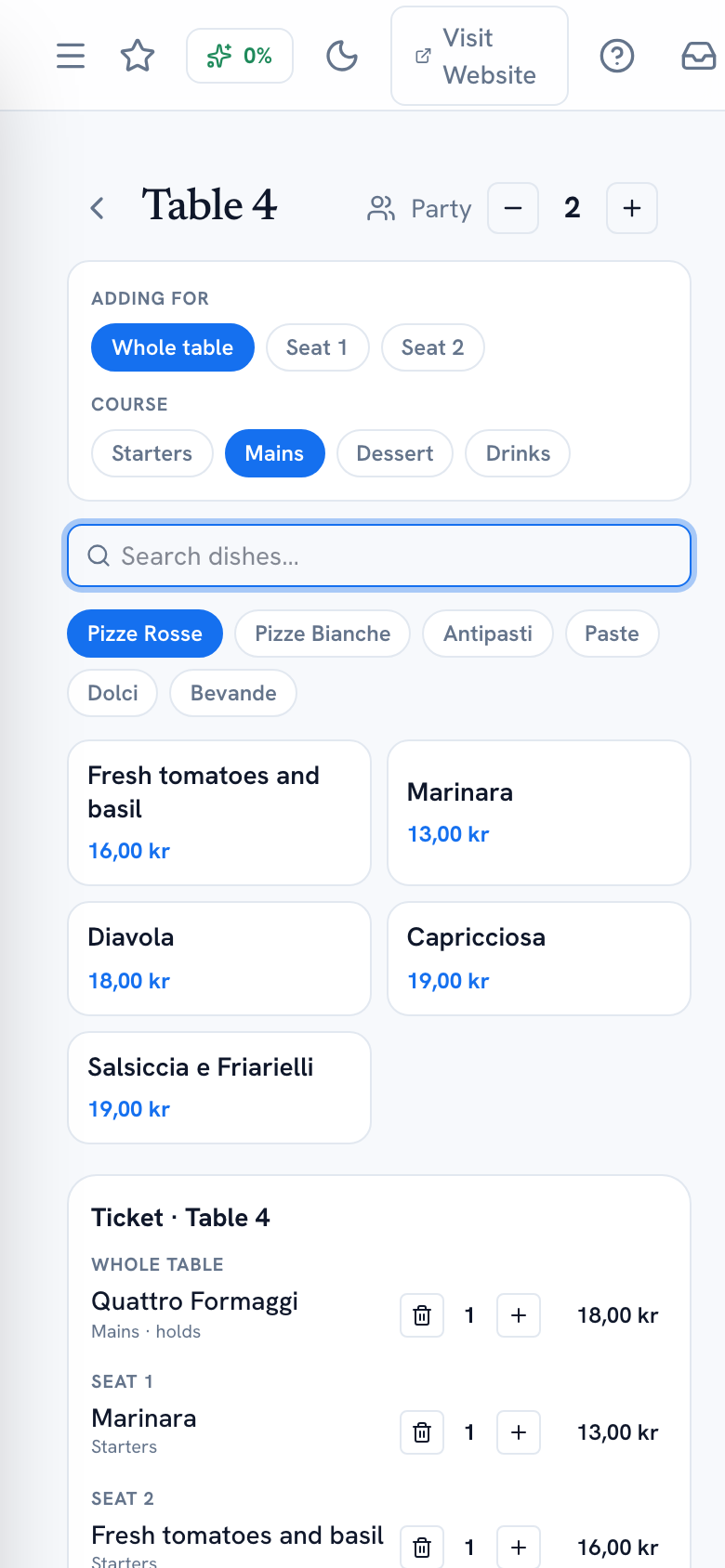
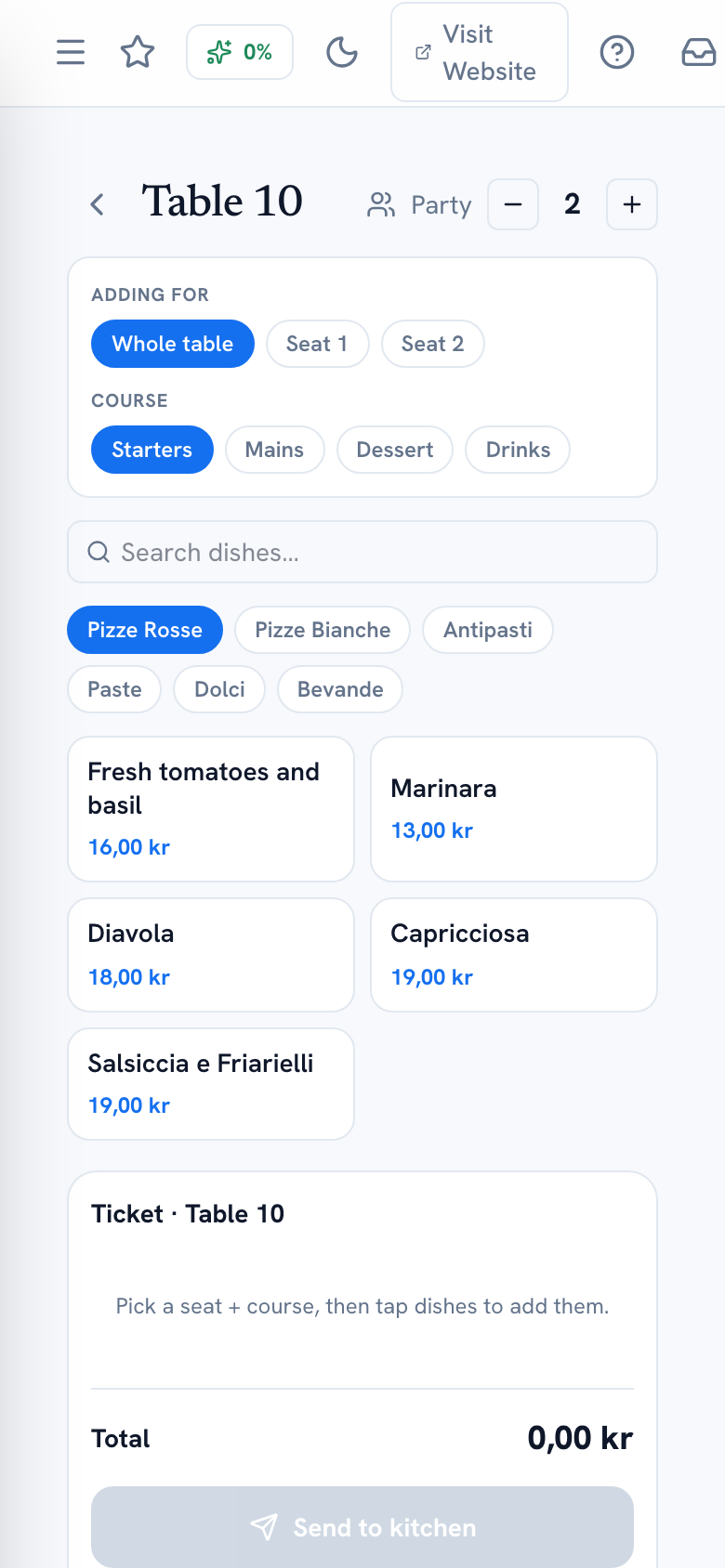
For each dish, choose who it's for — the whole table, or a specific seat (Seat 1, Seat 2…) — and which course it belongs to (Starters, Mains, Dessert, Drinks). Then search or tap through the category tabs to add it to the ticket. The running cart on the side shows everything grouped by seat, with quantities and the total so far.

If a guest has an allergy or a favourite you should know about, the optional Guest Card lookup on this screen can surface it before you order for them — a small allergen shield warns you if something you're about to add conflicts with what's on file.

Take Order builder with a cart grouped by seat and course — web view
Take Order builder with a cart grouped by seat and course — mobile view
Mobile view
Table 4's order so far: starters for two seats, mains held for later.

Step 5 — Send it, course by course

Take Order → Send to kitchen

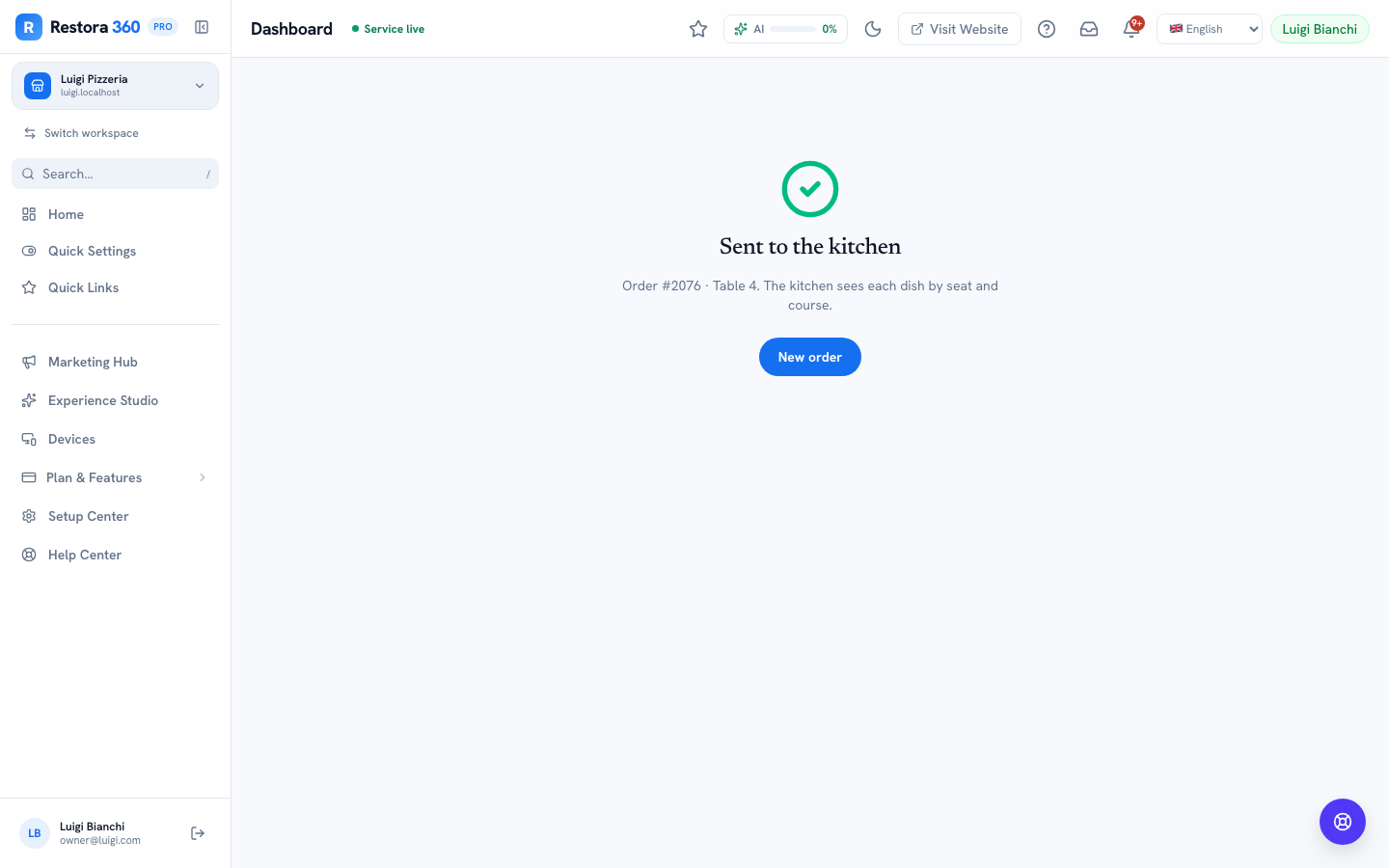
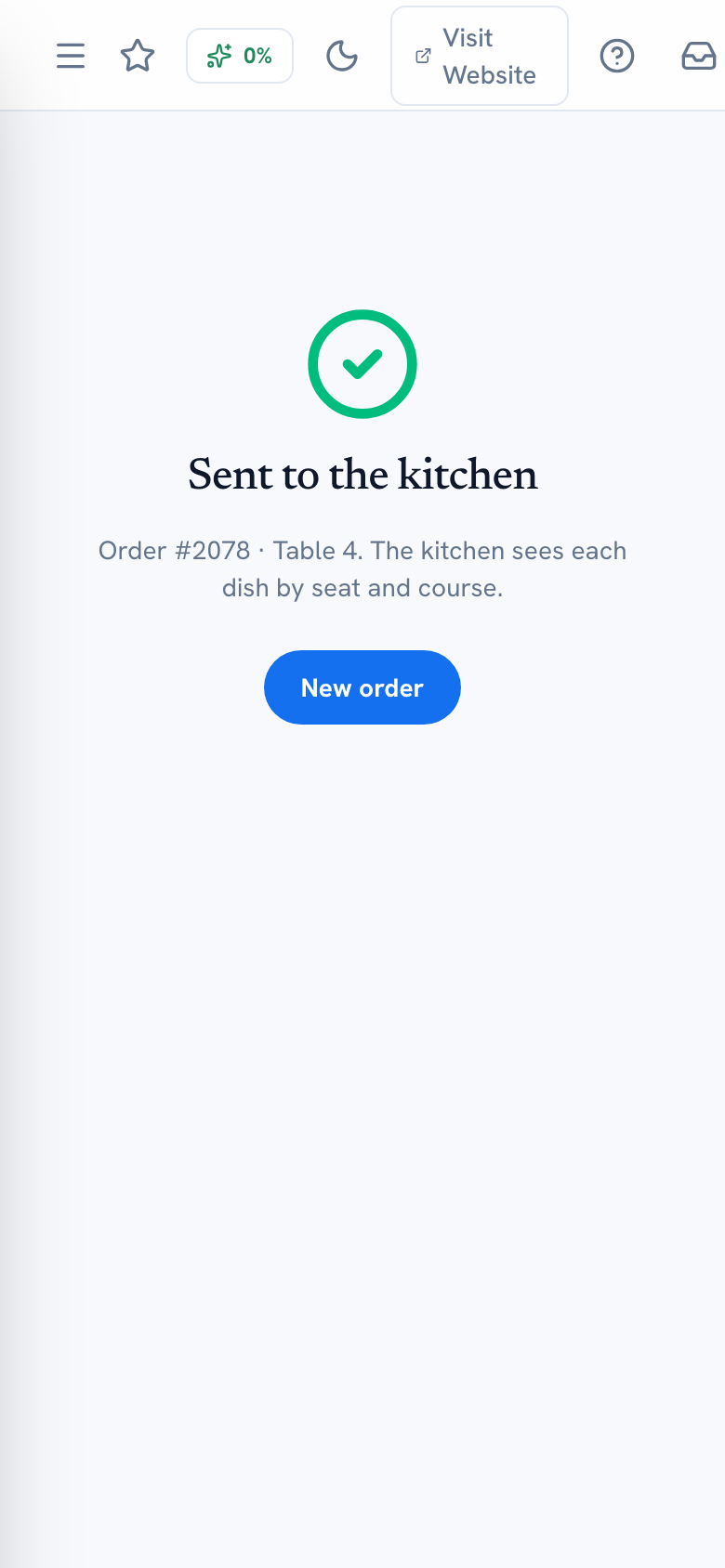
Starters go to the kitchen the moment you send them. Later courses (mains, dessert) are held — they don't print or fire in the kitchen until you send that course too, so the pass isn't drowning in every plate for the whole meal at once. When it goes through, you'll see "Sent to the kitchen" with the order number.

Tap "New order" from that confirmation to jump straight into the next table — nothing carries over by accident.

Order confirmation screen showing "Sent to the kitchen" — web view
Order confirmation screen showing "Sent to the kitchen" — mobile view
Mobile view
Table 4's starters are away — mains wait until you send that course.

Step 6 — If the Wi-Fi drops

Take Order (automatic)

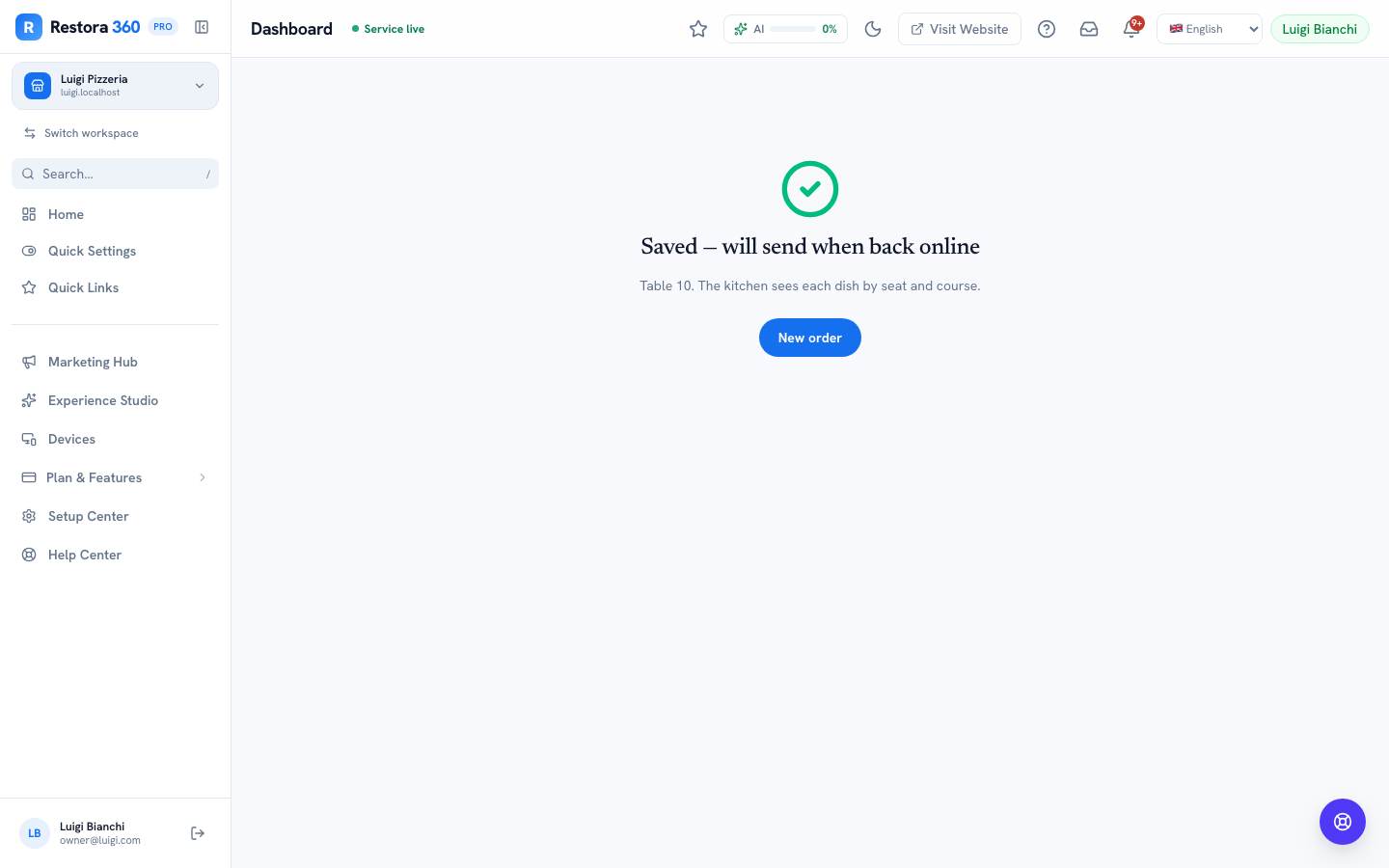
Keep ordering as normal even if the connection blips. The screen tells you it saved the ticket and will send it the moment you're back online — nothing is lost, and you don't need to re-type anything once the connection returns.

Order confirmation showing "Saved — will send when back online" — web view
Order confirmation showing "Saved — will send when back online" — mobile view
Mobile view
The connection dropped mid-send — the ticket is queued, not lost.

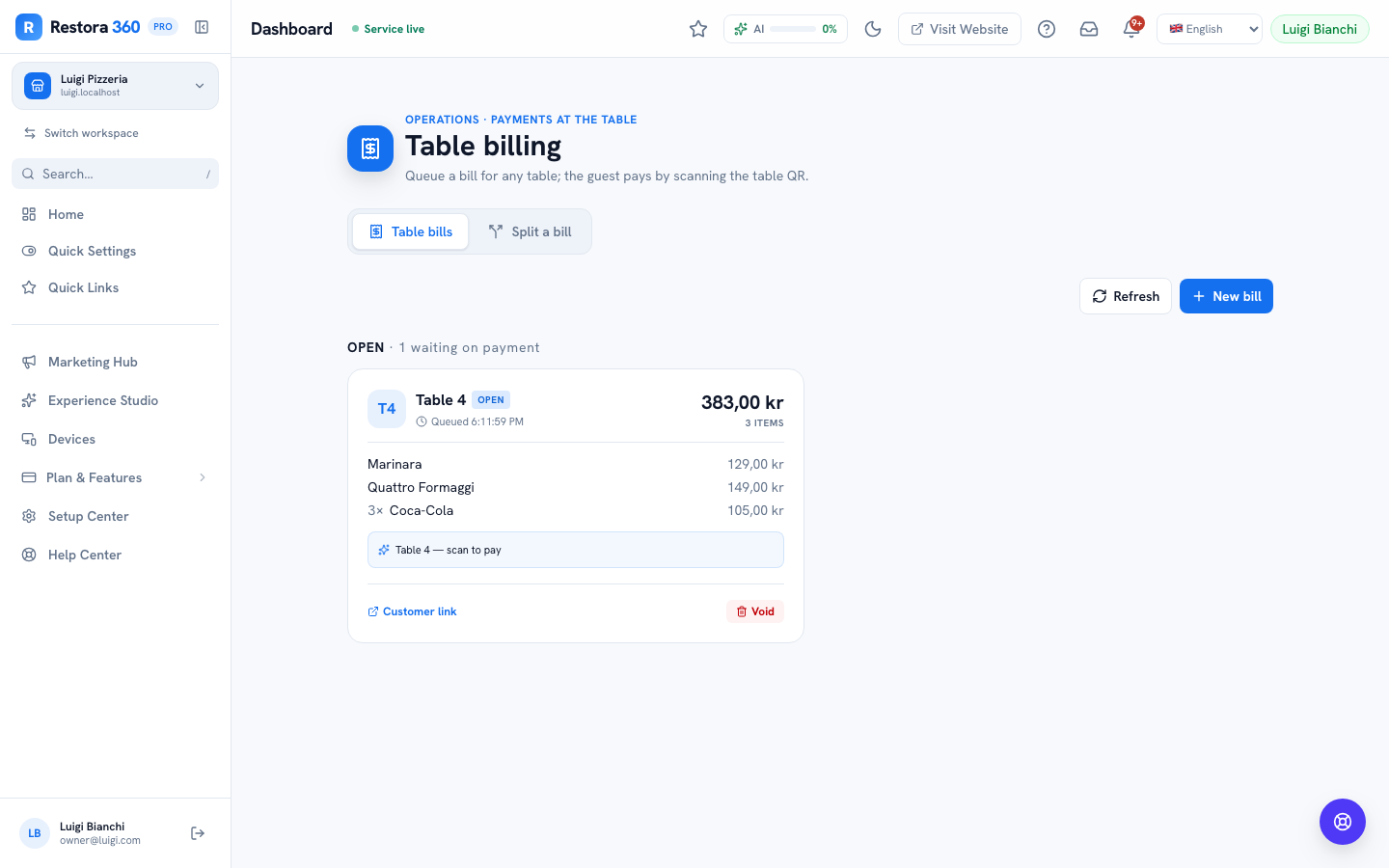
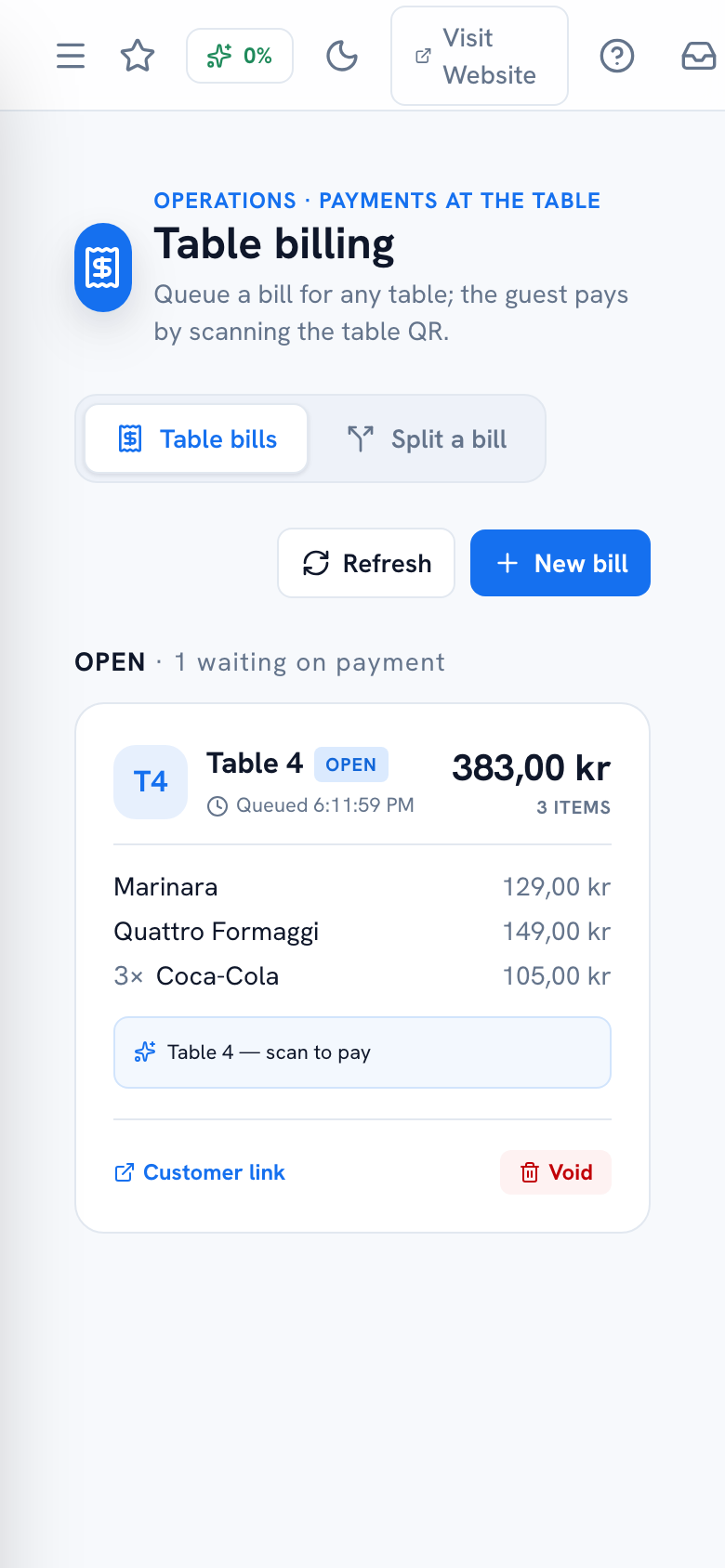
Step 7 — Build or check a table's bill

Dashboard → Table Billing → Table bills

Once a table's ready to pay, their orders are waiting on Table Billing. If anything needs adding by hand (a round that never went through Take an order), do it here — item, quantity, price. You can also queue the bill so the guest pays it themselves by scanning the table's QR code, instead of you carrying a card reader over.

Made a mistake before it's paid? Void the line — it's recorded, not silently deleted.

Table Billing page, Table bills tab, with a bill being built — web view
Table Billing page, Table bills tab, with a bill being built — mobile view
Mobile view
Table 4's bill, ready to settle or hand to the guest to pay by QR.

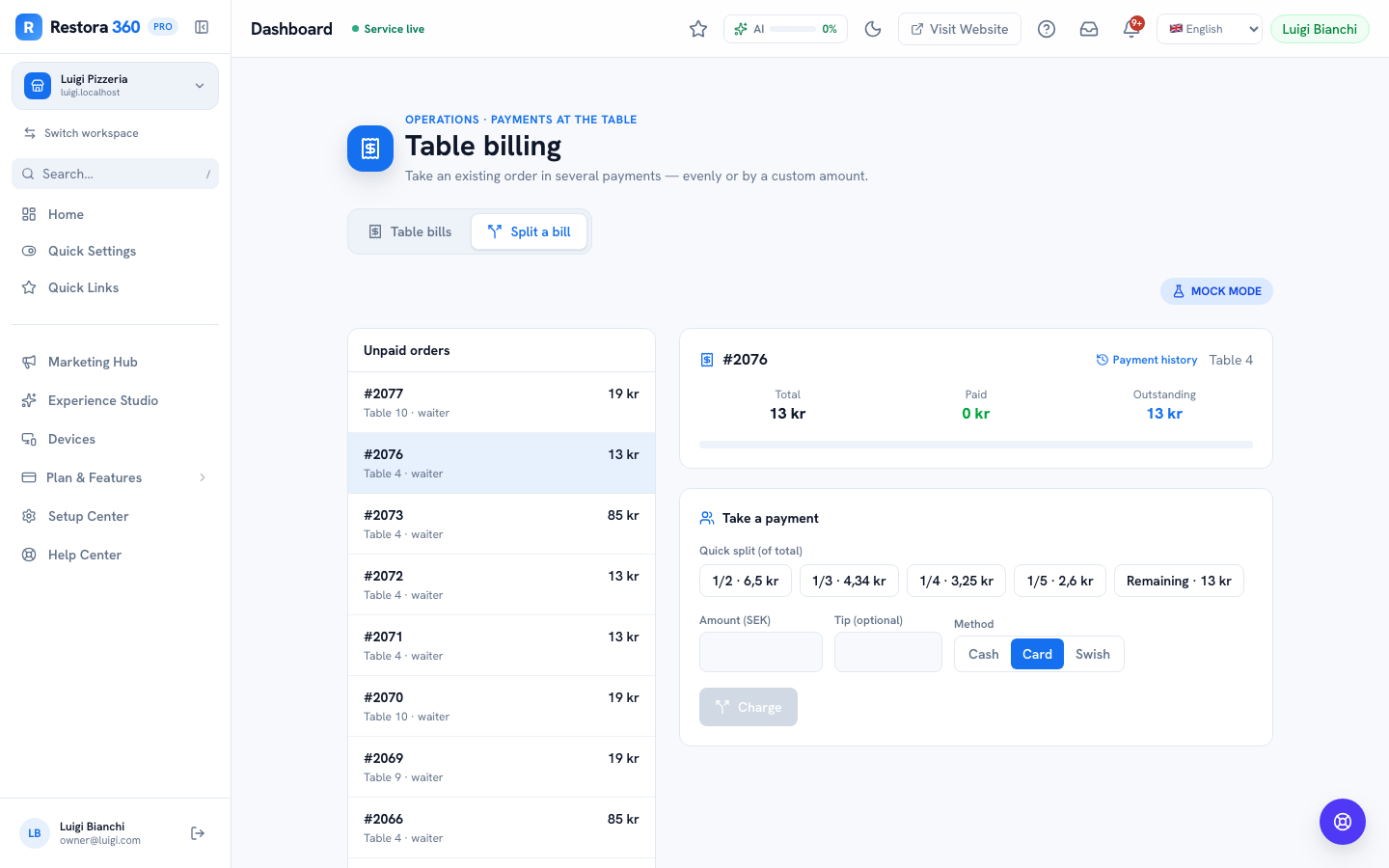
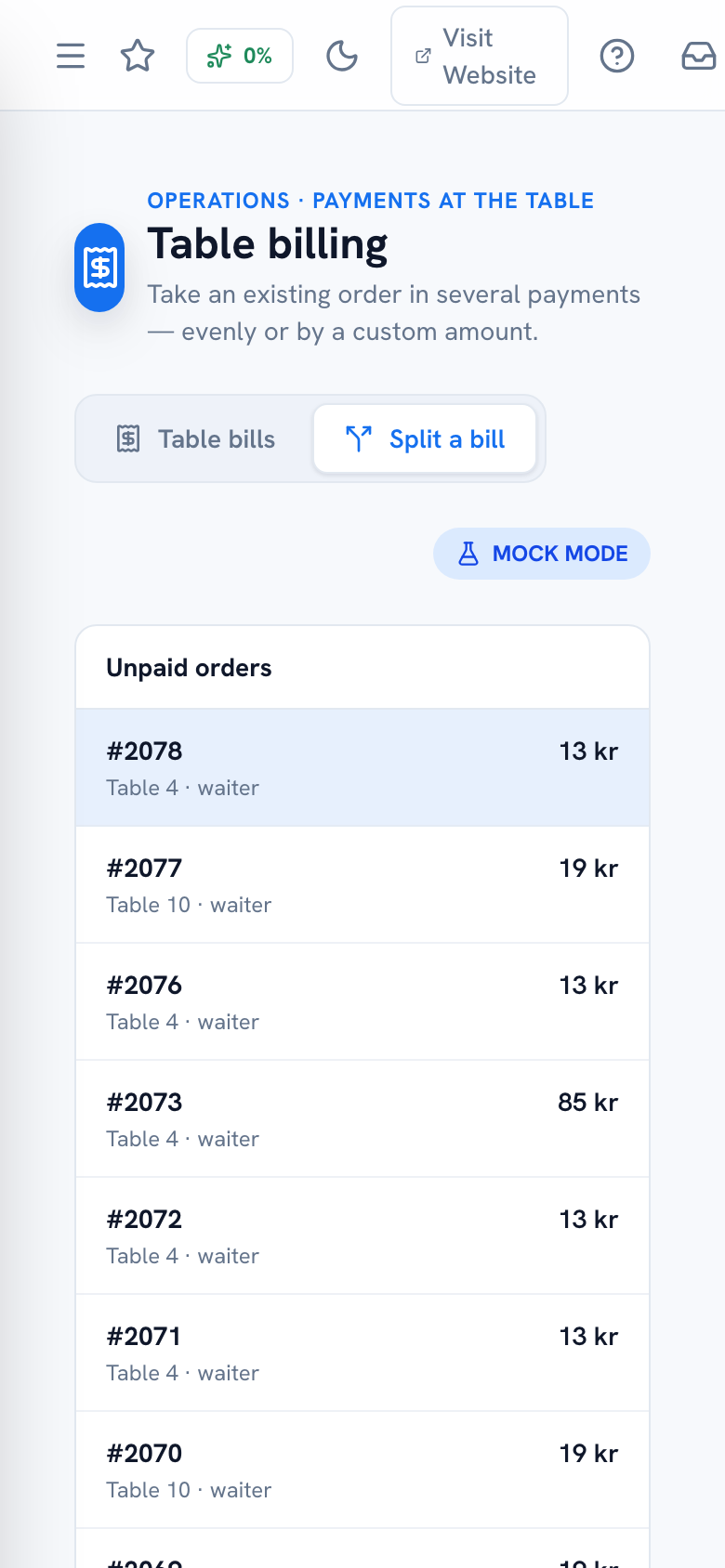
Step 8 — Split the bill and take payment

Table Billing → Split a bill

Pick the table's order, then tap an even-split chip (2, 3, 4 or 5 ways) or type a custom amount for each guest's share. Choose their tender — cash, card or Swish — add a tip if they leave one, and charge it. Repeat for each guest until the whole bill is settled.

One honest limit worth knowing: this screen only splits evenly or by a custom amount — it can't split "who had what" automatically. If a big table wants an exact per-item split, that finer tool lives on the Android POS device, not here.

Split a Bill panel with even-split chips and a custom amount field — web view
Split a Bill panel with even-split chips and a custom amount field — mobile view
Mobile view
Splitting Table 4's bill three ways — each guest pays their own share.

Step 9 — Let the guest pay themselves

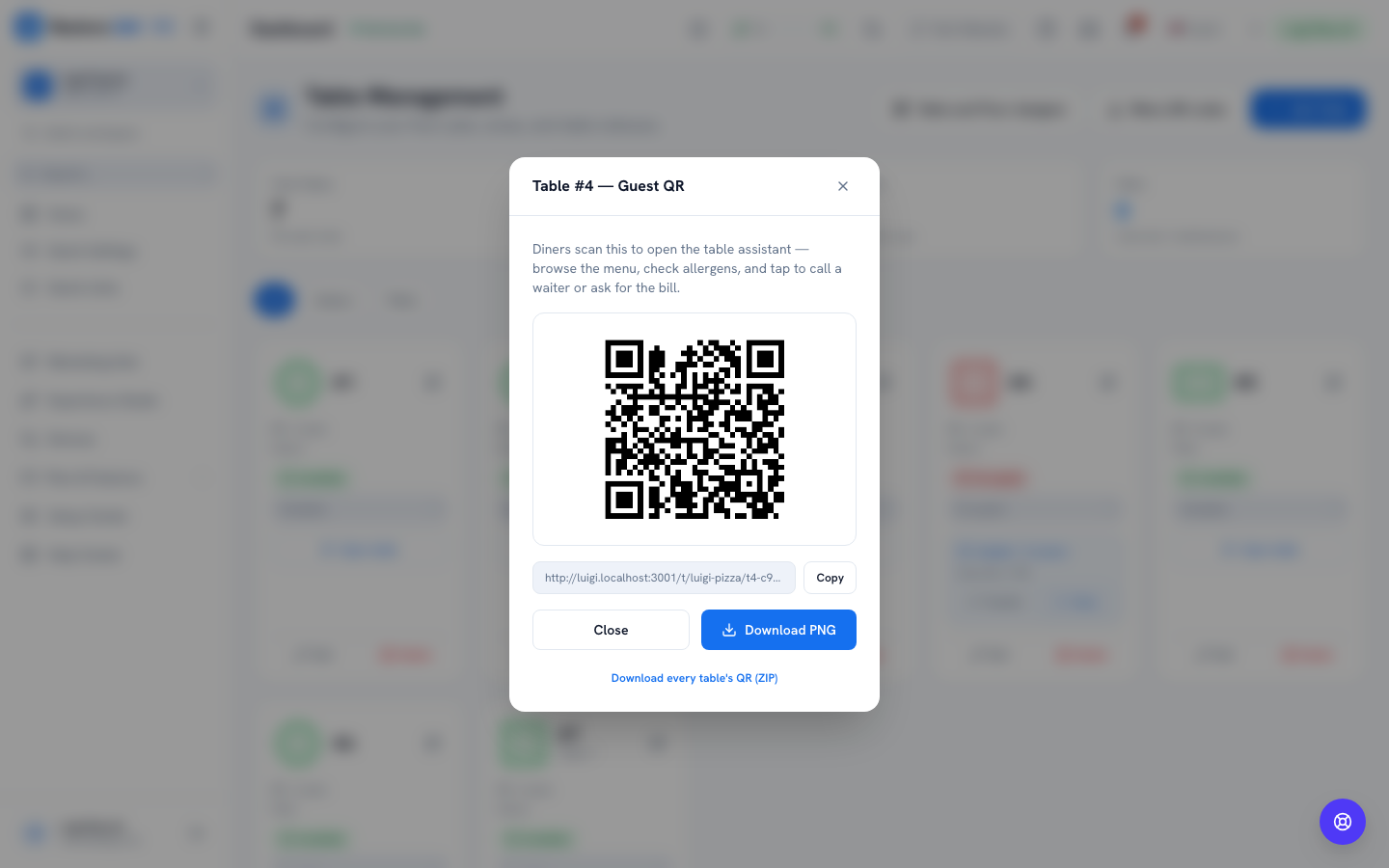
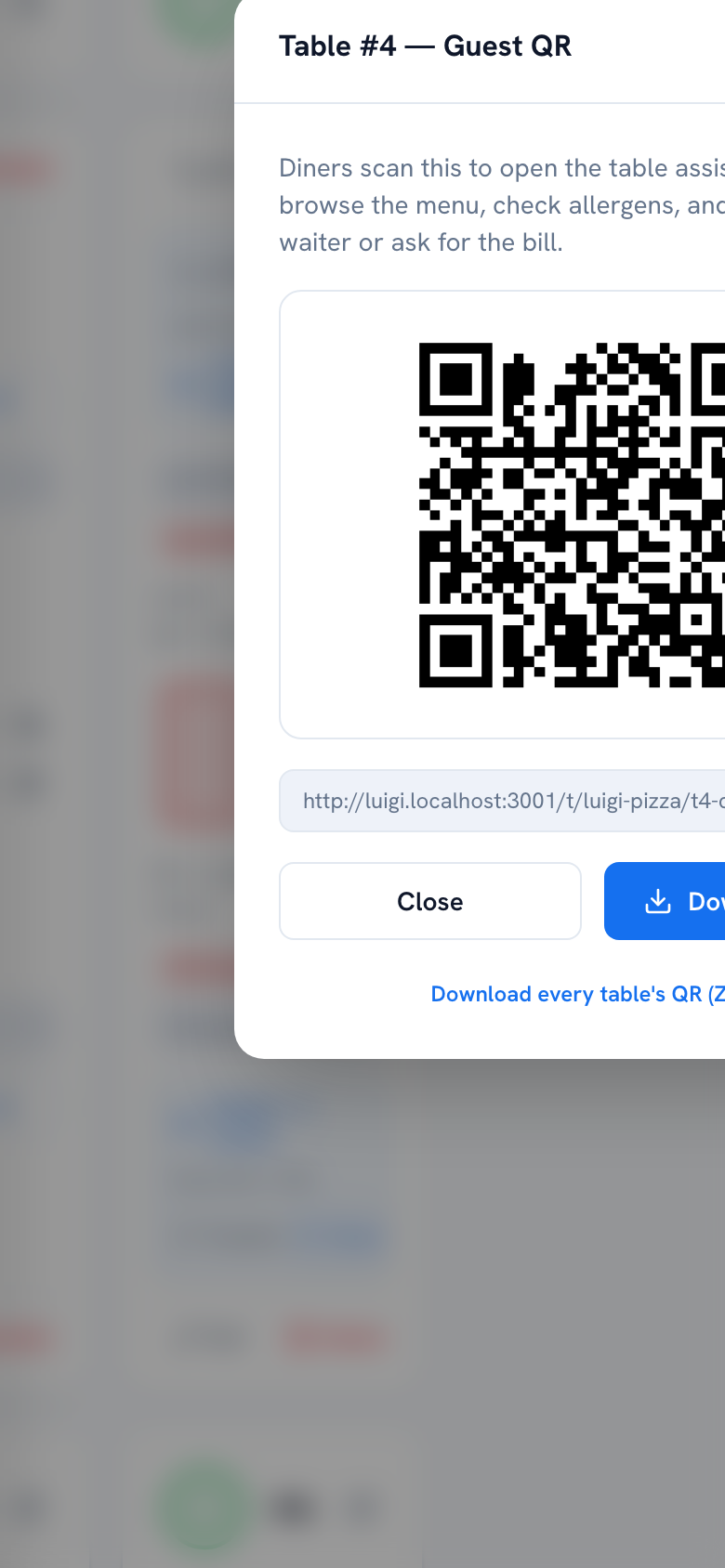
Tables → the table's QR

If you've queued their bill on Table Billing, a guest can scan the same QR code that's already on their table to bring up the menu page and pay directly from their phone — no waiting for you to swing back with a reader. It's the same QR you'd print or hand them at any point during the meal.

Guest QR code for a table — web view
Guest QR code for a table — mobile view
Mobile view
Table 4's QR — scan to pay the queued bill without waiting for a waiter.

Step 10 — Working the bar: tabs, fast-pour and rounds

Dashboard → Bar

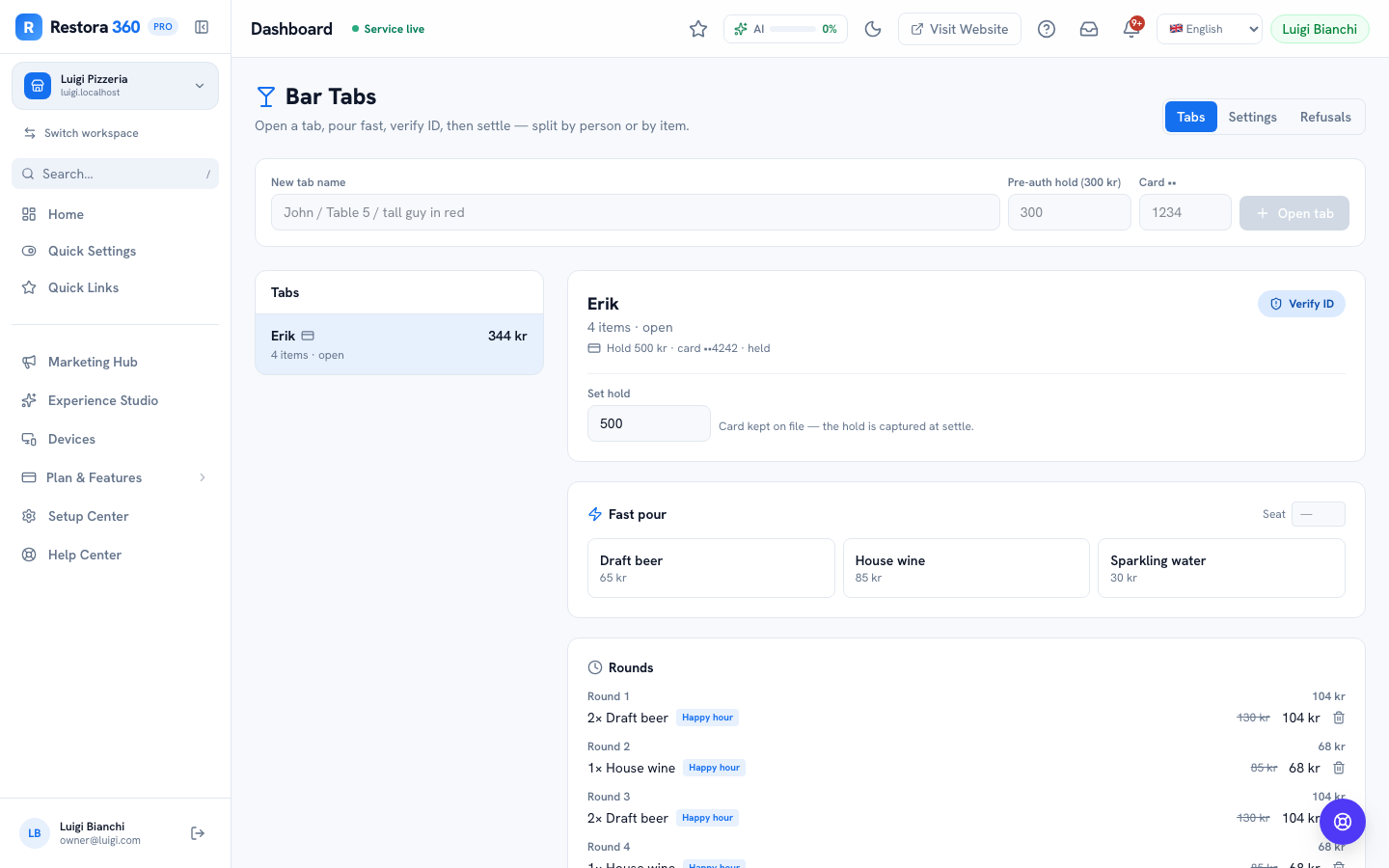
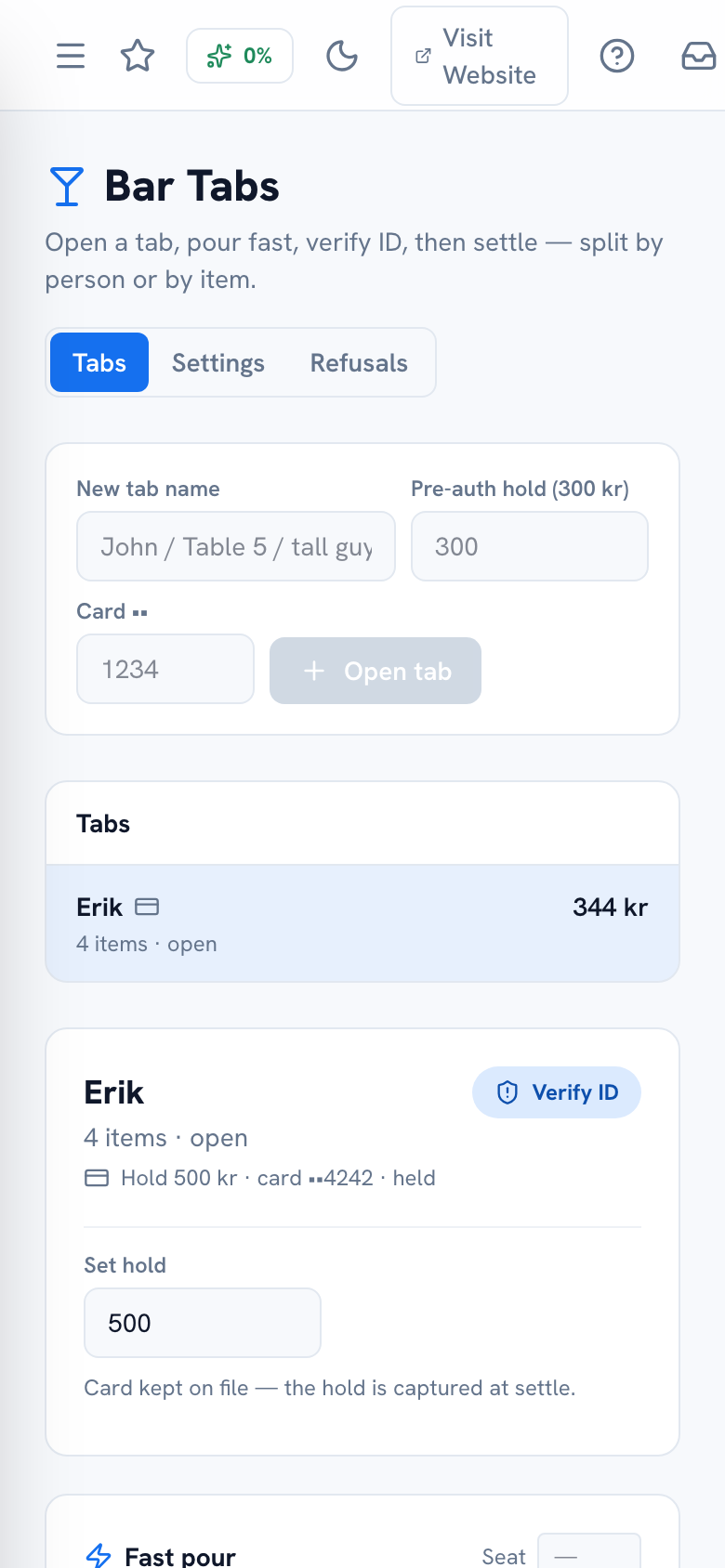
If you're on the bar, open a tab for each guest or group instead of a table — a name or description is enough, plus an optional pre-authorization on their card so an open tab never walks. Pour from the fast-pour grid for your regular drinks; everything you add groups into a "round," so a tab reads the way a bar tab should, round by round.

Bar Tabs page with an open tab and a pre-auth hold — web view
Bar Tabs page with an open tab and a pre-auth hold — mobile view
Mobile view
A tab open at the bar, ready for the first round.

Step 11 — Checking ID

Bar → a tab → Verify ID, and Bar → Refusals

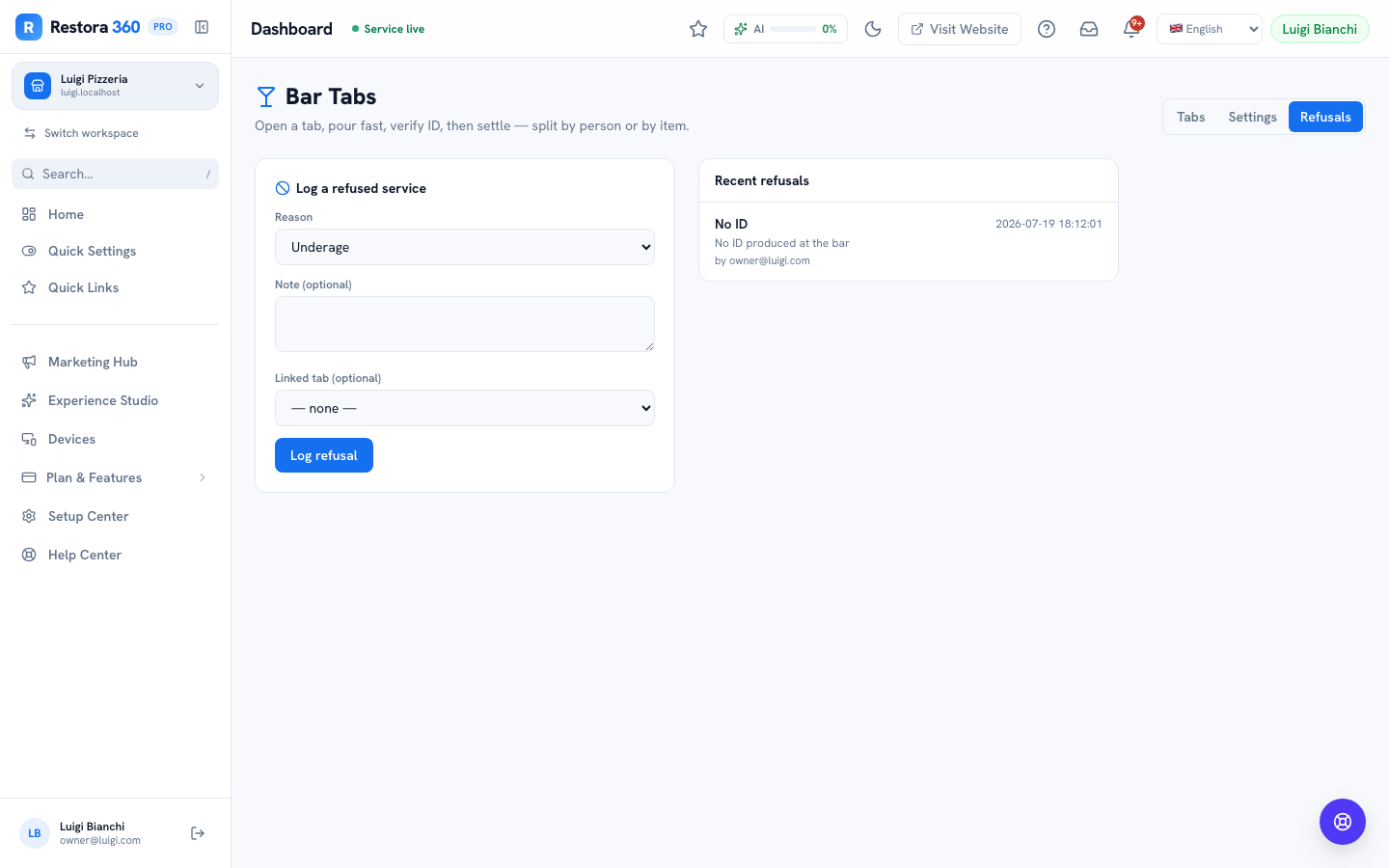
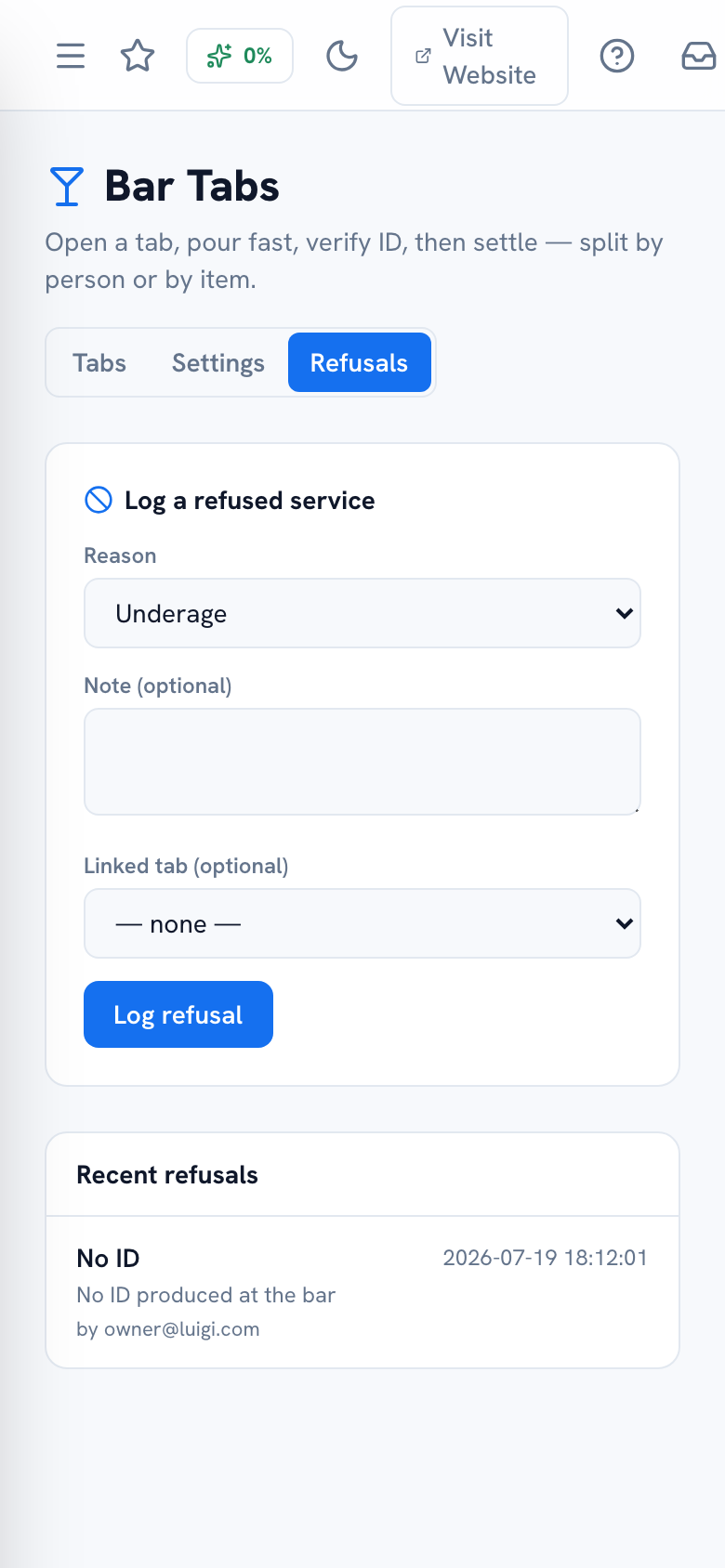
If a tab needs age verification before it can be poured or settled, mark it verified once you've actually checked ID — don't skip it to save time, since some tabs are locked from settling until it's done. If you have to turn someone away, log it in Refusals with a reason. It takes ten seconds and it's the record that has your back later.

Bar Refusals log listing declined service entries — web view
Bar Refusals log listing declined service entries — mobile view
Mobile view
A logged refusal — reason, time and who logged it. Ten seconds, and it's on record.

Step 12 — Transfer or close out a table

Tables → a table → Transfer / the table closes itself once paid

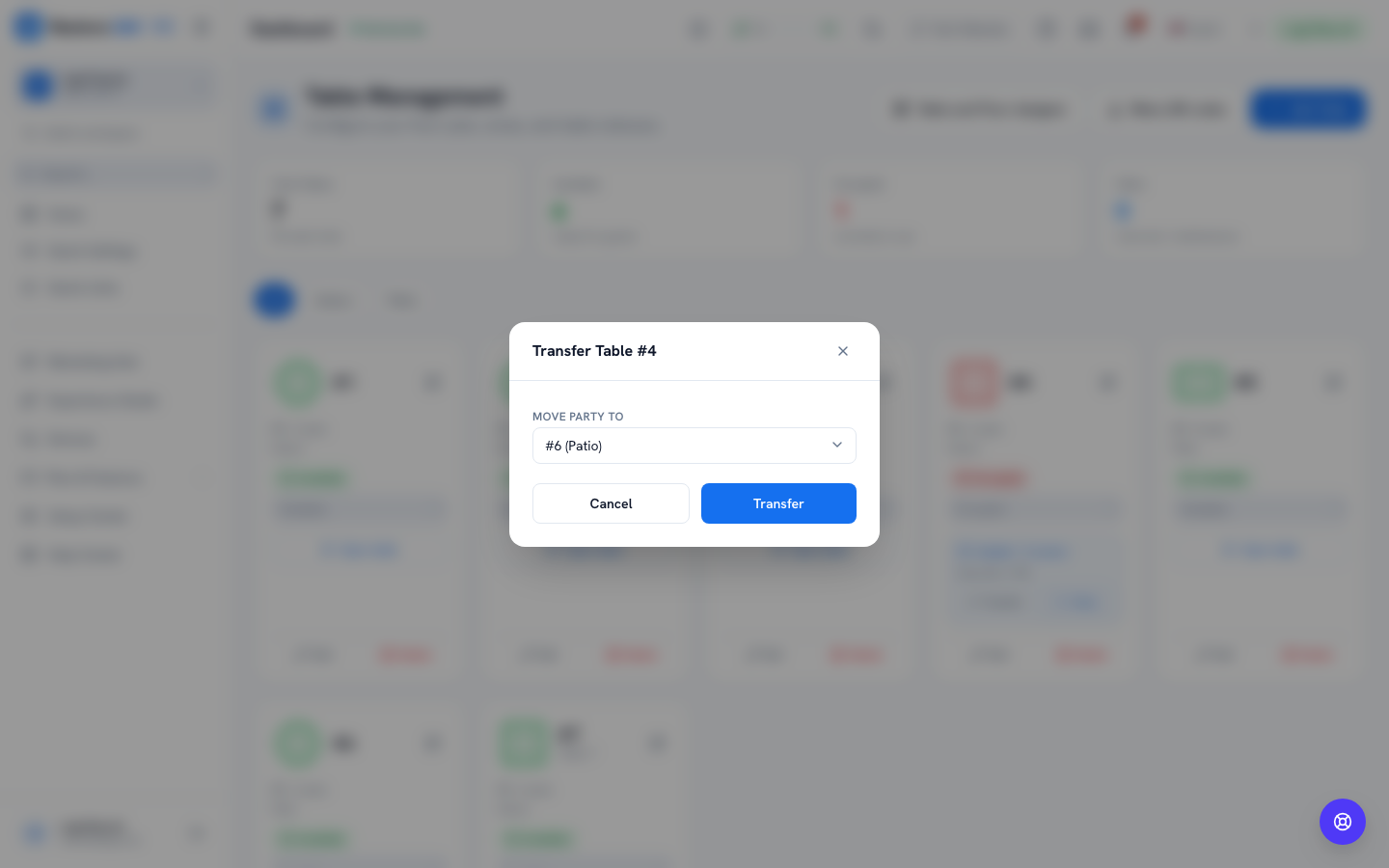
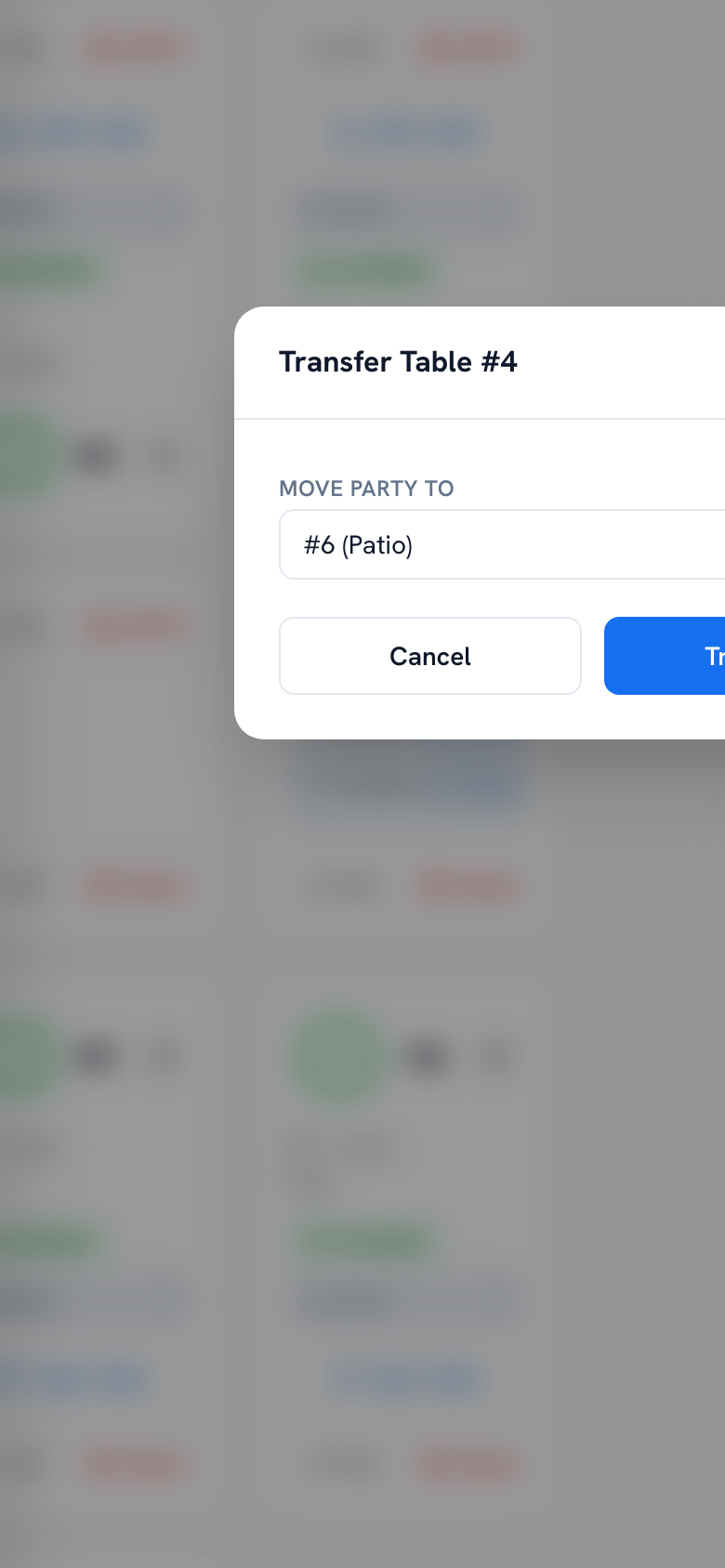
A party needs to move mid-meal (a bigger table opened up, or they asked for the patio)? Use Transfer — it carries the open order and session to the new table, nothing needs re-entering. Once a table's bill is fully paid, the table frees itself back to available for the next guests.

Transfer Table dialog showing available tables to move a party to — web view
Transfer Table dialog showing available tables to move a party to — mobile view
Mobile view
Moving Table 4's party to the patio — their order and tab move with them.

Step 13 — End of shift: cash and handover

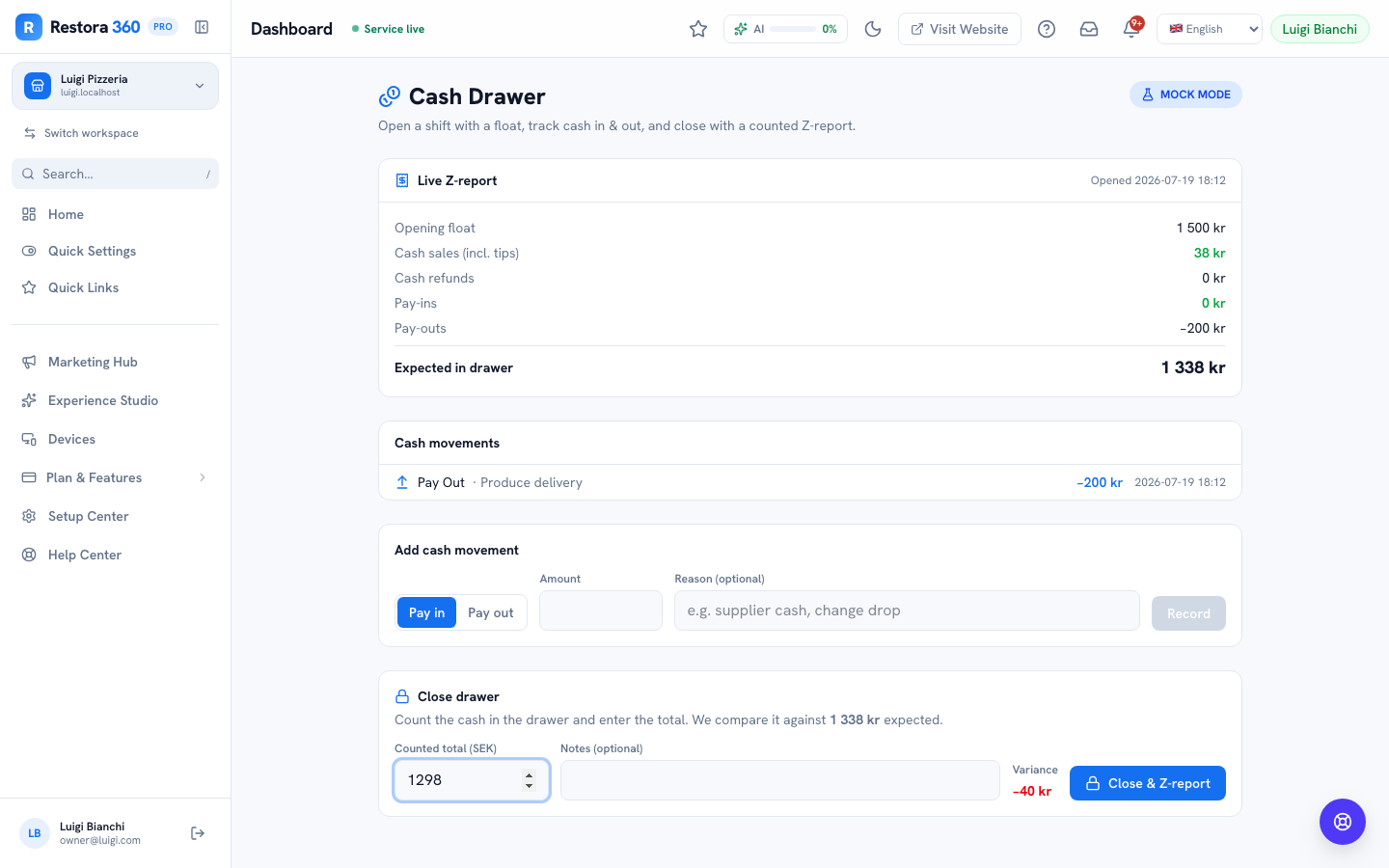
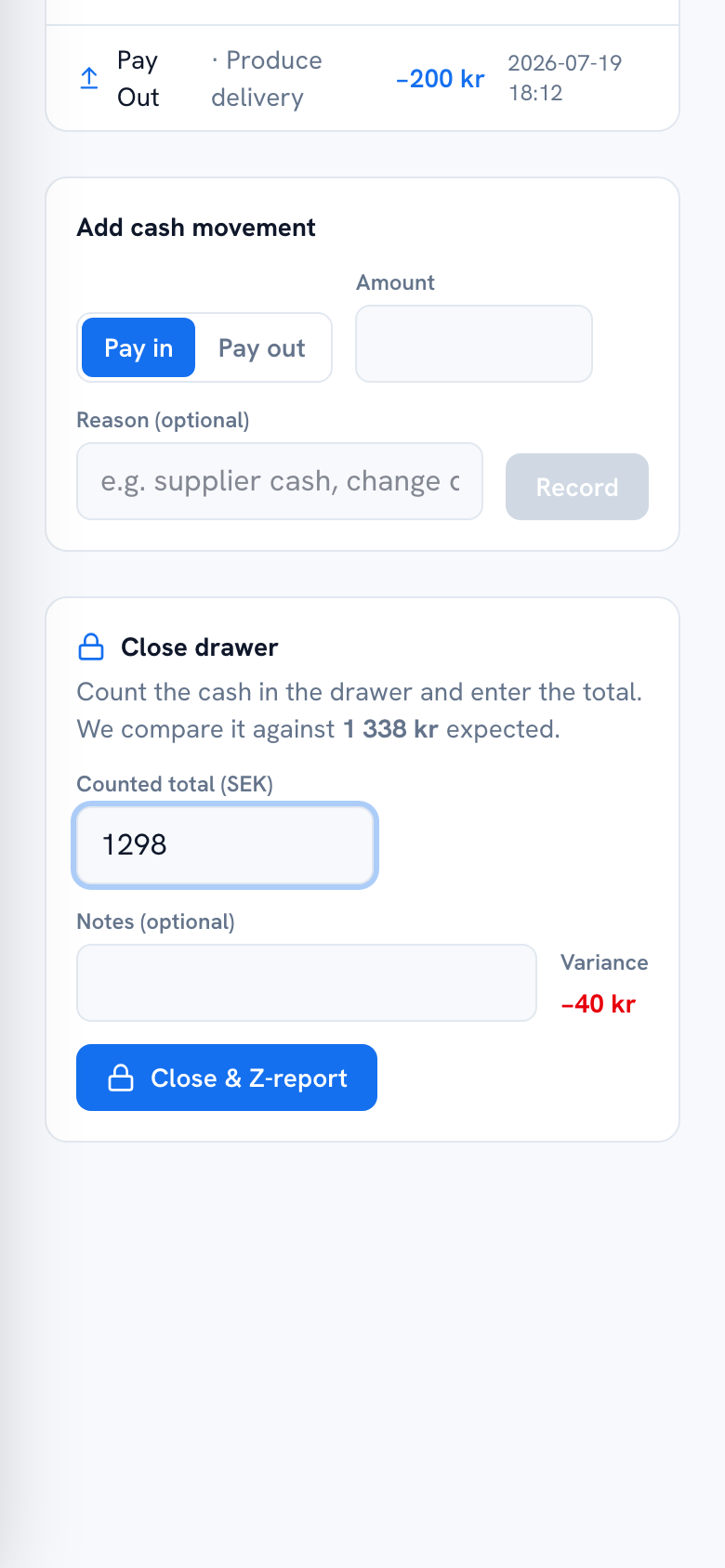
Dashboard → Cash Drawer (if you handle the till)

If you're also closing the till, count the physical cash and enter it against the shift's expected total — the screen shows you the variance before it's final, so you know immediately if something's off rather than finding out tomorrow. If you're handing the drawer to the next shift instead of closing it, that's a floor conversation — walk them through any pay-ins or pay-outs you logged.

Cash Drawer close dialog showing counted total and variance — web view
Cash Drawer close dialog showing counted total and variance — mobile view
Mobile view
Closing out at the end of the night — counted against expected, before it locks in.

Looking for the Swedish fiscal rules?

Kassaregister, receipt requirements, X/Z-reports and what a Skatteverket control visit actually looks like are covered in depth in the owner/manager PoS guide's legal chapter— not repeated here since it's the same rules either way.

Chapter 3

Real-world scenarios, handled

Ten situations you’ll actually run into on the floor — what the system does on its own, and what you do.

You forgot to send an order to the kitchen

Situation: You built Table 6's starters but got pulled away before tapping send.

What the system does: Nothing fires at the kitchen until you actually send it — an unsent cart just sits on your screen, waiting.

What you do: Go back into Take an order, pick Table 6 again, and send it as soon as you notice. Apologise to the table for the wait if it's been a few minutes — the system won't warn you on its own.

A guest adds an item after you already sent the course

Situation: Starters are already at the kitchen; the table wants one more starter.

What the system does: You can start a new addition to the same table at any time — it doesn't undo or resend what already fired.

What you do: Add just the new item and send it — it goes to the kitchen as its own ticket for that course, without touching what's already cooking.

A big party wants to split by exactly what each person ordered

Situation: Eight guests, each wants to pay for exactly their own dish.

What the system does: The Split a Bill screen you have on your phone only offers even shares or a custom amount — no item picker.

What you do: Flag a manager or grab the Android POS device if the venue has one — its Split Bill screen lets you check off exactly which items each guest is paying for.

A guest disputes an item on the bill

Situation: "I didn't order the extra side."

What the system does: The bill only shows what was actually sent from Take an order — if it's there, it was rung in by someone at some point.

What you do: Check the order together on the bill screen. If it really was a mistake, void the line before charging (or ask a manager to refund it if it's already paid) — don't just take their word and adjust cash by hand.

The payment terminal is offline

Situation: You go to tap a card and the terminal shows no connection.

What the system does: The fleet status a manager sees would show this terminal offline right away.

What you do: Try another paired terminal if one's free, take cash or Swish instead, or flag a manager — a dead terminal is a five-minute fix (reconnect Wi-Fi or swap devices), not a stuck table.

A guest leaves before paying

Situation: A table gets up and walks out mid-service, bill unpaid.

What the system does: The order stays open on the table's bill exactly as it was — nothing auto-cancels it.

What you do: Tell a manager immediately — they can decide whether to chase it, write it off, or (for a bar tab with a pre-auth hold) capture what was authorized.

You need a manager to void something

Situation: An item needs voiding after it's already been charged.

What the system does: Refunding or voiding a paid item is gated to owners and managers on purpose — it's not a button on your screen.

What you do: Flag it to whoever's managing the shift. They'll issue the refund from the Payments screen — a reason is optional, but it's on record either way.

The receipt printer is out of paper

Situation: A guest wants a paper receipt and the printer's jammed or empty.

What the system does: The receipt itself — the numbering, the VAT breakdown — doesn't depend on paper; it's generated the same way whether it prints or not.

What you do: Offer to email it instead, or fix the printer if it's a quick paper swap. The guest's payment already went through either way.

A guest wants the receipt emailed, not printed

Situation: "Can you just send it to my email?"

What the system does: The same receipt that would print is available to send electronically from the payment screen.

What you do: Take their email and send it from there instead of printing — same receipt, same numbering, no paper needed.

Multiple tables need you at once during a rush

Situation: Three tables all want to order or pay at the same moment.

What the system does: Nothing about the system forces you to finish one table before starting another — Take an order and Table Billing both let you move between tables freely.

What you do: Triage: fire drink orders and starters first (they're quick wins), settle any table that's just waiting to pay, and come back to the rest — the tools don't slow you down, but they also don't do the triage for you.
Questions & answers

Frequently asked questions

Do I need to clock in before I can take orders?

Clocking in and taking orders are separate systems, so nothing technically blocks you — but you should always clock in first, since your hours and any per-server reporting only count from your clock-in. See the Staff & Shifts guide for the full clock-in walkthrough.

What happens when I tap "Send to kitchen"?

Whatever course you're sending goes straight to the kitchen's display. The first course fires immediately; later courses you've added are held and only fire when you send that course too, so the kitchen doesn't get flooded with every dish for the whole meal at once.

Can I add items after I've already sent an order?

Yes — go back into Take an order for that table and add more. It sends as its own addition without touching what already fired at the kitchen.

What does it mean when a course is "held"?

It means the kitchen hasn't seen it yet — you've added it to the ticket, but it only fires and prints at the kitchen once you send that course. This keeps starters, mains and dessert arriving in the right order instead of all at once.

Can I split a bill exactly by what each guest ordered?

Not from your phone — the Split a Bill screen only offers even shares or a custom amount. Exact per-item or per-seat splitting lives on the Android POS device, if your restaurant has one; ask a manager if a table needs it.

Can I issue a refund myself?

No. Refunds and voids on anything already paid are gated to owners and managers, and always logged — with an optional reason. You can still void an unpaid line on a bill before it's charged.

What if I lose Wi-Fi mid-order?

Keep going — the screen tells you it saved the ticket and will send it automatically the moment the connection is back. You don't need to re-enter anything.

How do I know which tables are mine?

Table Management shows every table's status and area at a glance — your manager typically assigns sections by area (dining room, patio, bar), so check which area you're covering before service.

Do I have to open a table before I can order for it?

Yes — opening the table (with the party size) creates the session that the order and the eventual bill attach to. It takes a few seconds as the guests sit down.

Can I see my own tips from a shift?

Yes, but not on this screen — your tips, hours and sales for the day live in the worker portal's Today tab, covered in the Staff & Shifts guide.

What happens if my phone battery dies mid-order?

Anything you already sent to the kitchen is safe — it's on the server, not your phone. An order you were still building but hadn't sent yet is lost when the device dies, so it's worth sending a course as soon as it's ready rather than building a whole meal before tapping send.

Can a guest pay without me at all?

Yes, if their bill is queued on Table Billing — they can scan the table's own QR code and pay from their phone. You'll see it settle without having to bring a card reader over.

Setting up PoS for your restaurant? Read the owner/manager PoS guide — floor plan, terminals, and the fiscal rules.
Something unanswered? Talk to a human — a real person replies within a business day.

Ready when you are

See it with your own restaurant

Everything in this guide is included in the Basic plan — 7-day free trial, no card to begin.